There are three types of cuts you can make with the use of a polygon:
- Free shape
- Circle
- Rectangle
Polygon cuts are projected through the depth of the part based on the current view perspective. Rotate the model after the cut plane is created to visualize the projection of the cut plane.
To create a polygon cut with a free shape
- Click
Modify >
 Free Cut.
- Switch to the Polygon tab.
- Click
Create Polygon
 .
.
- Click points on the display to set the corner points for the cutting plane. After your third point is set, a cut plane is created. Subsequent points are connected to the nearest two corner points.
- Enable the
Add Tolerance Spacing check box to add an offset to the cut plane.
- Choose between Inside, Outside, or Both Sides for the offset location.
- Enter a value for the tolerance spacing between the offset plane and the original plane.
- Enable the Create Round Corners check box to round the corners of the cut plane. Adjust the value of the corner radius to adjust how rounded the corners become.
- Click Cut to complete the cut.
You can save and load existing cut planes on the Load/Save tab to reuse the same geometry.
To edit a free cut edge
The edges of free cuts can be edited to create dove tail, jagged, or puzzle shaped edges.
- After a free cut plane is created, click
Edit Edge
 .
.
- Select the Count radio button to determine how many edge features are created on each edge or select the Distance radio button to determine the spacing between the edge features.
- Select a Pin Type from the drop-down menu. Available options are:
- Dove tailed
- Jagged
- Puzzle
- Edit the dimensions of the selected pin type as required.
- Click Apply to preview and produce the edited edge.
- Click OK to close the dialog.
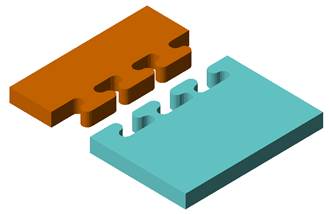
Box cut by puzzle pins
To create a polygon cut with a circle
- Click
Modify > Free Cut.
- Switch to the Polygon tab.
- Click
Create Circle
 .
.
- Click a point in the display to create a circle. The center of the circle is positioned at this location.
Note: You can drag the center of the circle or click a new point on the part to adjust the positioning of the circle.
- Adjust the radius of the circle as desired.
- On the Borders tab, enable the
Add Tolerance Spacing check box to add an offset to the cut plane.
- Choose between Inside, Outside, or Both Sides for the offset location.
- Enter a value for the tolerance spacing between the offset plane and the original plane.
- Click Cut to complete the cut.
To create a polygon cut with a rectangle
- Click
Modify > Free Cut.
- Switch to the Polygon tab.
- Click
Create Rectangle
 .
.
- Click a point in the display to create a rectangle. The center of the rectangle is positioned at this location.
Note: You can drag the center of the rectangle or click a new point on the part to adjust the positioning of the rectangle.
- Adjust the length and width of the circle as desired.
- Click the highlighted corner of the rectangle to rotate the orientation of the rectangle in the plane.
- On the Borders tab, enable the
Add Tolerance Spacing check box to add an offset to the cut plane.
- Choose between Inside, Outside, or Both Sides for the offset location.
- Enter a value for the tolerance spacing between the offset plane and the original plane.
- Enable the Create Round Corners check box to round the corners of the cut plane. Adjust the value of the corner radius to adjust how rounded the corners become.
- Click Cut to complete the cut.