Add, move, or delete junctions and beams
To begin editing lattices, select the lattice to be edited, then, in the context area, click Edit lattice. For editing lattices, a number of functions is available. To show that you are currently editing a lattice, it is displayed in light blue, as opposed to dark green.
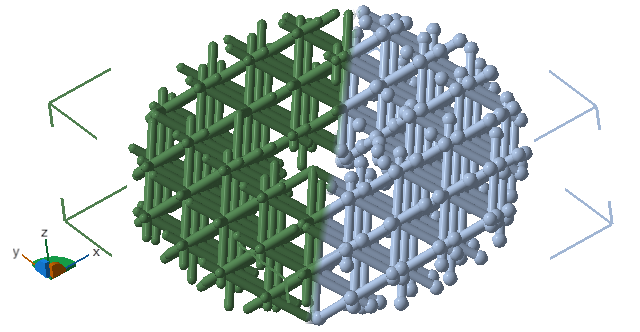
The light blue display color (on the right) of a lattice body indicates that its junctions and beams can be edited individually.
 To Select Lattice Elements
For the selection of beams and/or junctions using the mouse, a selection of filters is provided in the toolbar that can be used to restrict which type of those elements are selectable.
 Select beams and junctions
 Select beams
 Select junctions
 Select connected clusters
To Move and Delete Existing Lattice Elements
Individual junctions and beams of a lattice can be moved or deleted.
- In the project tree, select the lattice or surface lattice of a component.
- In the context area, click Edit Lattice.
- In the display, make your selection of junctions and beams as needed.
- Specify the distance of translation using the X, Y, and Z input fields in the context area to move the selected junctions, or click the
Remove button to delete the junctions and the beams that terminated in them.
Tip: Click and drag the 3-axis handle by its arrow tips to the desired position in the display, and use the Delete key to delete them
- Click Done to apply the change.
To Add New Beams
Beams can be added as extension to open beams, between selected junctions, or even between selected junctions and beams.
To add a new beam to a junction:
- Select a junction.
- Click Add.
This adds a beam. Netfabb will attempt to put the beam in free space as far away from all other beams attached to the original junction.
To add an extension:
- Select a junction at the end of an open beam.
- Click Add.
The extension will be added as a copy of the open beam.
To add a beam between junctions:
- Select two junctions.
- Click Add.
In all cases, click Done to apply any changes.
To Collapse Beams
Collapsing beams deletes all selected beams and connects the involved junctions with beams that converge in a new, single junction at the geometric center of those junctions. In addition, care is taken to avoid duplicate beams and to select the right thickness of the beam ends.
- Select at least one beam.
- In the context area, click Collapse.