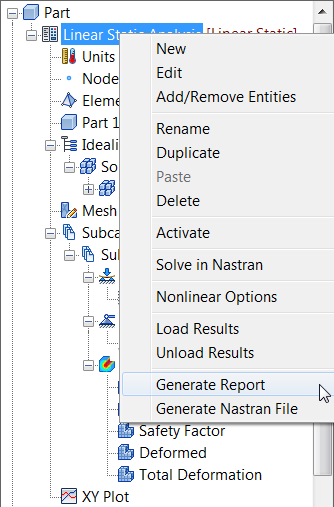
- In the tree view, right-click on the analysis name,
Linear Static Analysis, and select
Generate Report.
- Depending on your settings, the following message may appear:
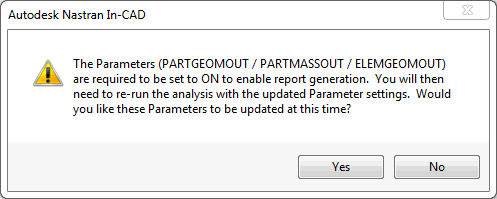
- Click
Yes.
- In the Model tree double-click on
Parameters.
- In the Parameters window, select
Geometry Processor Parameters and then select the
Advanced Settings checkbox in the lower left-hand corner. Notice that in the right column, the settings
PARTGEOMOUT,
PARTMASSOUT, and
ELEMGEOMOUT are turned
ON automatically. Click OK to close the window.
- Rerun the analysis by right-clicking on the analysis name,
Linear Static Analysis, and selecting
Solve in Nastran.
- Once again, in the tree view, right-click on
Linear Static Analysis and select
Generate Report.
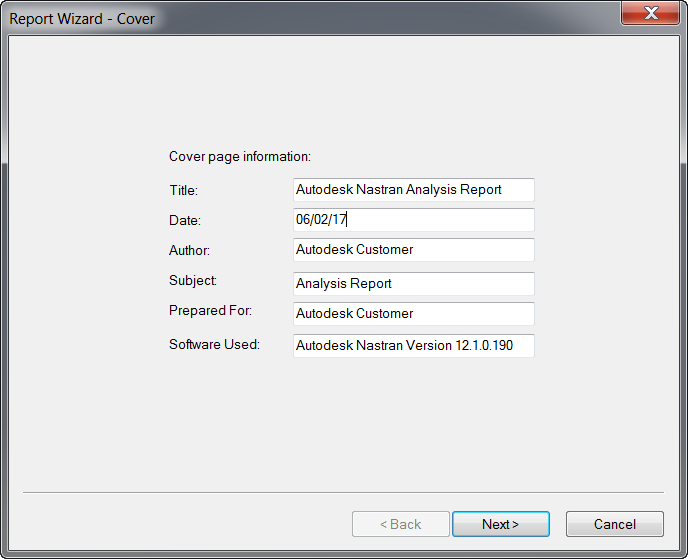
- The
Report Wizard – Cover window opens. Edit the following information:
- Title:
Linear Static Analysis Report
- Author: Your Name
- Click
Next>.
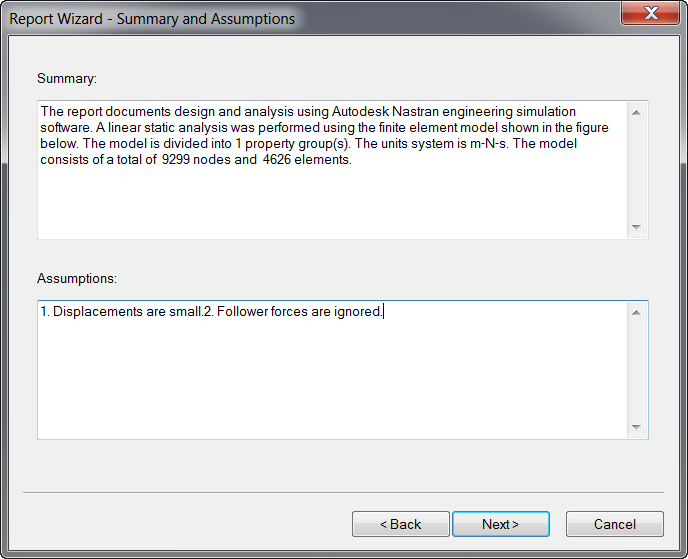
- The
Report Wizard – Summary and Assumptions dialog appears. Under the
Assumptions window, add
3. Effects of gravity are negligible. Click
Next >.
- Click
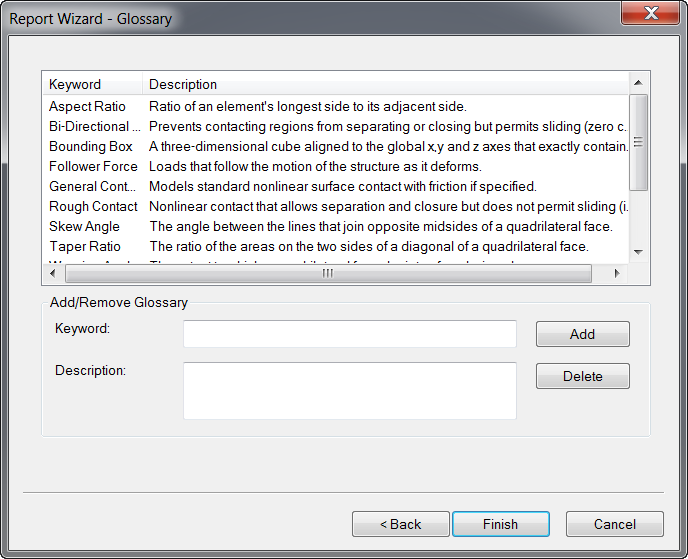
Next> on the Report Wizard pop-up dialogs until the
Report Wizard – Glossary dialog appears, and then click
Finish to generate the report.
- Save the report as
Analysis Report.
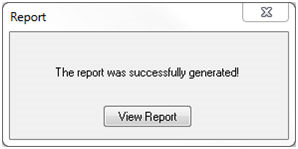
- Open the HTML file you just created by clicking the
View Report button on the
Report dialog pop-up. Notice that figures for the report were automatically generated along with the text.