There is a new Backstage View that covers the PowerShape screen when you select the File tab on the ribbon:
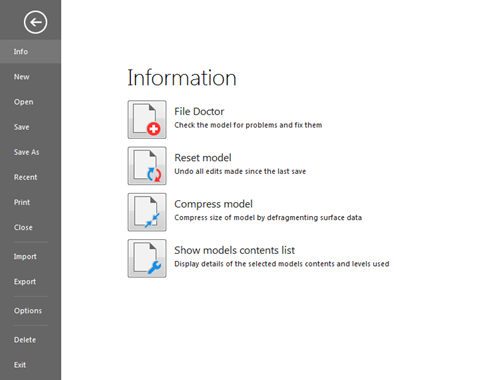
Select one of the options on the left to display the page of the backstage view, or open a dialog:
- Info — Displays options to access the File Doctor, File Properties dialog, and to Reset or Compress the model.
- New — Opens a new, empty model window.
- Open — Displays options to access the Open Model dialog, to open models saved in the database. You can also access the Open Component Library dialog.
- Save — Saves the model by overwriting the existing data.
- Save As — Use the Save Model As dialog to name and save a new model, or rename an existing model.
- Recent— Contains a list of the recently opened models.
- Print — Displays options to Print, Print to File, and Print Drawings, to view a Print Preview, and to specify Print Set-up options.
- Close — Closes the current model window.
- Import — Use the Import File dialog to import a model (opened in a new model window), or other files (opened in the current model window).
- Export — Use the Export wizard to export the current model, model items, workplanes or drawings, to another system.
- Options — Displays options to access Application Options, and Customize Colours, Paths, Keyboard Shortcuts, the Ribbon and the Quick Access toolbar, enabling you to specify options that affect the overall operation and appearance of the software.
- Delete — Use the Delete Model dialog to delete models from the database.
- Exit — Closes the software.