You can customize the ribbon using the Customize Ribbon page. You can add, move and remove buttons from the ribbon, customize ribbon tabs and groups (panels).
To display the Customize Ribbon page, right-click the ribbon or the Quick Access toolbar and select Customize the Ribbon, then select Customize Ribbon on the left of the dialog.
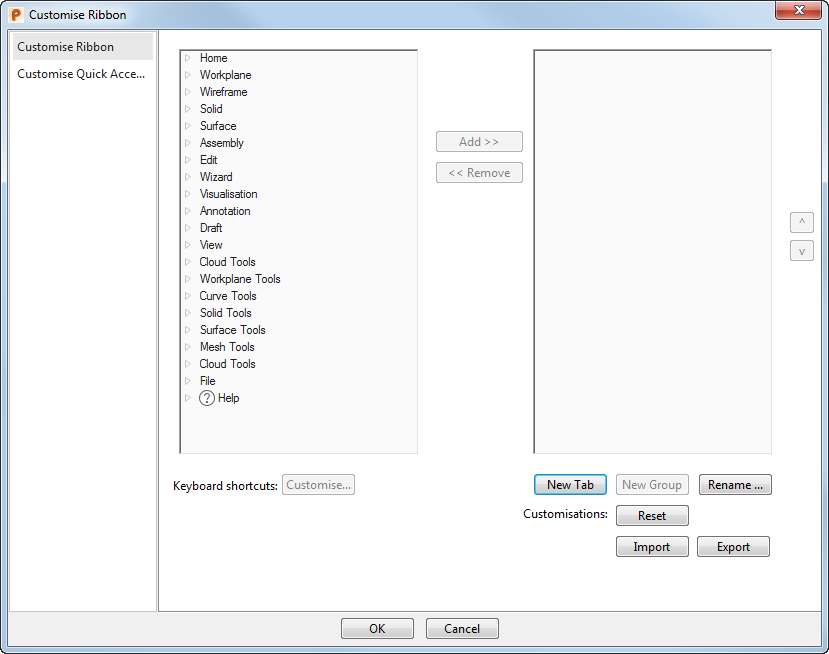
- Select a tab, and then a panel, from the left list to display the buttons.
- Select the button you want to add to the ribbon.
- In the right list, select the tab and group (panel) to which you want to add the button.
Note: You can only add buttons to a custom group.
- Click Add to add the selected button to the selected group.
Remove — Select a button in the list on the right and click this button to remove it from the ribbon.
New Tab — Click this button to create a new custom tab.
New Group — Click this button to create a new custom group, or panel, in the selected custom tab.
Rename — Select an item in the list on the right and click this button to rename it. This changes the name that is displayed on the ribbon. You can use different names for the same button in different places.
Reset — Click this button to reset the ribbon to default.
Import/Export — Click these buttons to import xml customization files, or to export the customized tab as an xml file.
To hide the ribbon, right-click the ribbon or the Quick Access toolbar and select Collapse Ribbon.