View3D
View3D is a freely-oriented three-dimensional view.
There are two kinds of 3D views, perspective and isometric, also referred to as orthographic in the Revit user interface. The difference is based on the projection ray relationship. The View3D.IsPerspective property indicates whether a 3D view is perspective or isometric.
Perspective view
The following picture illustrates how a perspective view is created.
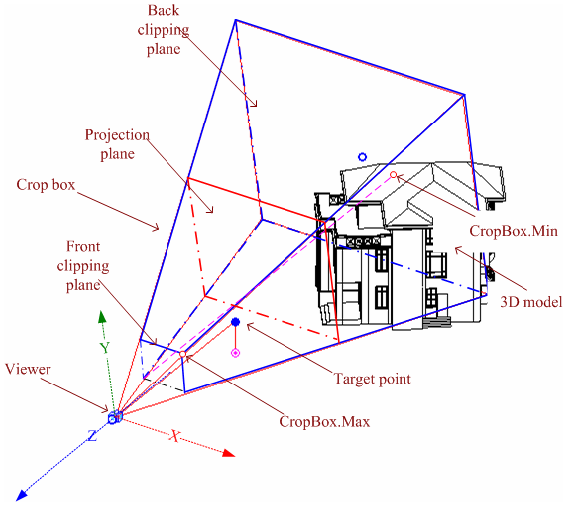 Figure 96: Perspective projection
- The straight projection rays pass through each point in the model and intersect the projection plane to form the projection contents.
- To facilitate the transformation from the world coordinate onto the view plane, the viewing coordinate system is based on the viewer.
- Its origin, represented by the View.Origin property, is the viewer position.
- The viewer's world coordinates are retrieved using the ViewOrientation3D.EyePosition property (retrieved from View3D.GetOrientation()). Therefore, in 3D views, View.Origin is always equal to the corresponding ViewOrientation3D.EyePosition.
- As described in the diagram above, the viewing coordinate system is determined as follows:
- The X-axis is determined by View.RightDirection.
- The Y-axis is determined by View.UpDirection.
- The Z-axis is determined by View.ViewDirection.
- The view direction is from the target point to the viewer in the 3D space, and from the screen to the viewer in the screen space.
The static method View3D.CreatePerspective() method can be used to create new perspective views.
| Code Region: View3D.CreatePerspective() |
public static View3D View3D.CreatePerspective (Document document, ElementId viewFamilyTypeId; |
| Code Region: Creating a Perspective 3D view |
// Find a 3D view type IEnumerable |
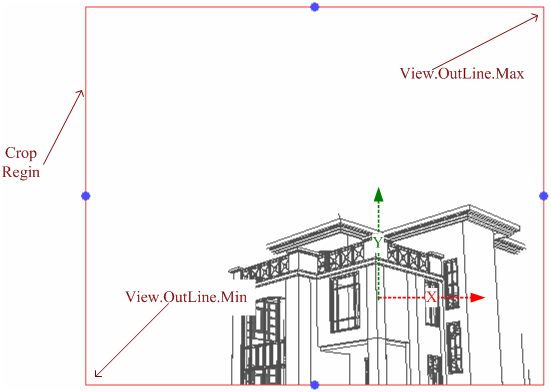 Figure 97: Perspective 3D view
The previous picture shows the projection plane on screen after cropping. The crop region is the rectangle intersection of the projection plane and crop box.
Geometry information is retrieved using the View.CropRegion property. This property returns a BoundingBoxUV instance.
The View.OutLine.Max property points to the upper right corner.
The View.OutLine.Min property points to the lower left corner.
Like the crop box, the crop region coordinates are based on the viewing coordinate system. The following expressions are equal.
Figure 97: Perspective 3D view
The previous picture shows the projection plane on screen after cropping. The crop region is the rectangle intersection of the projection plane and crop box.
Geometry information is retrieved using the View.CropRegion property. This property returns a BoundingBoxUV instance.
The View.OutLine.Max property points to the upper right corner.
The View.OutLine.Min property points to the lower left corner.
Like the crop box, the crop region coordinates are based on the viewing coordinate system. The following expressions are equal.
View.CropBox.Max.X(Y) / View.OutLine.Max.X(Y) == View.CropBox.Min.X(Y) / View.OutLine.Min.X(Y)Since the size of an object's perspective projection varies inversely with the distance from that object to the center of the projection, scale is meaningless for perspective views. The perspective 3D view Scale property always returns zero. #### Managing the camera target The camera represents the direction that the viewer of the perspective view is looking. If the user or an API application adjusts the crop region to expose a wider field of view or an unsymmetrical field of view, the distortion of the perspective view can become too drastic. The camera target can be forced to the center of the viewing region by calling the View3D method RestCameraTarget() which positions the target at the center of the field of view. Before calling, check to see if the camera can be reset in this view with the method View3D.CanResetCameraTarget() which indicates whether the camera target may be reset. The main situation where a target cannot be reset is if the View3D is currently in Isometric projection. Attempting to reset the camera target in an isometric view will throw an Autodesk.Revit.Exceptions.InvalidOperationException. ### Isometric view A new isometric view can be created with the static View3D.CreateIsometric() method.
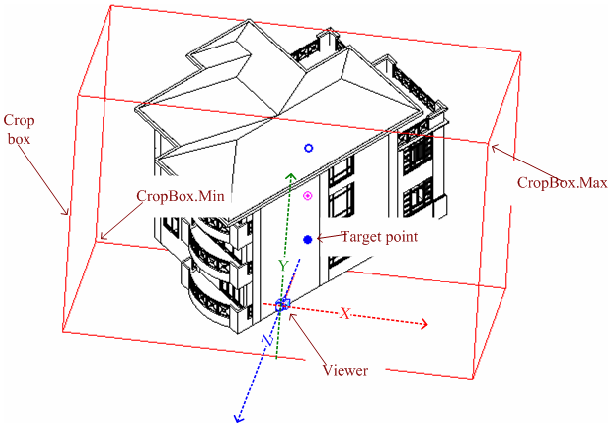 Figure 98: Parallel projection
Isometric views are generated using parallel projection rays by projecting the model onto a plane that is normal to the rays. The viewing coordinate system is similar to the perspective view, but the crop box is a parallelepiped with faces that are parallel or normal to the projection rays. The View.CropBox property points to two diagonal corners whose coordinates are based on the viewing coordinate system.
Figure 98: Parallel projection
Isometric views are generated using parallel projection rays by projecting the model onto a plane that is normal to the rays. The viewing coordinate system is similar to the perspective view, but the crop box is a parallelepiped with faces that are parallel or normal to the projection rays. The View.CropBox property points to two diagonal corners whose coordinates are based on the viewing coordinate system.
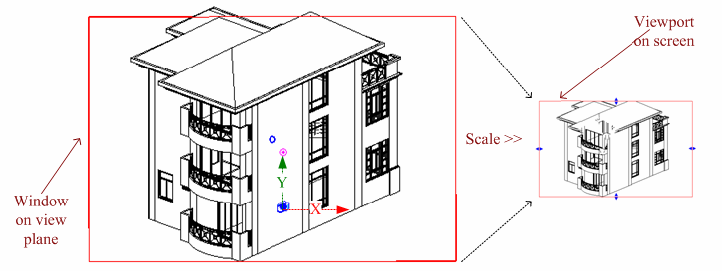 Figure 99: Scale the window on view plane to screen viewport
The model is projected onto a view plane and then scaled onto the screen. The View.Scale property represents the ratio of actual model size to the view size. The related expressions are as follows:
Figure 99: Scale the window on view plane to screen viewport
The model is projected onto a view plane and then scaled onto the screen. The View.Scale property represents the ratio of actual model size to the view size. The related expressions are as follows:
View.CropBox.Max.X(Y) / View.OutLine.Max.X(Y) == View.CropBox.Min.X(Y) / View.OutLine.Min.X(Y) == View.Scale
| Code Region: View3D.CreateIsometric() |
public static View3D View3D.CreateIsometric (Document document, ElementId viewFamilyTypeId; |
| Code Region: Creating an Isometric 3D view |
// Find a 3D view type IEnumerable |
Switching between isometric and perspective
Most of the time a View3D can be toggled between Isometric and Perspective, provided that there are no view-specific elements in the view. The View3D class provides methods for toggling the view to and from Isometric and Perspective mode. Before toggling, use the CanToggleBetweenPerspectiveAndIsometric() method which indicates whether toggling is ok.
To toggle the view call one of the two View3D class methods: ToggleToPerspective() or ToggleToIsometric(). In the case that the view cannot be toggled (perhaps due to the presence of view specific elements in the view) either of these methods will throw Autodesk.Revit.Exceptions.InvalidOperationException.
3D Views SectionBox
Each view has a crop box. The crop box focuses on a portion of the model to project and show in the view. For 3D views, there is another box named section box.
- The section box determines which model portion appears in a 3D view.
- The section box is used to clip the 3D model's visible portion.
- The part outside the box is invisible even if it is in the crop box.
- The section box is different from the crop box in that it can be rotated and moved with the model.
The section box is particularly useful for large models. For example, if you want to render a large building, use a section box. The section box limits the model portion used for calculation. To display the section box, in the 3D view Element Properties dialog box, select Section Box in the Extents section. You can also set it using the IsSectionBoxActive property. In the example below, if the active view is a 3D view, it sets whether the section box is active.
| Code Region: Showing/Hiding the Section Box |
private void ShowHideSectionBox(UIDocument document, bool active)
{
    if (document.ActiveView is View3D)
    {
        View3D view3d = document.ActiveView as View3D;
        view3d.IsSectionBoxActive = active;
    }
}
|
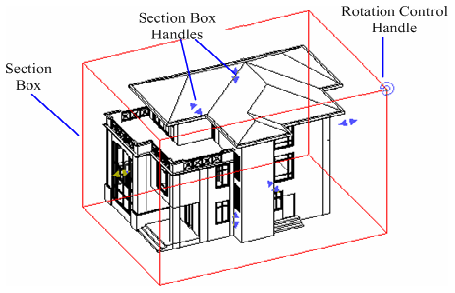 Figure 100: Section box
The View3D.GetSectionBox() and View3D.SetSectionBox() methods are used to get and change the box extents. In some cases, calling View3D.SetSectionBox() can have a side effect. Setting the property to certain values can change the box capacity and display it in the view. To avoid displaying the section box, set the IsSectionBoxActive property to false.
The following code sample illustrates how to change the extents of the section box.
Figure 100: Section box
The View3D.GetSectionBox() and View3D.SetSectionBox() methods are used to get and change the box extents. In some cases, calling View3D.SetSectionBox() can have a side effect. Setting the property to certain values can change the box capacity and display it in the view. To avoid displaying the section box, set the IsSectionBoxActive property to false.
The following code sample illustrates how to change the extents of the section box.
| Code Region: Changing the extents of the section box |
private void ExpandSectionBox(View3D view)
{
    // The original section box
    BoundingBoxXYZ sectionBox = view.GetSectionBox();

    // Expand the section box (doubling in size in all directions while preserving the same center and orientation)
    Autodesk.Revit.DB.XYZ deltaXYZ = sectionBox.Max - sectionBox.Min;
    sectionBox.Max += deltaXYZ / 2;
    sectionBox.Min -= deltaXYZ / 2;

    //After resetting the section box, it will be shown in the view.
    //It only works when the Section Box is active
    view.SetSectionBox(sectionBox);
}
|
| Code Region: Convert Max and Min to global coordinates |
private void ConvertMaxMinToGlobal(View3D view, out XYZ max, out XYZ min)
{
    BoundingBoxXYZ sectionbox = view.GetSectionBox();
    Transform transform = sectionbox.Transform;
    max = transform.OfPoint(sectionbox.Max);
    min = transform.OfPoint(sectionbox.Min);
}
|
View locking
The View3D class has methods and properties corresponding to the locking feature available in the Revit user interface.
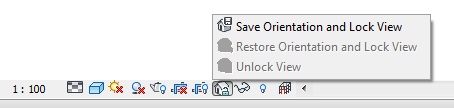 The View3D.SaveOrientationAndLock() method will save the orientation and lock the view while View3D.RestoreOrientationAndLock() will restore the view's orientation and lock it. View3D.Unlock() will unlock the view if it is currently locked. The IsLocked property will return whether the 3D view is currently locked.