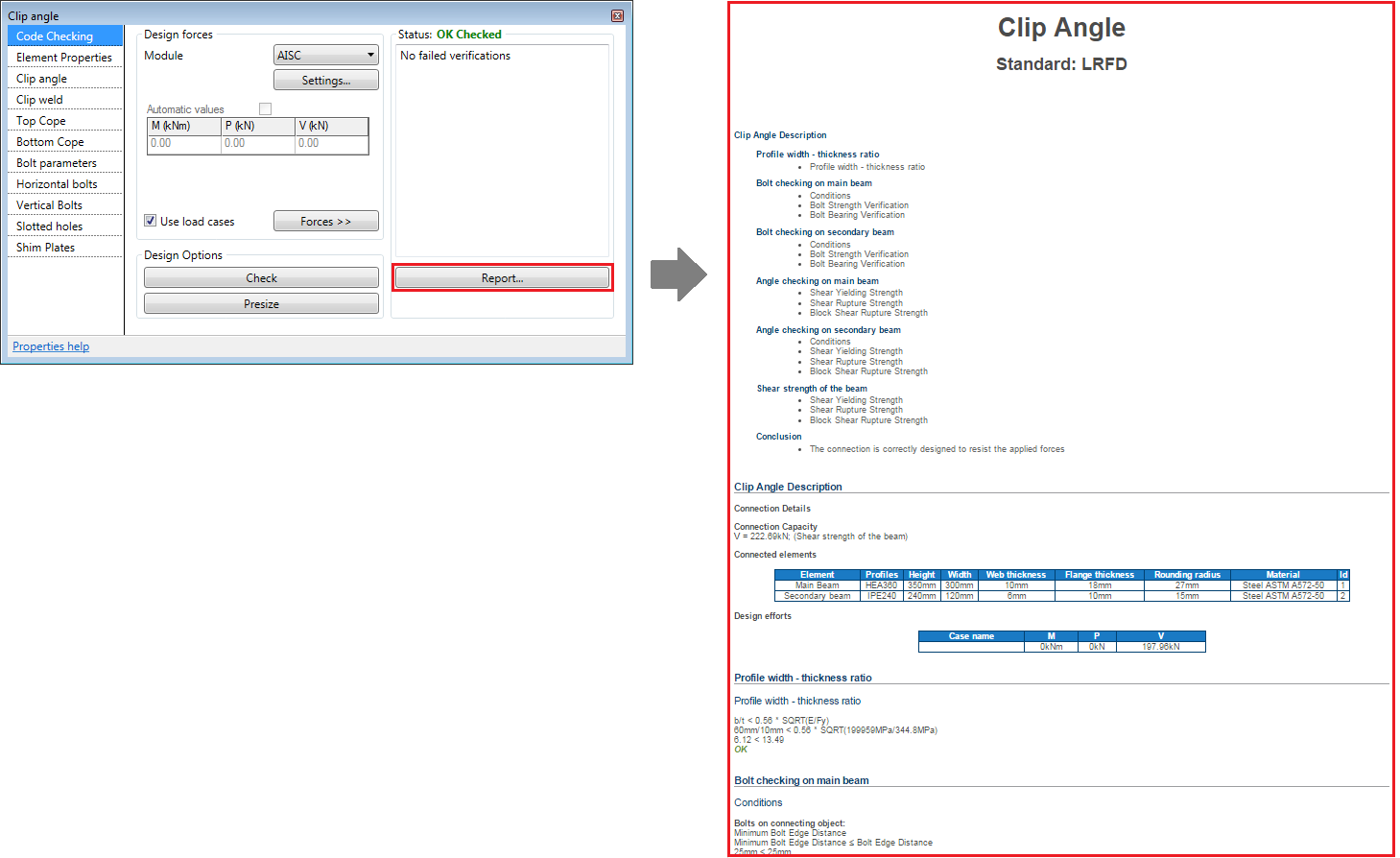
Using the options in this tab you can verify the structural connection design, according to AISC or EC3 standards.
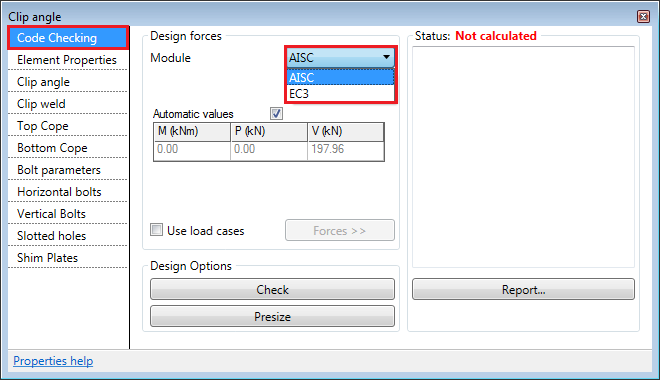
The calculation results are briefly shown in the dialog. Connections can have one of three possible statuses: Not calculated, Checking failed or OK Checked.
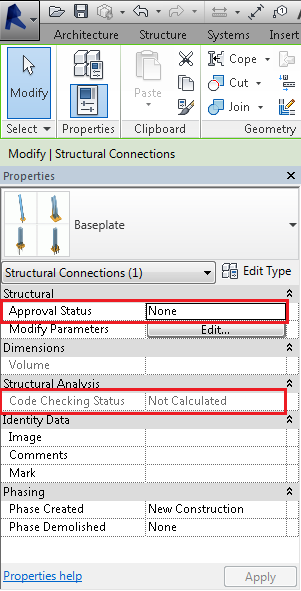
All structural connections contain two built-in parameters: Approval Status and Code Checking Status, displayed in the Properties Palette. The Code Checking Status is automatically filled by the Code Checking engine.
Using the Check button, you can verify if the steel connection design resists the forces and moment values, according to the selected standard. A short version of the report will be displayed in the Code Checking window. This will only show the verifications that failed.
The Presize button launches an iterative process, where bolt diameter and plate and weld thickness values are automatically increased until a connection geometry that resists the applied forces is found. This option is available only for the AISC code checking module.
The Report button creates a document that displays all the connection verifications. To generate the report, you must first save the model. The report is automatically saved in the same location as the Revit project, in a folder with the same name as the project. You can view the report by clicking the Report button, after you reopen the model.