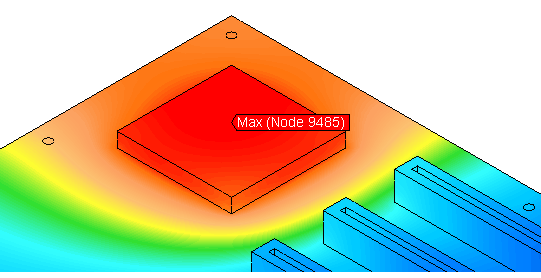
The maximum temperature at 1200 seconds is slightly more than 100°F. We expect the hottest node to be in the interior of the chip. However, results at internal nodes are suppressed by default. We will show the internal mesh and use the Maximum probe and the Minimum Maximum Nodes option to determine the number of the hottest node. Finally, we will graph the temperature of the hottest node versus time.
- Click
 Results Inquire
 Probes Maximum.
- Click
 Results Inquire Probes Minimum Maximum Nodes to add the node number to the maximum result probe. This command is in the pull-out section of the
Probes
panel.
Results Inquire Probes Minimum Maximum Nodes to add the node number to the maximum result probe. This command is in the pull-out section of the
Probes
panel.
- Click
 Results Options View Show Internal Mesh to turn on this option. Carefully watch the plot legend and the maximum result probe while turning the
Show Internal Mesh
option. Both the node number and the maximum temperature change when the internal mesh is shown. Record the node number displayed on the Max probe while the
Show Internal Mesh
option is active. Your model should resemble the following image. The node number and location may vary due to differences in the internal mesh.
Results Options View Show Internal Mesh to turn on this option. Carefully watch the plot legend and the maximum result probe while turning the
Show Internal Mesh
option. Both the node number and the maximum temperature change when the internal mesh is shown. Record the node number displayed on the Max probe while the
Show Internal Mesh
option is active. Your model should resemble the following image. The node number and location may vary due to differences in the internal mesh.
- With the
 Selection Shape Point or Rectangle and
 Selection Select Nodes commands active, click to select any arbitrary node on the model.
- Right-click in the display area and choose
Edit New Graph from the context menu. A
Results Graph
appears and the
Edit Curve
dialog also appears.
- Replace the number in the Nodes Graphed field with the number you recorded in Step 3.
- Click Apply.
- Click the red X in the upper right corner of the
Edit Curve
dialog to close it. The graph now shows the temperature result at the hottest node, and it should resemble the following image:
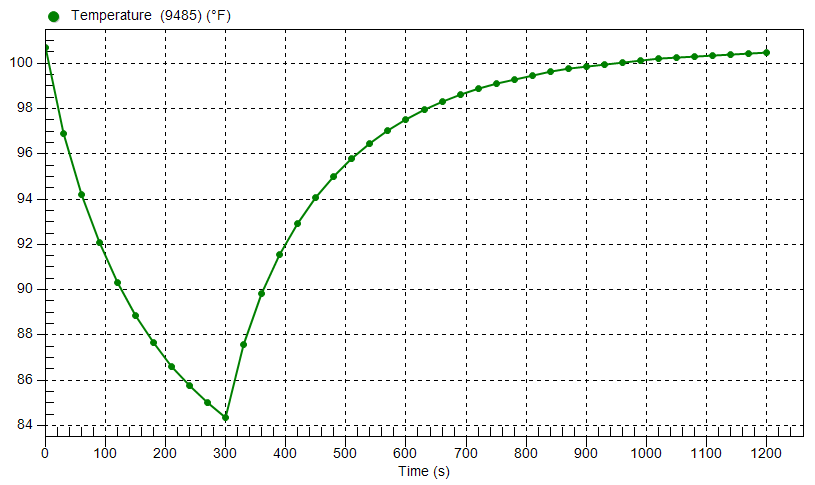
The temperature of the selected node decreases about 16°F during the first 300 seconds (the cool off period). The temperature is still about 4° warmer than the ambient temperature at 300 seconds. Heat generation resumes at the rate of 5 Watts at 301 seconds and continues at that level for the remainder of the simulation event. During this 15 minute period, the chip almost reaches the steady-state temperature again (within 0.5°F).
Notice the nonlinear cooling and heating rates:
-
The cooling rate (slope of the temperature versus time curve) decreases as the ambient temperature is approached. The rate of convective heat loss is proportional to the difference between the surface and ambient temperatures. So, when the surface temperature is close to the ambient temperature, the convective heat loss approaches zero.
- The heating rate slows as the convective heat loss magnitude approaches equilibrium with the heat generation magnitude. When the processor is re-energized, the temperature initially increases quickly because heat input (generation) is relatively high while convective heat loss is relatively low.
-
This tutorial is now complete.