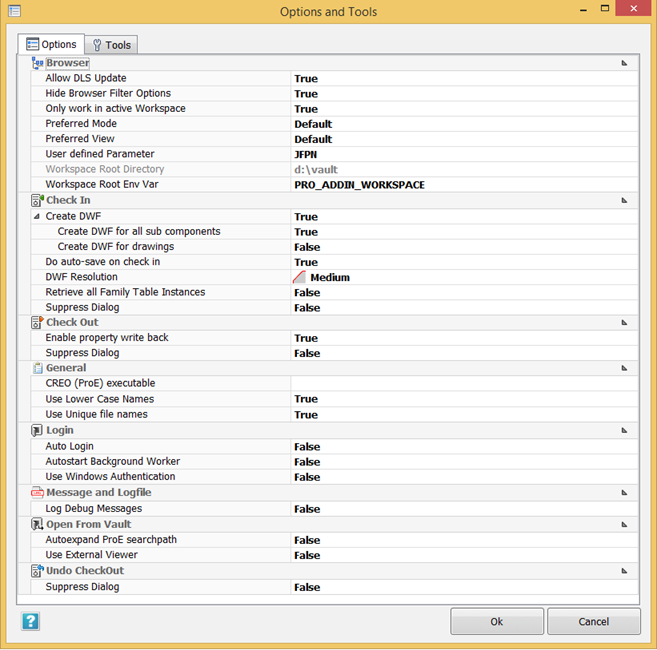
Pro/ENGINEER Options are set in the Options and Tools dialog box.
Most options are self-descriptive; those that require additional explanation are described here.
Browser
- Allow DLS update –Download selected file; enables you to replace the file loaded in memory from the browser. This should be set to True to permit updating files that appear as incorrectly edited out of turn.
- Hide Browser Filter Options–When true user cannot see toggle in workspace and toggle in session.
- Only work in active Workspace –Display and scan the contents of the active workspace only. Set to true to improve performance.
- Preferred Mode:
- Workspace Mode–calculate and display all files in workspace.
- Active Object Mode–calculate and display only files currently in memory.
- Preferred View:
- List View–shows list of files.
- Design View–also called folder view, displays files in folder structure.
- User defined Parameter –Enter the name of a Pro/ENGINEER parameter (EXE switch) that will be visible in the add-in dialog boxes.
- Workspace Root Directory –The path of your Workspace folder. This should match the system variable PRO_ADDIN_WORKSPACE.
- Workspace Root Env Var –Your environment variable. The saved path in the variable is equal to your Workspace folder, where all your workspaces are stored.
Check In
- Create DWF for all subcomponents –DWF is generated for the parent and any dependencies on check-in.
-
Create DWF
–If false, DWF is generated on check-in. If true, DWF is generated on each ProE save operation.
- Create DWF for all subcomponents–enable DWF creation for all references on check-in.
- Create DWF for drawings–enable DWF creation on drawings on check-in.
- Do Auto-Save on Check-in–Automatically save all dependencies on check-in.
-
DWF Resolution
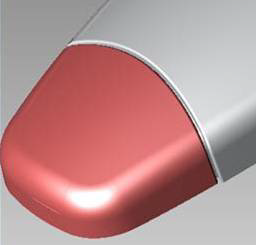
–Specify resolution for generated DWF files. The geometry of lower resolution files has a lower granularity with respect to chord height and angle control of surfaces, and the files are much smaller. The geometry of high resolution files is very precise but the files are bigger.
Low resolution, file size 100 Kb High resolution, file size 900 Kb 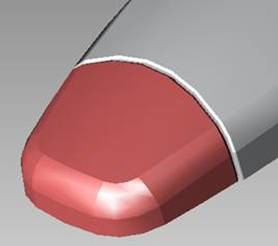
- Retrieve all Family Table Instances –All family table instances are retrieved when opening a file. You should set this to False when dealing with large generics. You must set it to True when adding or editing nested families.
- Suppress Dialog –Suppress the Check In dialog box.
Check Out
- Enable Property Write Back –Update modified properties on check out automatically.
- Suppress Dialog : Suppress the Check Out dialog box.
General
- CREO (ProE) executable : The path to the Pro/Engineer executable.
- Use Lower Case Names : File names are written in lower case.
- Use Unique file names : Specifies that all files must have unique names, even if in different folders. If you set this to false, you can save multiple files with the same name in different folders inside Vault. In this case, the files are identified by their name and path.
Login
- Auto Login : Log in to Vault on startup.
- Autostart Background Worker : Usually set to False to optimize performance.
- Use Windows Authentication : Log in using your Windows username and password.
Message and Logfile
- Log Debug Messages : Display messaging for debugging purposes; normally you set this to False.
Open From Vault
- Autoexpand ProE searchpath : As files are downloaded, locations are temporarily added to searchpath settings (for the current session); should usually be set to True.
- Use External Viewer : DWF preview opens in a separate window.
Undo Check Out
- Suppress Dialog : Suppress the Undo Check Out dialog box.