Use the Vault Browser to browse through the Vault Professional folder and file structure, get information on file versions, and preview existing PRO\ENGINEER files stored in Vault Professional without opening them.
You can also do the following with files:
- Open and download
- Find missing
- Update and refresh status
- Add comments and revise
Open the Vault Browser
- From the Vault menu, click Show Browser
 .
.
Switch between the Workspace and Session Browser
Use the buttons provided to switch between the Workspace Browser
 and Session Browser
 .
.
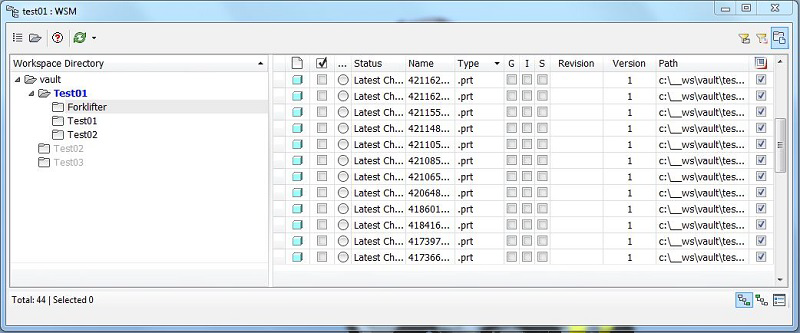
The Workspace Browser shows the workspace folder structure. The current workspace is blue. Unselected sub-workspaces are gray.
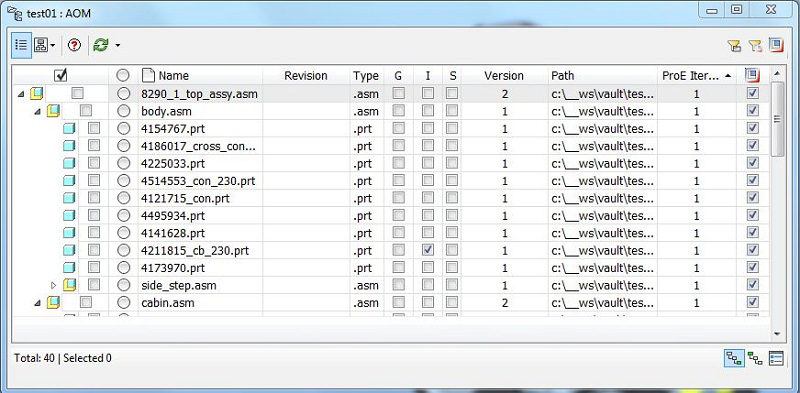
The Session Browser shows the currently loaded files in Pro/ENGINEER.
Find Missing Files
- In the Vault Browser, click Find Missing Files
 to see all components that have a missing file; that is, where the related file does not exist in the current search path.
You can search for files in the Vault, in a workspace or all workspaces, or manually on your hard disk.
View, Update, and Refresh File Status
While you work, someone could change files you are using in an assembly but do not own or manage. Get the current file status using Update Status from the context menu or one of the Refresh options on the Vault Browser toolbar. You can do this with files you have not checked out.
- Suppressed Files: Green underlined and italic font.
- Missing Files: Red underlined and italic font.
To update the status of a file:
- Right-click a file in the Vault Browser.
- Select Update Vault Status from the context menu.
To use Refresh options:
- On the Vault Browser toolbar, click the Refresh drop-down list
 .
.
- Select the appropriate refresh option.
- Refresh Vault Info : The default behaviour; updates all items used in the current Pro/ENGINEER session. Also searches the active workspace for new files. Found files will be added to the add-in database. For each item, Refresh connects to Vault and updates the information.
- Refresh all in Workspace : Updates all items in the active Workspace. Only known items are updated.
- Refresh local changed : Scans all items from the active workspace and compares the saved path information with the latest file version on the hard drive. If there is a newer file on the hard drive, this will update the Vault information from the Vault server.
- Scan Workspace (in background) : Manually triggesr the Background Worker. The Worker scans all workspaces for new files and adds them to the add-in database. If the option is used to only work in the active workspace, the worker will also only scan in the active workspace.
Show Information about a File
- Right-click a file in the Vault Browser.
- Select Show Details.
Use the controls in the Show Details dialog box to see different details about the file.
- Browse all versions of a file
 or all available released files
 .
.
- Click the Properties tab to see all details about the selected file.
- Click the Uses tab to see what files are used by this file.
- Click the Where Used tab to see what files use this file.
Create Revisions
Create file revisions according to assigned file categories and related revision schemes.
- In the Vault Browser, right-click a file.
- Choose Revise from the context menu.
- In the Revision dialog box, choose which revision index you want to use (Primary, Secondary, or Third).
- Select the files you want to revise.
- Optional: Click the Preview button to preview the results.
- Click Revise.
- Review the results tab and click Finish.