After installing the Vault Add-In for Pro/ENGINEER, you might not see any Vault commands in the ribbon.
The Vault commands are available on the Tools menu under . You can add these Vault commands to the standard Pro/ENGINEER, Creo ribbon or custom tabs for simple access
Add Vault Controls to the Ribbon
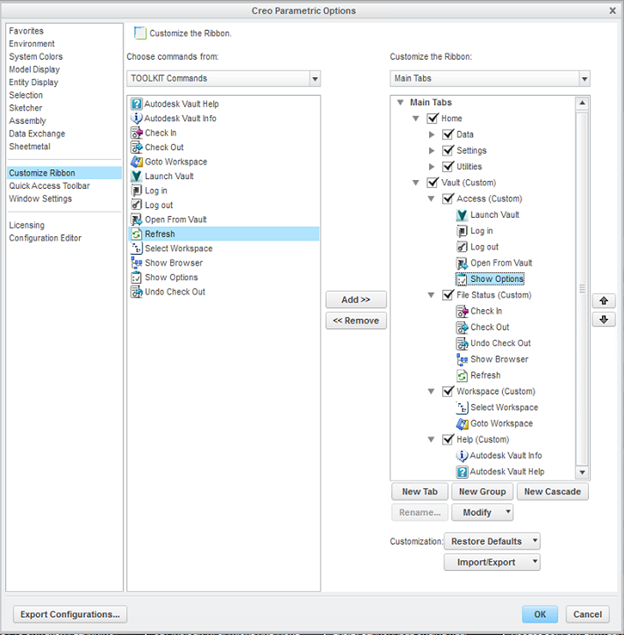
- Right-click the Pro/ENGINEER ribbon and select Customize the Ribbon.
- On the right side of the Options dialog box, under Main Tabs, click New Tab.
- Rename the new tab to "Vault".
- Rename the group under the new tab to "Access".
- In the center of the dialog box, from the Choose Commands From box, select TOOLKIT Commands.
- Drag the Launch Vault item over to the Access group.
- Repeat for:
- Log In
- Log Out
- Open from Vault
- Show Options
- Create another group called “File Status” and add Check In, Check Out, Undo Check Out, and so on.
- Continue creating groups and adding controls to your Vault ribbon, similar to the following.
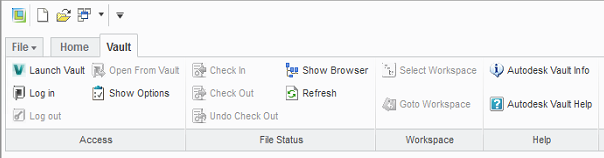
There should now be a Vault ribbon in the Vault Add-In for Pro/ENGINEER, with the controls you added.
Edit Menu Names
You can edit menu names and tooltips.
- Navigate to the text subfolder of the Pro/ENGINEER installation folder.
- Edit pswf_menusmsg.txt.
See the PTC Pro/ENGINEER manuals. Autodesk does not support any issues or problems resulting from these types of changes.