After you have run a simulation, the NC Code tab is active.
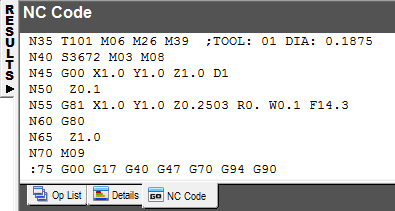
You can edit the NC Code directly in this tab.
Right-click in the code area to display the context menu.
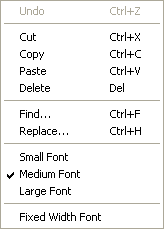
Use Cut, Copy, Paste, Delete, Find, Replace, and Undo to edit the code.
Select the size of the text displayed from:
- Small Font
- Medium Font
- Large Font
Fixed Width Font — Select this option to display the NC code in a fixed-width font. This means that each individual character is the same width, which can be easier to read because the characters line up vertically. Deselect it to display the NC code in a variable-width font.
Note: The post processors are configured using XBUILD, FeatureCAM's post processor. To access XBUILD, click Edit in the Post Options dialog. You can access the XBUILD documentation (including reserved words) by selecting Help > Contents from within XBUILD.
You can use the Post Options dialog to change the post options and select the controller.