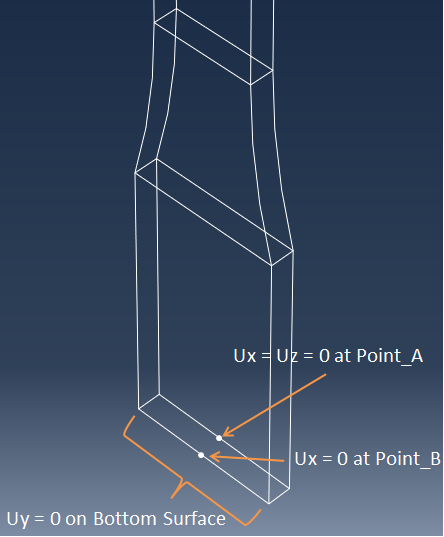
Create boundary conditions that minimally constrain the movement of the bottom surface of the coupon and prevent rigid body motion.
- Switch to the Load module.
- Create a boundary condition () named Bottom.
- Set the step to Initial and select Displacement/Rotation. Click Continue.
- Select the bottom surface of the coupon (see image below) as the region, click Done, and set U2 = 0.
- Create a second Displacement/Rotation type boundary condition named Point_A. Choose Sets as the selection method, locate the set named Point_A, then click Continue. Set U1 = 0 and U3 = 0.
- Create a third Displacement/Rotation type boundary condition named Point_B. Select the set named Point_B and set U1 = 0.