In this dialog box you can modify the grid and axis group properties as needed.
The Axes, parallel dialog box
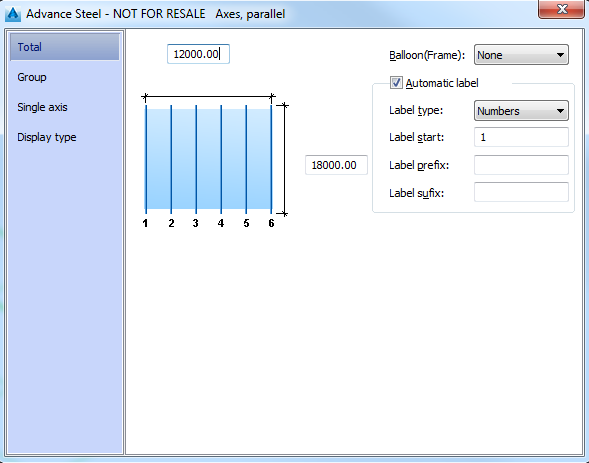
The dialog box contains the following tabs:
Total tab
Here you can modify the group size and the labeling:
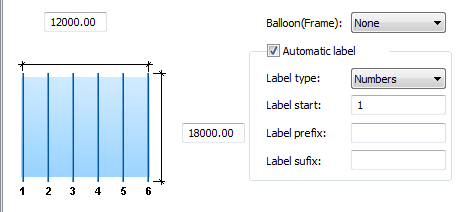
- Grid size
The top field defines the distance between the first and the last axis of the group. The number of axes changes accordingly. The field on the right defines the length of an axis.
-
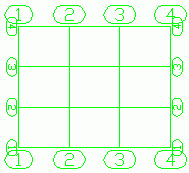
Balloon (Frame)
The labeling text can be displayed with or without frames.
None Edging 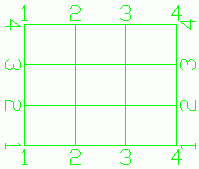
- Automatic labeling
The axes can be labeled automatically or manually. If the automatic labeling box is not checked, the labeling for each single axis can be changed on the Single axis tab. For the automatic labeling the following parameters can be set:
-
Label type
Controls the labeling type. The axes can be labeled with numbers, small letters or capital letters.
-
Label start
Defines the starting value for the automatic labeling.
-
Label prefix
Defines the constant prefix for the automatic labeling.
-
Label suffix
Defines the constant suffix for the automatic labeling.
-
Label type
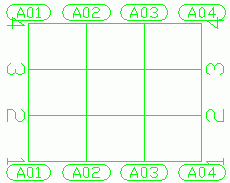
Example:
Automatic labeling with numbers and prefix A0:
Group tab
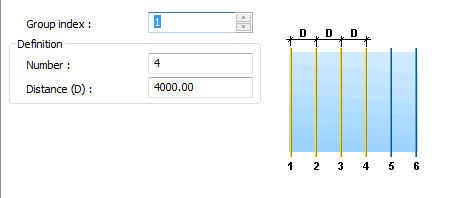
Here you can modify the group definition properties.
-
Group Index
Selects the group to modify. The selected group is highlighted in red.
- Definition
Controls the number of axes in the selected group and the distance between them.
-
Number
Defines the number of axes in the selected group.
-
Distance (D)
Defines the distance between the axes of the selected group.
-
Number
Single axis tab
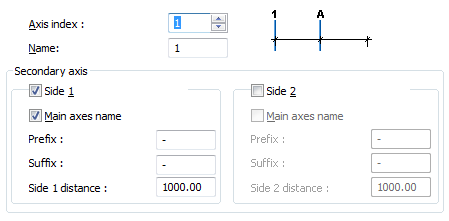
This tab enables individual axis labeling (if automatic labeling is turned off in the Total tab ).
-
Axis index
Allows selecting an axis in the current group. The selected axis is highlighted in red.
-
Name
Displays the name of the selected axis. If the automatic labeling is turned off, the name can be changed.
- Secondary axis
You can add a secondary axis to the right or to the left of a main axis and choose a label using the main axis name with a suffix and a prefix.
-
Side 1 and Side 2
These check boxes allow selecting the side where to add the secondary axis.
-
Main axis name
The axis is labeled using the main axis name.
-
Prefix
Defines a constant prefix for the secondary axis labeling.
-
Side distance
Defines the distance to the main axis.
-
Side 1 and Side 2
Display type tab
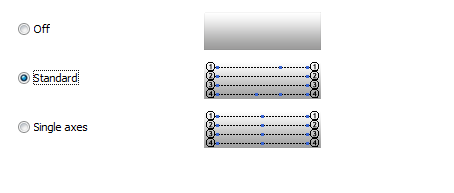
On this tab of the properties dialog box, you can modify the representation of the grid in the model.
|
Off |
Completely hides the grid. |
|
Standard |
Only the first and the last axis of the group have grips: end points and a center point. With the grip in the center, the group length can be modified, with the grips at the end the axis length (group width) can be modified. The last axis has an additional grip for moving the axis. 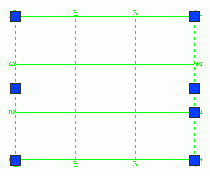
|
|
Single axis |
Each axis has three grips: end points and a center point. The grip in the center allows moving the axis, the end grips allow modifying the axis length. 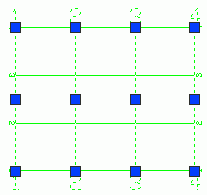
|
The Curved grid lines dialog box
In this dialog box, you can change the curved axis properties.
The dialog box contains the following tabs:
Curved tab
On this tab of the properties dialog box, you can modify the curved axis size and the labeling.
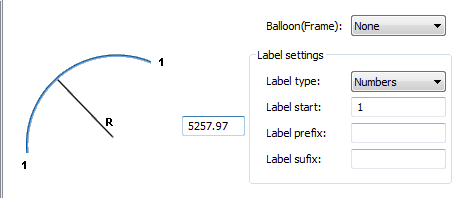
-
Grid radius
The field defines the curved axis radius.
-
Balloon (Frame)
The labeling text can be displayed with or without frames.
- Label settings
You can label the curved axis automatically using numbers, small or capital letters. The following parameters can be set:
-
Label type
Controls the labeling type. The axes can be labeled with numbers, small letters or capital letters.
-
Label start
Defines the starting value for the automatic labeling.
-
Label prefix
Defines the constant prefix for the automatic labeling.
-
Label suffix
Defines the constant suffix for the automatic labeling.
-
Label type
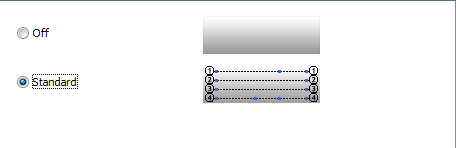
Display type tab
On this tab of the properties dialog box, you can modify the representation.
Modify the grid properties
- Select the group of axes.
- Right click and select Advance Properties from the context menu.
- In the properties dialog box, select the Group tab.
- In the Group index field, enter the index of the group you want to modify.
- In the Number field, enter the desired number of axes.
- Select the group of axes.
- Right click and select Advance Properties from the context menu.
- In the properties dialog box, select the Total tab.
- Select Automatic label .
- Select the label type: numbers, small letters or capital letters.
- Additionally, you can define a label prefix and suffix.
- Select the group of axes.
- Right click and select Advance Properties from the context menu.
- In the properties dialog box, on the Display type tab, select Single axis. The axes of the group can be selected one by one.
- Select the grip in the middle of the grid axis you want to move.
- On the command line, define the moving value and press Enter.
- Select the group of axes.
- Right click and select Advance Properties from the context menu.
- In the properties dialog box, on the Total tab, disable the Automatic label option.
- On the Single axis tab, in the Axis index field, use the arrows to select the desired grid axis. The selected axis is displayed in red.
- In the Name field, enter the new label.