About animating an object
Animating an object means that one or more characteristics or attribute of the object change over time. For example, if you have designed a car and want to see it drive down a road, you must animate its position over time. At time 1, the car may be in front of a house, and at time 50, at a street corner, 10 blocks down the street. In the animation system, you might say that at time 1 the car has an X translation of 0 units, and at time 50 it has an X translation of 10 units (that is, it has moved to a position of 10 units in the X direction). The X translation, in this example, is an attribute of the car that can be animated: we call it an animation parameter.
There are a number of ways to animate in Alias. Many of our users use the animation tools to present final concept models. For example, you can show the assembly of your model or you can display your new model moving though a scene. The animation and photorealistic rendering capabilities create images convincing enough to be reproduced directly into print, video or interactive media.
The animation process is to model, animate, fine tune, and to finally render your animated scene.
About animation parameters
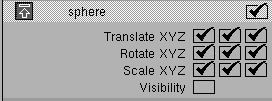
Objects have many parameters that can be animated. Examples are the objects X,Y, and Z positions, rotations, scaling, and visibility.
Different types of objects have different animation parameters. For example, you can animate a camera’s field of view, and the color and intensity of the light.
In Alias, you control which parameters of an object are animated using the Param Control window.
Levels of animation
- Keyframe animation
- create a turntable animation
- create a motionpath animation
- add a camera to your animation
- create an exploded assembly view animation
- Skeleton and Inverse Kinematics
- create skeleton models
- apply IK handles to move parts of the skeleton
- use mathematical expressions to determine action and motion
- Advanced Animation
- animate and deform surfaces
- deform time with time warps
Basic workflow for manually creating an animation
In Alias, manually creating animation involves establishing a timeline, then varying one or more properties of objects (for example, position or color) over time.
- Create the model.
- Decide how long you want the animation to be and create the necessary number of time frames in Alias.
- Use basic techniques to vary the scene through the length of the animation. Do one of the following:
- Place objects you want to animate, including the camera, where you want them, and with the values you want, at each point in the timeline, then mark those frames as keyframes.
- Establish motion paths for objects to move along through time.
For more advanced animation, Alias is capable of varying almost every property of an object or shader along the timeline, not just position.
- Decide how the objects should transition from frame to frame.
More advanced animation can use the Action window, expressions (mathematical formulas describing relationships between time and object properties), and constraints, to create more realistic and automated effects.
- Preview or render the animation.