In Alias we've added the ability to explore models in virtual reality. You can now immerse yourself in the environment and experience your designs closer than ever before.
Safety Notice
Requirements
Viewing a model in Alias VR
View in VR Render Options
Controller mapping
View modes
Safety Notice
- Always follow the health and safety (including any regulatory information) and operating directions from the device manufacturer.
- To help prevent any possible injury only use Alias VR with the health and safety guidance and operating directions included with your device enabled: Oculus Guardian and Vive Chaperone.
- Stop use if you experience any discomfort or health reactions.
Requirements
VR Devices
Alias VR supports:
- Oculus Rift and Touch Controllers
- HTC Vive and Vive Controllers
- WinMR Controllers
Video card/GPU
High performance is critical to a pleasant VR experience and is essential to reduce any discomfort. It is important to use an NVIDIA or AMD VR ready graphics card, with the amount of graphics power increased to meet your content demands.
PC
VR-ready PC that meets or exceeds device manufacturer's specifications.
OS
Windows only.
DirectX
Latest version of DirectX 11.
Physical Space
Desk or room scale.
Viewing a model in Alias VR
To view a model in Alias VR, follow these steps:
Connect the headset to your computer and turn on your controllers.
Open your model in Alias.
Choose WindowDisplay > View in VR. The Alias VR Viewer opens with the model loaded in it. You can configure the Render Settings, VR System, Ground Plan, and Tessellation settings by clicking the View in VR
 options box.Note: Currently, only a default environment is available in VR. If you have set up your own environment in Alias, it will not be seen in VR. Alias also uses a default Image Based Lighting (HDR).
Use the Navigation controller to navigate around and inside the model using teleport and rotation buttons.
Use the View Mode controller to change the model's mesh shading and cycle through any Camera Variants you have set up already in your Alias file, using the View Mode and Camera Variant buttons.
Note: Camera Variants in VR will automatically take the VR Device height for Z but will keep the X and Y values. This is to avoid uncomfortable VR experiences of flying high in the scene or appearing partly underground. To force any Camera Variant's Z value inside VR, add '_ int' to the end of the variant name.
View in VR Options
Render Settings
Select Low, Medium, or high according to your system capability. Higher settings result in better anti-aliasing but impact graphics performance.
VR System
Select the VR device that you are using, or use the Detect VR System checkbox to automatically detect your VR device.
Ground Plane
Specify the ground plane settings in the Alias VR environment.
Tessellation
Specify the tessellator, tolerance, and maximum edge length.
Controller mapping
HTC Vive controllers
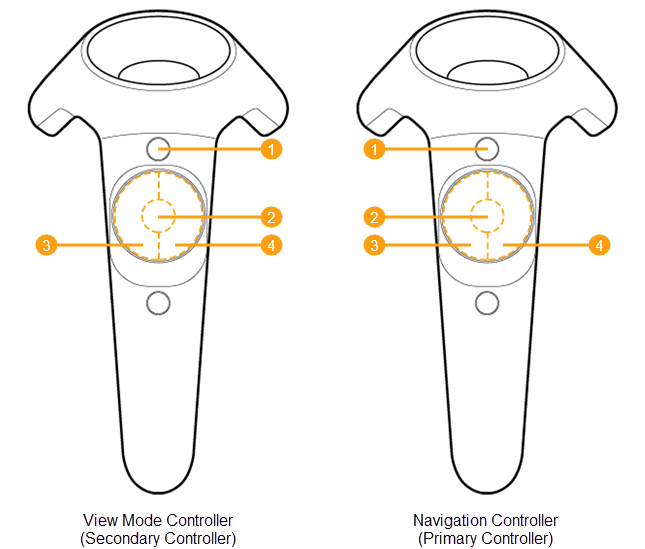
| View Mode Controller (Secondary Controller) | Navigation Controller (Primary Controller) |
|---|---|
| 1 Menu Button: Toggle Tooltip visibility on/off | 1 Menu Button: Toggle Tooltip visibility on/off |
| 2 Touchpad Central Button: View Mode cycle | 2 Touchpad Central Button: Teleport |
| Touchpad Left/Right Buttons: | Touchpad Left/Right Buttons: |
| 3 Left (on click or hold): Previous Camera Variant | 3 Rotate View left (on click 15 degrees, on hold smoothly, but slowly) |
| 4 Right (on click or hold): Next Camera Variant | 4 Rotate View right (on click 15 degrees, on hold smoothly, but slowly) |
Oculus Rift controllers
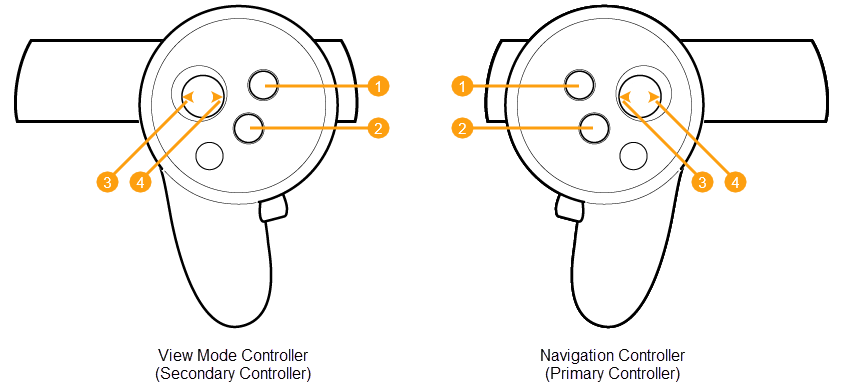
| View Mode Controller (Secondary Controller) | Navigation Controller (Primary Controller) |
|---|---|
| 1 Y Button: Toggle Tooltip visibility on/off | 1 B Button: Toggle Tooltip visibility on/off |
| 2 X Button: View Mode cycle | 2 A Button: Teleport (with fade) |
| Joystick Left/Right (if your scene contains Camera Variants): | Joystick Left/Right (if your scene contains Camera Variants): |
| 3 Left (on flick or hold) - Previous Camera Variant | 3 Rotate View left (on flick 15 degrees, on hold smoothly but slowly) |
| 4 Right (on flick or hold) - Next Camera Variant | 4 Rotate View right (on flick 15 degrees, on hold smoothly but slowly) |
WinMR controllers
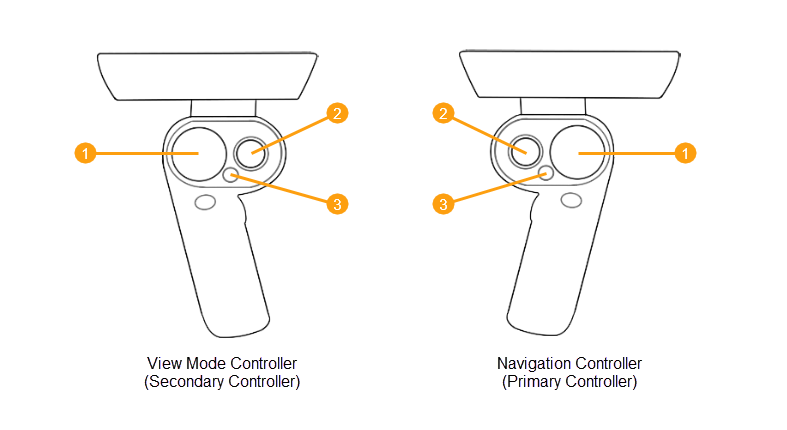
| View Mode Controller (Secondary Controller) | Navigation Controller (Primary Controller) |
|---|---|
| 1 Toggle Display Mode | 1 Teleport |
| 2 Previous and Next Viewpoint | 2 Turn Left and Right |
| 3 Toggle Tooltip visibility | 3 Toggle Tooltip visibility |
View Modes
The following view modes are available in Alias VR:
- Wireframe: Displays the wireframe model only.
- Shading: Displays the model with shading from the Multi-lister.
- Wireframe & Shading: Displays the wireframe model with shading from the Multi-lister.
- Horizontal/Vertical (Zebra): Displays horizontal or vertical stripes on the surface. Useful for checking continuity between surfaces.
- Multi Color: Shades all the picked surfaces with a single color. Useful for detecting bumps, dents, or other surface irregularities. Note: The Multi Color display mode does not display edges in Alias VR.