This topic describes how to assign data fields to a worksheet.
The example paper worksheet show. below includes pre-configured data fields applied within each window.
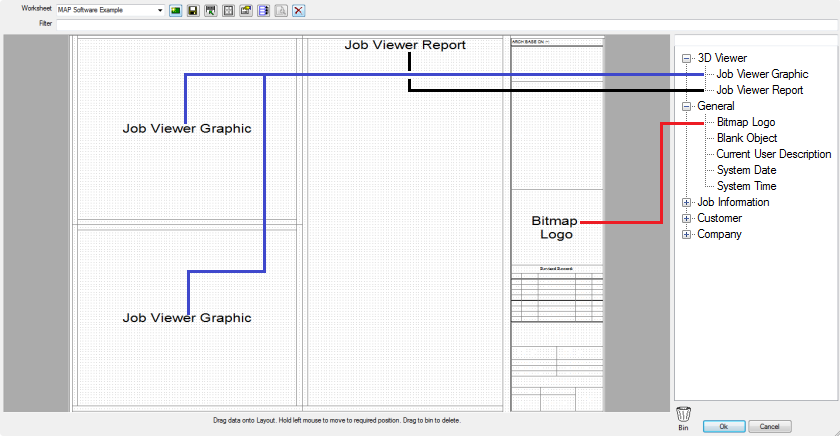
To customise appropriate data fields within a specific window on a Paper Worksheet:
Job Viewer Graphic
- In the right pane, located to the right of the Paper Worksheet, select the appropriate data; for example, Job Viewer Graphic.
- Left-click the mouse, then drag & drop the data into the required window. Release the left mouse button to apply the data to the window.
Job Viewer Report
- In the right pane, located to the right of the Paper Worksheet, select the appropriate data; for example, Job Viewer Report.
- Left-click the mouse, then drag & drop the data into the required window. Release the left mouse button to apply the data to the window.
Bitmap Logo
- In the right pane, located to the right of the Paper Worksheet, select the appropriate data; for example, Bitmap Logo.
- Left-click the mouse, then drag & drop the data into the required window. Release the left mouse button to apply the data to the window.