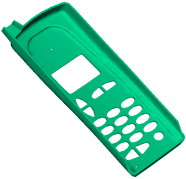
Use the tools on the Navigate panel of the View tab to manipulate the view of the model. These tools are also found on the Navigation bar, or the SteeringWheels which are located in the model window.
The most commonly used tools are outlined below.
- Familiarize yourself with the tools below, which are all found at .
- Click
 Orbit then click and drag the cursor in the Model pane to rotate the model in three dimensions.
 - Click
 Center then click a part of the model to make that point the center of subsequent rotations. Rotate the model using the Orbit command, to observe the effect of this change.
 - Click
 Pan then click and drag the cursor in the Model pane to move the model without affecting its rotation.
 - Click
 Zoom Window then click and drag the cursor over a small part of the model. The selected area is expanded to fill the Model pane.
 - Click
 Zoom then click and drag the cursor up or down in the Model pane to magnify or shrink the model image.
 - Click
 Zoom All then the model is centered and its size is adjusted so that the model image fills the Model pane.
Note: You can assign these functions to mouse click combinations. Click Application Menu, select the Options button and choose the Mouse tab. Select the required function from the drop-down lists available and click OK.
 - Click
- Manipulate the model so that it appears as shown.