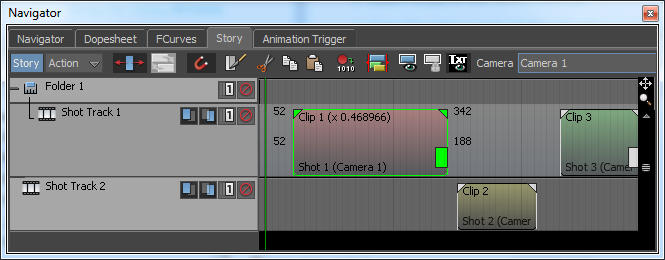
Scaling clips lets you alter the length and speed of animation, character, camera animation, and video clips.
To scale a clip:
- Select a clip in the Story window.
- Select Scale in the Story Controls.
- Drag the start or end of the clip left or right until it is resized.
Scale more than one clip at a time by selecting multiple clips and dragging the start or end of one of them. You can also double-click the frame number at the start or end of a selected clip and enter a new frame number.
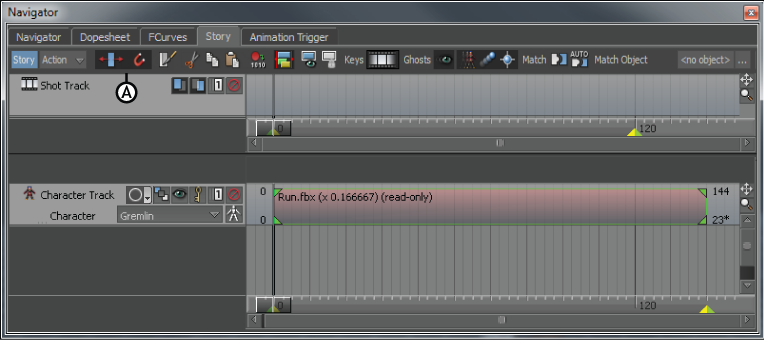
Story options A. Scaling is active
When you double-click a clip in the Story window, the clip’s settings display in the Asset Settings window. Some of these settings also let you scale a selected clip.
Changing the values in the In and Out fields (A and B) lets you scale a clip when Scaling is active. Changing the value in the Clip Speed field (C) lets you scale a clip with a precise value.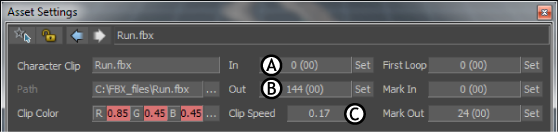
Asset Settings window A. In field B. Out field C. Clip Speed field
To scale a clip with the ripple manipulator
- Select a clip in the Story window.
- In the Story Controls, click
 to turn on scaling.
The scaling icon
 appears.
- Drag the ripple manipulator at the bottom right end of the clip until it is resized.
Tip: To see the manipulator, extend the clip length and track height. The manipulator does not appear if the track is squashed.
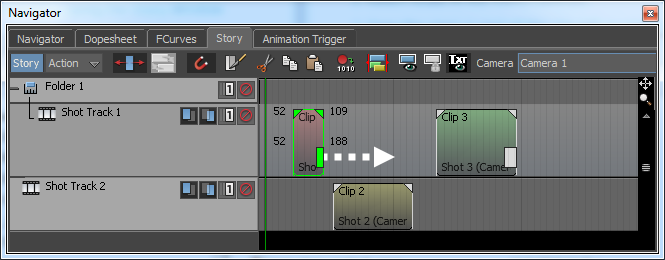
All of the subsequent clips move later on the timeline.