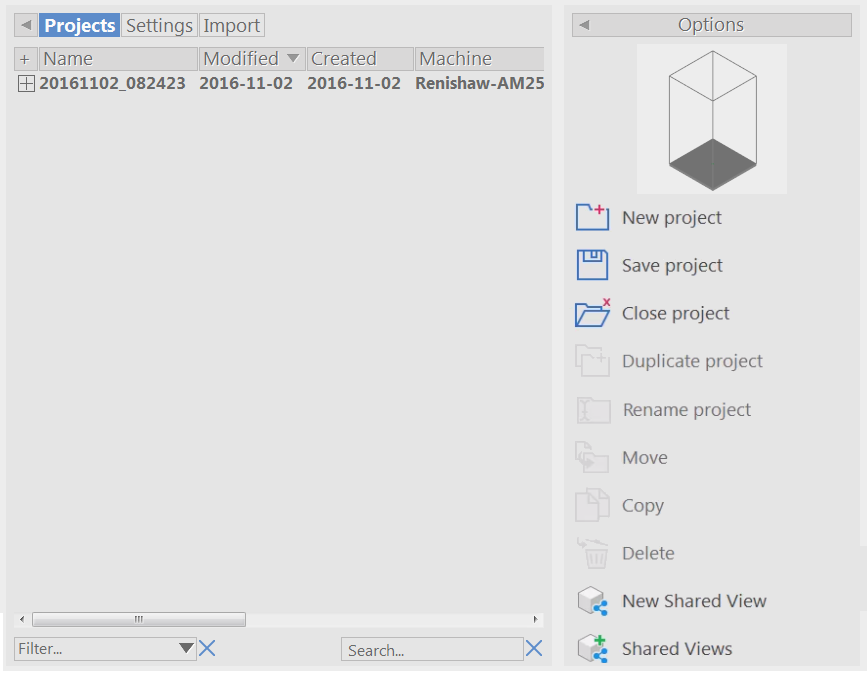
Use the Projects tab to manage and your manufacturing jobs. Each project records the details of the models, machine, and settings required to create a part, so you can keep track of your work, and quickly create as many copies of a part as you need.
- Select Queue in the Main toolbar to display the Queue page.
- Click the Projects tab.
-
Use the buttons in the Options panel to create, edit, and manage projects. Click:
- New Project to create a project.
- Open Project to open the selected project. This button is displayed only when no project is open.
-
Save Project to save the selected project to file. This button is displayed only when a project is open.
Note: Projects are saved in the \Documents\Netfabb\imports folder.
- Close Project to close the selected project.
- Duplicate Project to create a copy of the selected project.
- Rename Project to change the name of the selected project. You cannot edit the name of an open project.
- Move to move the selected parts to the open project.
- Copy to copy the selected parts to the open project.
- Delete to delete the selected part or project. You cannot delete open projects.