If Local Simulation is installed on your computer, or on a local Windows or Linux server, you can choose the first Solve option to run the simulation on a local computer; otherwise solve on the cloud. If you select the cloud option and have not already logged in with your Autodesk ID, the Autodesk Single Sign-On dialog will open for you to log in.
Viewing log files and error messages
While a cloud solve is running, log files download to your computer at regular intervals, so you can follow the progress. This feature applies to PRM generation as well as regular simulations. If any errors occur during a cloud solve or PRM generation, messages will appear on the right side of the
Simulation Utility window for a short time, then disappear. If you miss seeing them and want to redisplay them, click the notification bell icon
 in the upper right corner of the window.
Disk space warning
Periodically during a cloud solve, the amount of available disk space on your computer is checked. If it's possible that there is not enough space for the files from the completed cloud job, you will see a warning message.
Generating Processing Parameter (PRM) files on the Cloud
To generate PRM files using the cloud:
- On the Home tab, click
Processing Parameters and in the dialog, click
 for a new PRM file.
- On the Physical and Analysis tabs, choose the processing conditions, material properties, and analysis settings. Select both Stress and distortion, and Hotspots and lack of fusion on the Analysis tab. This combined type of PRM file can be created on the cloud. Consult the Processing Parameters topic for further details.
- At the bottom of the dialog, open the drop-down Solve menu and select
Generate PRM on cloud.
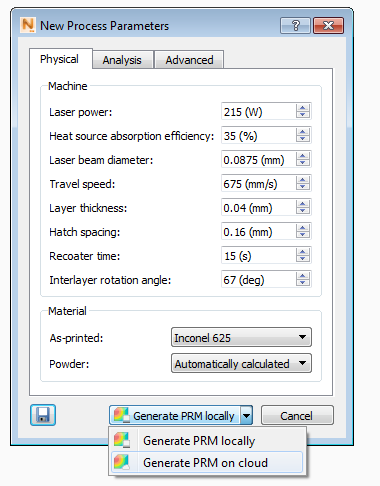
- In the Job Manager, the status will show Estimating job cost.
- A dialog window will appear showing the price of the PRM simulation and asking to accept or cancel.
- Once accepted the PRM generation will commence. Monitor the Job Manager to follow job progress.
- After the PRM generation has completed, it will appear in the Processing Parameter Library and will be available for use for part scale powder bed simulations via the Machine Dialog.
Solving Part Scale Powder Bed Simulations on the cloud
Follow the steps below to solve:
- Set up the part scale simulation with the desired analysis and simulation settings.
- Expand the Solve drop-down menu and choose
Solve on cloud.
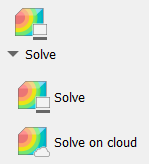
- The Job Manager will open as soon as the simulation starts. This shows the simulation progress. At the outset the status will be either Estimating Job Cost or Queued, if the cloud system resources are all currently occupied.
- After the job cost has been estimated, a prompt will appear stating the cost of the job and asking to accept, to proceed with the simulation, or to cancel. This step will also display the mesh and meshing information in the file tree.
- Monitor the job progress in either the status bar or from the Job Manager.
- After the simulation has completed the job status will switch to Downloading Results.
- Once the download completes the results will be brought into the project to view.
Cloud Solve limitations
- Users will be warned after costing has completed if the project will consume more cloud resources than are available on the cloud. To reduce the memory requirements for the model, consider changing Mesh Settings to use more coarsening generations and more elements per layer.
- Unlike local PRM files, cloud based PRM files are not brought into the Processing Parameter library until after the PRM simulation has completed.
- DED simulations cannot be performed on the cloud.