If your file system uses Unicode encoding to handle files and directories named with characters from a language such as Chinese, Japanese, Arabic, or Hebrew, you can expect to see that Simulation Utility will replace the Unicode characters with ASCII characters in many cases, such as project output files. This topic explains the general behavior, and how to recognize your project files.
Unicode file names are supported for the key Simulation Utility commands of Save, Save As, Import, Export, Mesh Preview, Solve, and Export Warped STL.
Cloud solving
If the path to a Unicode file is all in ASCII characters, some of the output files retain the Unicode name, as shown below:

Other files have the Unicode string replaced with an ASCII string. Note that the input files, _thermal.in and _mechanical.in, must always use ASCII names, not Unicode.
Whether Unicode names are involved or not, the output of a cloud solve is delivered to your computer in the project folder you initially designated. The results folder contains a folder with a long alphanumeric name, such as the example in the navigation bar at the top of the figure below:
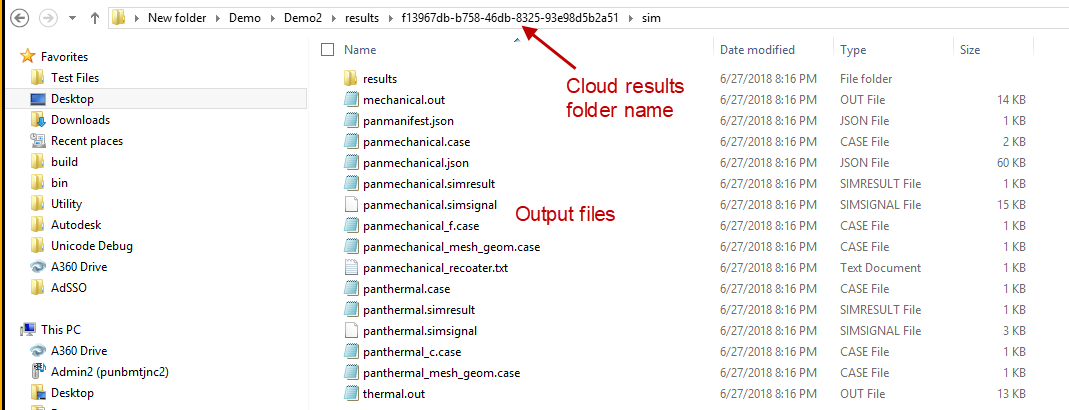
In the sim subfolder, the output files have standard names, as shown above.
Local solving
The figure below shows the files produced from a local solve with Unicode (Japanese) names for the TIVUS file and the project folder.
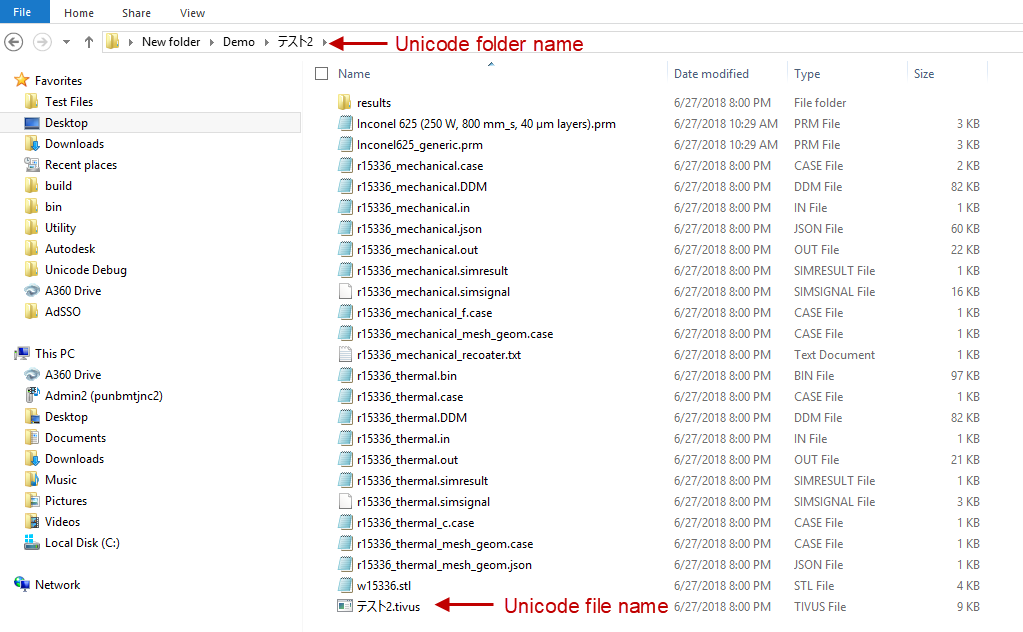
Note that for the input and output files, the Unicode characters have been replaced with a random ASCII string, r15336, except for the STL file which has a slightly different string, w15336. The STL file is included in the thermal.in and mechanical.in ASCII files, so it must have an ASCII name. If the project includes multiple STL files, Simulation Utility provides them with unique names.
File export
Files with the .in extension can be exported from Simulation Utility and solved from the command line in Autodesk Netfabb Local Simulation. If the export path includes Unicode characters, the command line user must run the commands from the context of the Unicode directory. A sample command would be as follows:
Cd C:\Users\bud\Desktop\New folder\テスト