This dialog box opens when you export multiple parts as mesh files from Netfabb. The controls in this dialog box might vary, depending on what format you are exporting to.
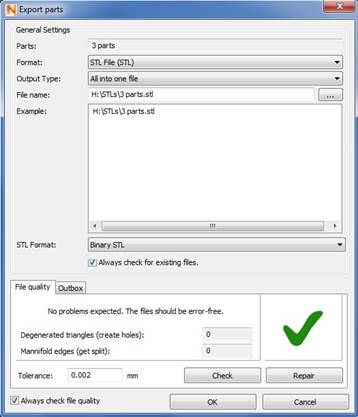
In the
Output Type box, select whether to save all selected parts in one file or save all parts in different files. For different files, choose if you want to:
- Give them a common file name with numbers
- Give them a common file name using the part ID (the part number in the project)
- Save them with their original part names in the project and a loading list
- Create file names with a common file name and the original part name
If a loading list is created, an additional XML File is saved which contains a list of all exported files. If you open that XML file with Netfabb, all files in the list are opened at once.
File Quality Tab
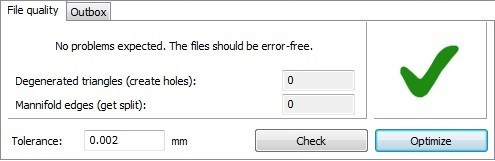
Use the File Quality tab to check for and repair errors. Before files have been checked, the dialog box shows an unchecked symbol
 .
.
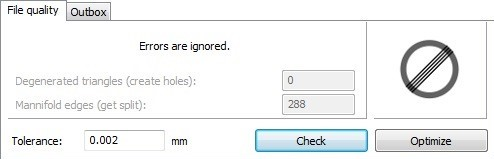
- Degenerated Triangles (Create Holes)
- Small or thin triangles that can result in little holes.
- Manifold Edges (Get Split)
- Triangle edges that share the same coordinates and might be split open.
- Tolerance
- Determines the precision with which errors are calculated. If the distance between two triangle corner points is below this value, they are interpreted as one point and will be reported.
- Check
- Check to see if the files you are about to create might cause errors when they are opened again. This updates the values in the Degenerated Triangles and Manifold Edges boxes. Problems are indicated with an errors symbol
 .
.
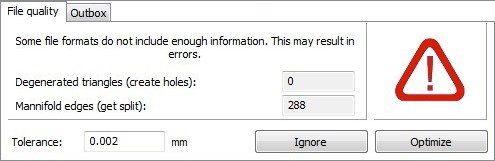
- Optimize
- Fix the errors automatically. The files are rechecked and errors should be eliminated. Sometimes you might have to repeat the repair.
- Always Check File Quality
- Select to always check file quality when the export dialog opens.
Outbox Tab
In the Outbox tab, the dimensions of all selected parts are given. This includes the length of the outbox along all three axes, then the minimum and maximum values along the axes.