A license is an authorization to run Autodesk Nastran In-CAD. Possession of a license indicates that the software has been obtained legally and is an authorized copy, which may be executed. There are two licensing options available for Autodesk Nastran In-CAD: standalone and network. For more information on licensing and product activation, check out the following pages and related topic pages:
- To Launch Your Product
- To Transfer a License
- About Managing Network Licenses
- About License Management Options and Tools
Follow the steps below to activate the license and test the software installation.
Activating Autodesk Nastran In-CAD
- Start Autodesk Inventor (Standard or Professional).
- Make sure the Autodesk Nastran In-CAD 20xx Add-in is checked (enabled) in the Add-In Manager and set to start/load automatically.
- Create a New CAD document, or Open an existing one, to start the licensing and activation process.
- For example, click
File
 New. The
Let's Get Started (LGS) window appears:
Note: If the license prompt is not started, enter the Nastran In-CAD environment.
New. The
Let's Get Started (LGS) window appears:
Note: If the license prompt is not started, enter the Nastran In-CAD environment.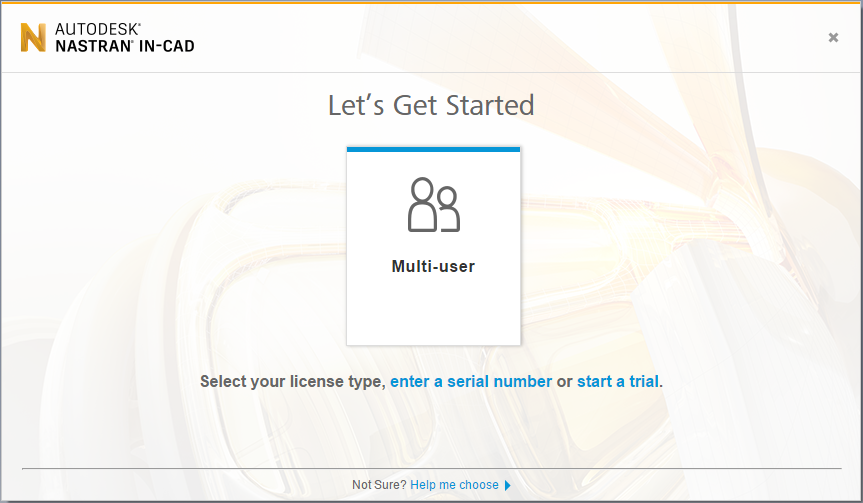
- Depending on your license type, click either enter a serial number (for a standalone license) or Multi-user for a network license.
- If you have a network license, enter the port number and server name in the format
port@servername. It might be necessary to use the server IP address instead of the server name. Using an IP address can resolve Domain Name Service (DNS) name resolution problems.
Standalone licensing requires you to enter your Autodesk In-CAD Serial Number and Product Key.
- For example, click
File
- If you experience issues connecting to your server and obtaining a license, it might be necessary to add the System Environment Variable:
FLEXLM_TIMEOUT, with the Variable Value set to 15000000. The timeout value is in microseconds, and this value represents a 1.5 second timeout interval. Over VPN connections and slow wide area networks, the default timeout (without the specified system variable) is often inadequate. If you still encounter difficulties, increase the timeout value further.
 Note: You can also set this variable as a User Environment Variable. The advantage of making it a System Variable is that it will be applied for any user that logs into the workstation. In a multi-user situation, you would have to define the User Variable in every user's profile.
 - Log in using your Autodesk User ID account. If you do not have an account, you can create one here:
https://accounts.autodesk.com/
Note: To configure the network license manager, refer to the topic: Installing the Network License Manager. To request a network license file, refer to the topic: Requesting a License File.
Testing the Autodesk Nastran In-CAD Installation
After you have successfully installed Autodesk Nastran In-CAD, you should test the installation.
Running Autodesk Nastran In-CAD from Autodesk Inventor:
You can now test Autodesk Nastran In-CAD by using Autodesk Inventor Standard or Professional.
- Launch Autodesk Inventor from the Windows Start Menu. For example, click
Start All Programs Autodesk Autodesk Inventor 20xx Autodesk Inventor Professional 20xx.
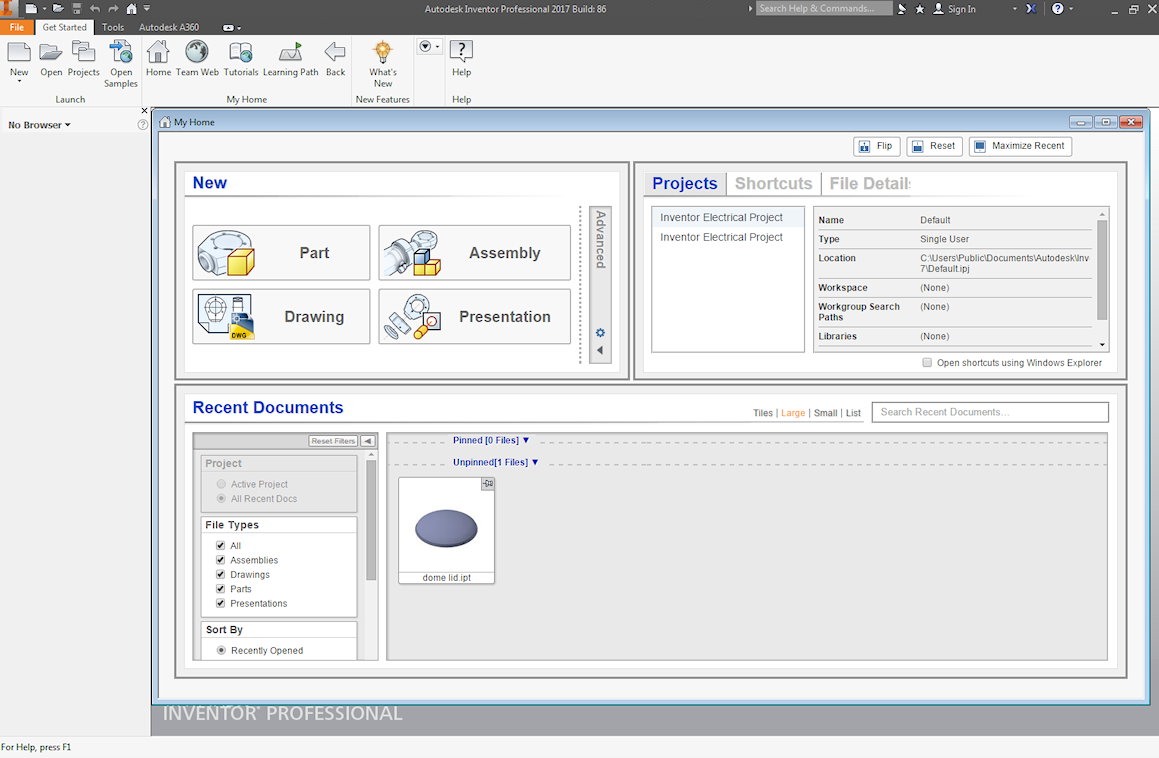
- Open the file, vm2_12cR.ipt, located in the C:\Users\Public\Public Documents\Autodesk\Nastran In-CAD 20xx\Verification Models\en-us folder.
- Select the Environments button, and click on Autodesk Nastran In-CAD.
- Select the
Run button from the
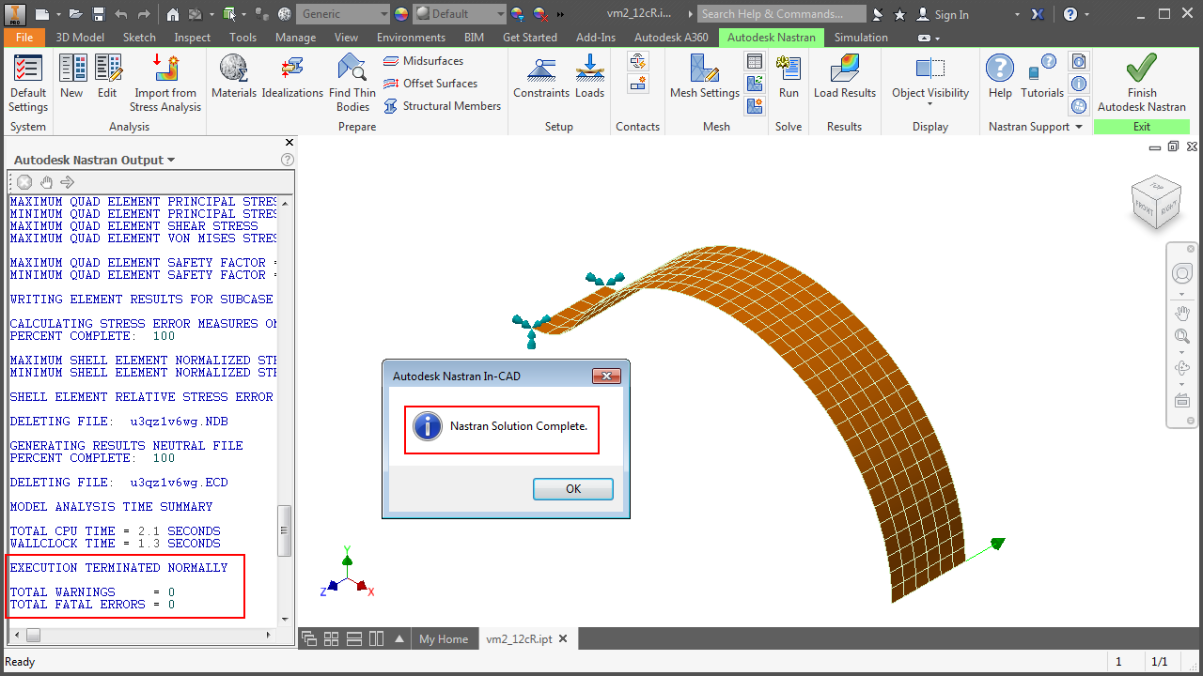
Autodesk Nastran ribbon bar to run the model. The Autodesk Nastran In-CAD solver should terminate with no error or warning messages, as shown in the following picture:
 Note: Make sure everything works when you are logged in as an Administrator.