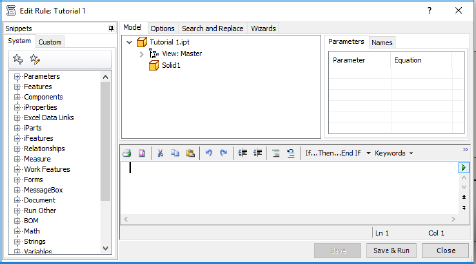
Now we can begin to create a rule containing the iLogic commands that define the model. We can create multiple rules, each with unique steps, or we can create a single rule containing all the steps required to build our model. In this case, we’ll create a single rule.
- Switch to the
iLogic tab in the browser.
Important notes
You will see that the Main rule has already been created. This rule must exist in parallel to all other rules you create. For the purposes of this tutorial, just be aware that this rule must always be present. The main rule is used for
- Setting iLogic External Rules directory to In-CAD's iLogic external rules folder.
- Setting iLogic Addin DLLs directory (object of iLogic) to In-CAD's System folder.
By default, in the Main rule, the iLogic External Rules directory and iLogic Addin DLLs directory are set to the C drive as follows:
ExternalRuleDirectory(0) = "C:\Program Files\Autodesk\Nastran 2019\In-CAD\System\iLogic"
oIlogic.FileOptions.AddinDirectory = "C:\Program Files\Autodesk\Nastran 2019\In-CAD\System"
If Nastran IN CAD 2019 is installed on a different drive, both of the directories need to be set accordingly. For example, if installed in a folder D:\ADSK_NS2019, the paths for both directories need to be updated in the Main rule. Edit the Main rule and change the paths as follows:
ExternalRuleDirectory(0) = "D:\ADSK_NS2019\\Nastran 2019\In-CAD\System\iLogic"
oIlogic.FileOptions.AddinDirectory = " D:\ADSK_NS2019\Nastran 2019\In-CAD\System"
- On the Rules tab, right click in the white space and choose Add Rule.
- Name the rule
Tutorial 1 and click
OK. This will open the new rule in the Edit Rule dialog which we’ll use in the steps that follow to build our model.