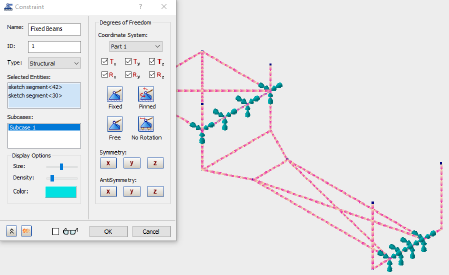
The structure is constrained using a fixed boundary condition.
- Copy the following text:
strCmdForConstraint = "<Constraint Name=""Fixed Beams"" ID=""1"" Type=""0"" CoordinateSystemID=""0"" Tx=""1"" Ty=""1"" Tz=""1"" Rx=""1"" Ry=""1"" Rz=""1"" EntitiesCount=""2"" ArrowLength=""50"" ArrowColor=""14803200"" DisplayDensity=""4"" SubcaseCount=""1"" Subcases=""1""><Entity2 GeometryType=""3"" GeometryID=""42"" ComponentName=""Tutorial 2""/><Entity1 GeometryType=""3"" GeometryID=""30""/></Constraint>"
Type = 0 denotes the use of a structural constraint. Each component (Tx, Ty, Tz, Rx, Ry, Rz) is defined with a value of 1, denoting a fixed boundary condition. GeometryType = 3 denotes that the boundary condition is applied on the two sketch entities with ID’s of 42 and 30.
These commands are equivalent to applying the constraint with the user interface.
- Paste the text below the existing commands in the Edit Rule dialog.
- Press the Enter or Return key twice to jump down to a new line.