Autodesk Nastran In-CAD can access a material library.
- Expand the Model Tree, then right-click on Materials and select New.
- In the dialog, click on Select Material.
- The Material DB dialog will become populated with the available libraries. Click on Load Database.
- Browse to C:\Program Files\Autodesk\Nastran 2019\In-CAD\Materials, and open the ADSK_materials.nasmat file.
- Expand the Steel tree, and select
16-25-6 Stainless Steel as shown in the image below.
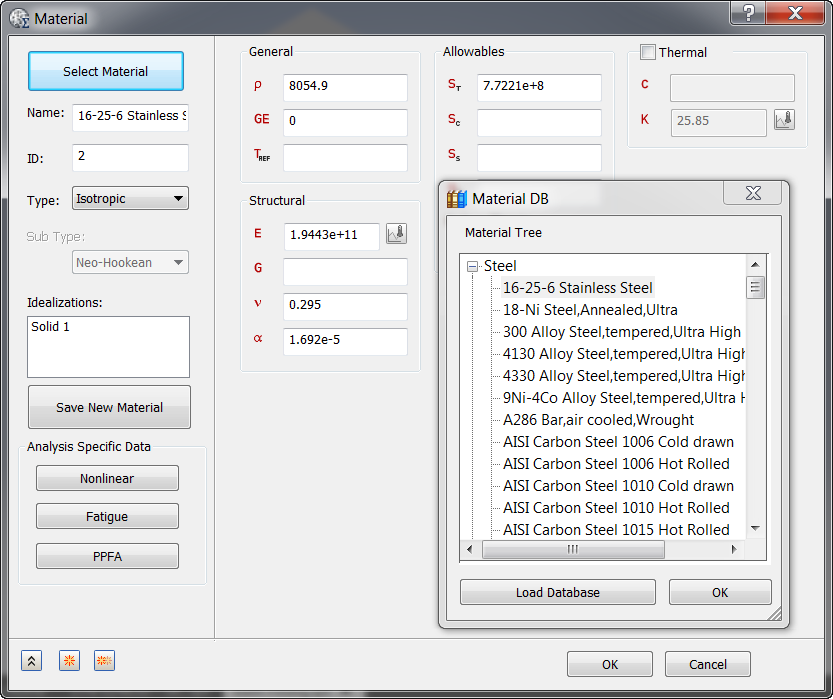
 If you get a warning like this one below, please ignore it.

This is because in the Allowables section, if you enter St or Sy, the software will automatically shift the failure theory to Principal Stress or von Mises Stress, respectively.
- Click OK to close the Material DB dialog.
- The corresponding properties are loaded into the appropriate fields in the
Material dialog.
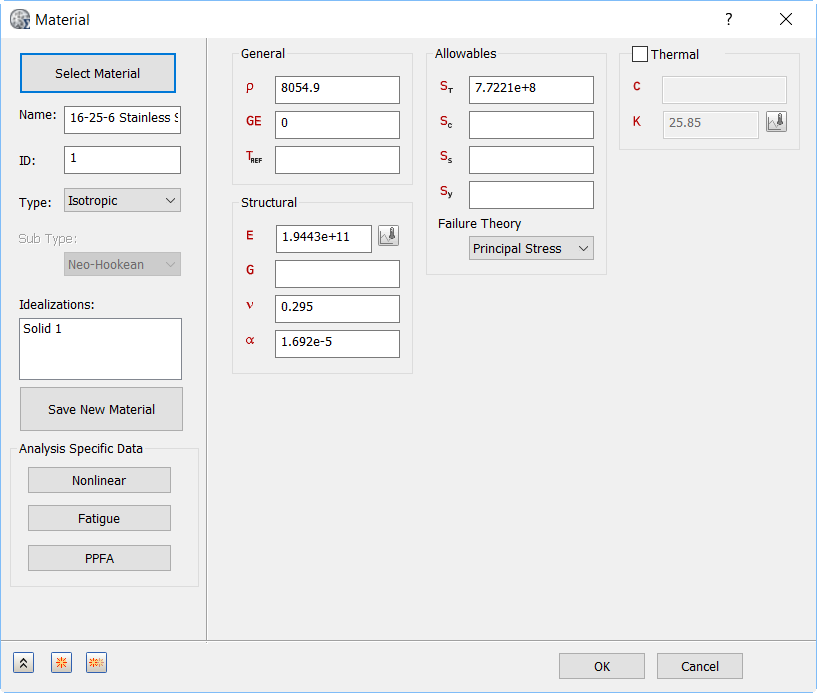
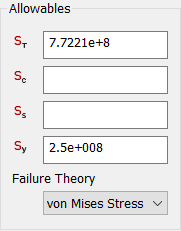
- Enter
2.5e+008 for
Sy and set the
Failure Theory to
von Mises Stress.
- Click OK.
- 16-25-6 Stainless Steel is added to the Materials list.
Note: Material Library Features:
- In Autodesk Inventor, Load Material Data from
Select Material is selected, which will load the Autodesk Inventor libraries.
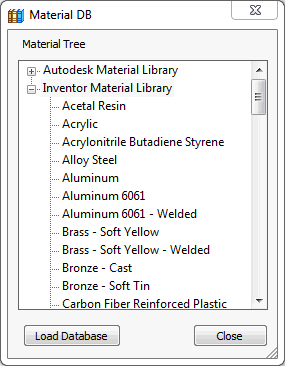
- Autodesk Nastran In-CAD can access a material library such as Autodesk Materials and Inventor Materials, and supports the import of any SolidWorks compatible material database (Solidworks materials.sldmat) by clicking on Load Database.
- You can also create a custom material with the available material properties and save it to a custom material library as a materialname.xml file by clicking Save New Material.
- You can load this library later if needed, by choosing the XML File type and browsing to the location of the library.
- Once loaded, it would contain all the materials that you saved to that library.