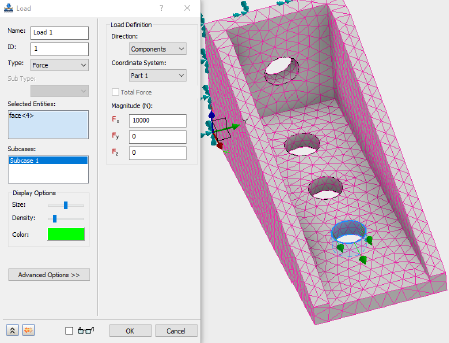
The load is applied as a force load on the surface of the bolt hole.
- Copy the following text:
strCmdForLoad = "<Load Name=""Load 1"" ID=""1"" Type=""0"" SubType=""0"" EntitiesCount=""1"" Subcases=""1"" ArrowLength=""50"" ArrowColor=""65280"" DisplayDensity=""4"" Direction=""0"" CoordinateSystemID=""0"" Display=""1"" Fx=""10000.0000000000[N]"" Fy=""0.0000000000[N]"" Fz=""0.0000000000[N]"" HasVariableLoad=""0"" HasHeatGenTable=""0"" HadConvCoeffTable=""0"" HasRadTable=""0"" HasTransTable=""0"" HasVelTransTable=""0"" HasAccTransTable=""0"" HasVelFreqTable=""0"" HasAccFreqTable=""0"" HasFreqTable=""0"" HasFreqPhaseTable=""0"" HasAccFreqPhaseTable=""0""><Entity1 GeometryType=""2"" GeometryID=""4"" ComponentName=""Tutorial 1""/></Load>"
Type = 0 denotes the use of a force load. GeometryType = 2 denotes that the load is applied on the face with an ID of 4.
These commands are equivalent to applying the load with the user interface.
- Paste the text below the existing commands in the Edit Rule dialog.
- Press the Enter or Return key twice to jump down to a new line.