To make this process easy, we're going to use a simple system for steps and notes:
- Steps are numbered. Some steps are followed by a series of simple actions, listed as "A", "B", etc.
- Commands found in the User Interface (like button names) are shown in bold.
1. Start Autodesk® CFD
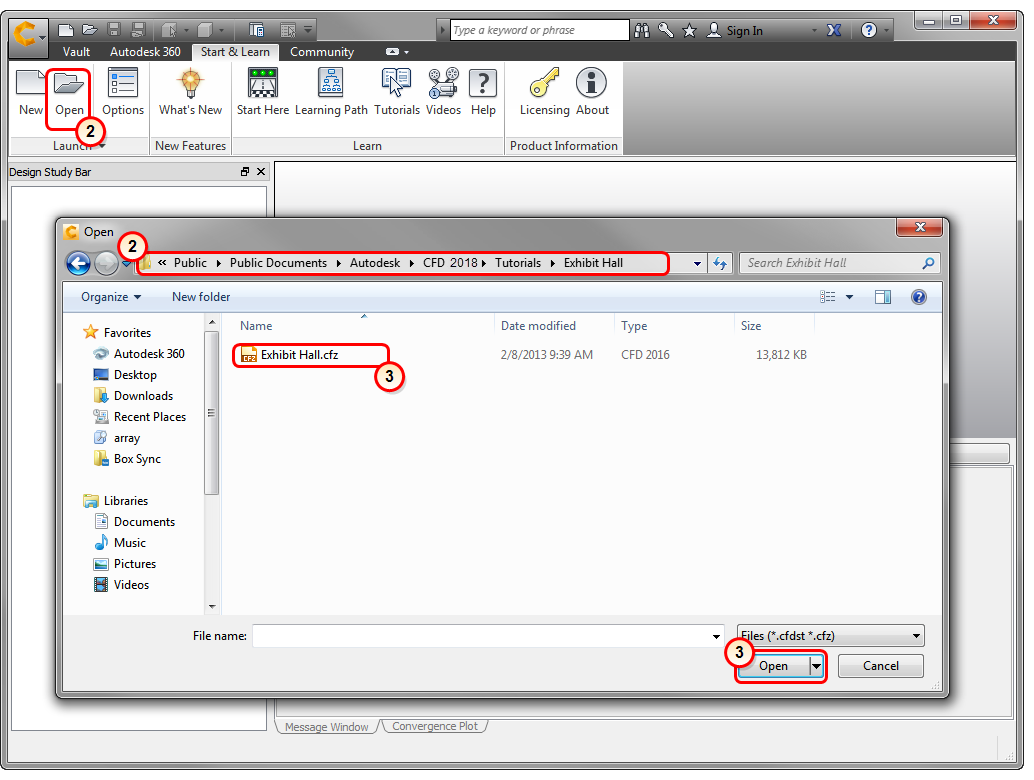
2. In the Launch panel, click Open, and navigate to C:\Users\Public\Public Documents\Autodesk\CFD 2018\Tutorials\Exhibit Hall.
3. Select
Exhibit Hall.cfz, and click
Open.
Note: This is a share file, which contains only the geometry (no settings). It was created by transferring the model from Autodesk® Revit into Autodesk® CFD.
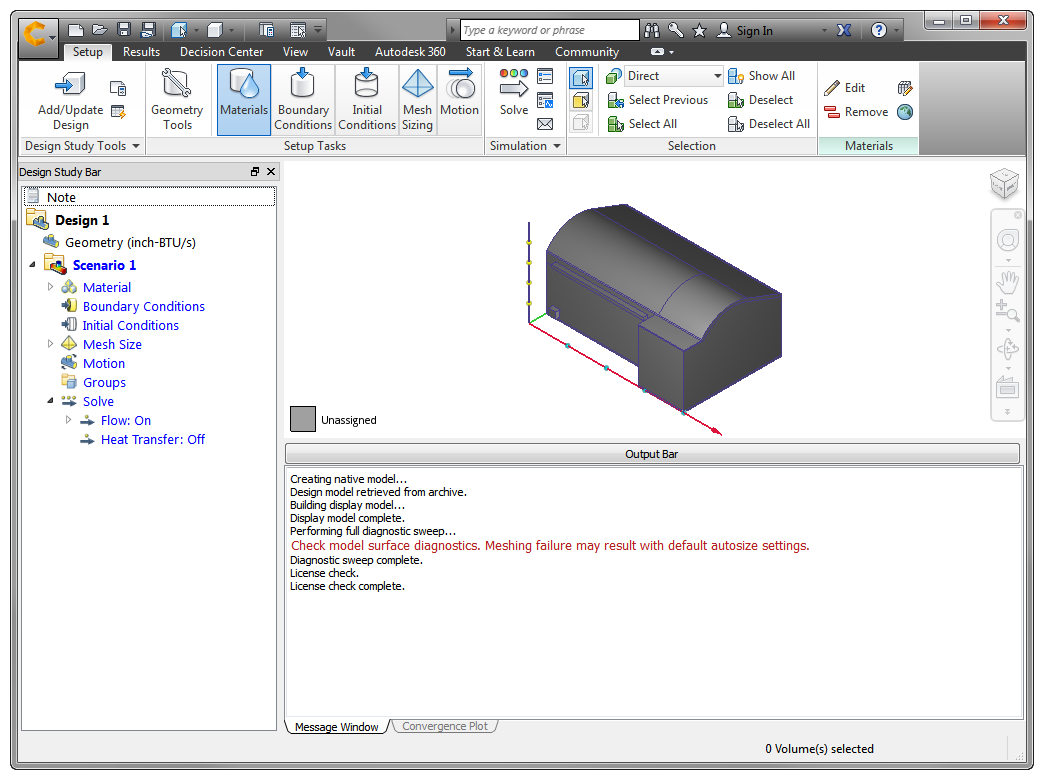
You should see the Exhibit Hall model in Autodesk® CFD: