In this section we will observe the geometry with the 4 issues removed from the geometry.
- Observe the Message window.
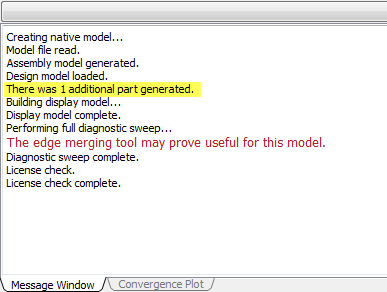 Note: There is a coincidental mating of housing parts so that an additional part is generated.
 - Click on the top of the Output Bar to hide the message window. The screen should then appear as follows:
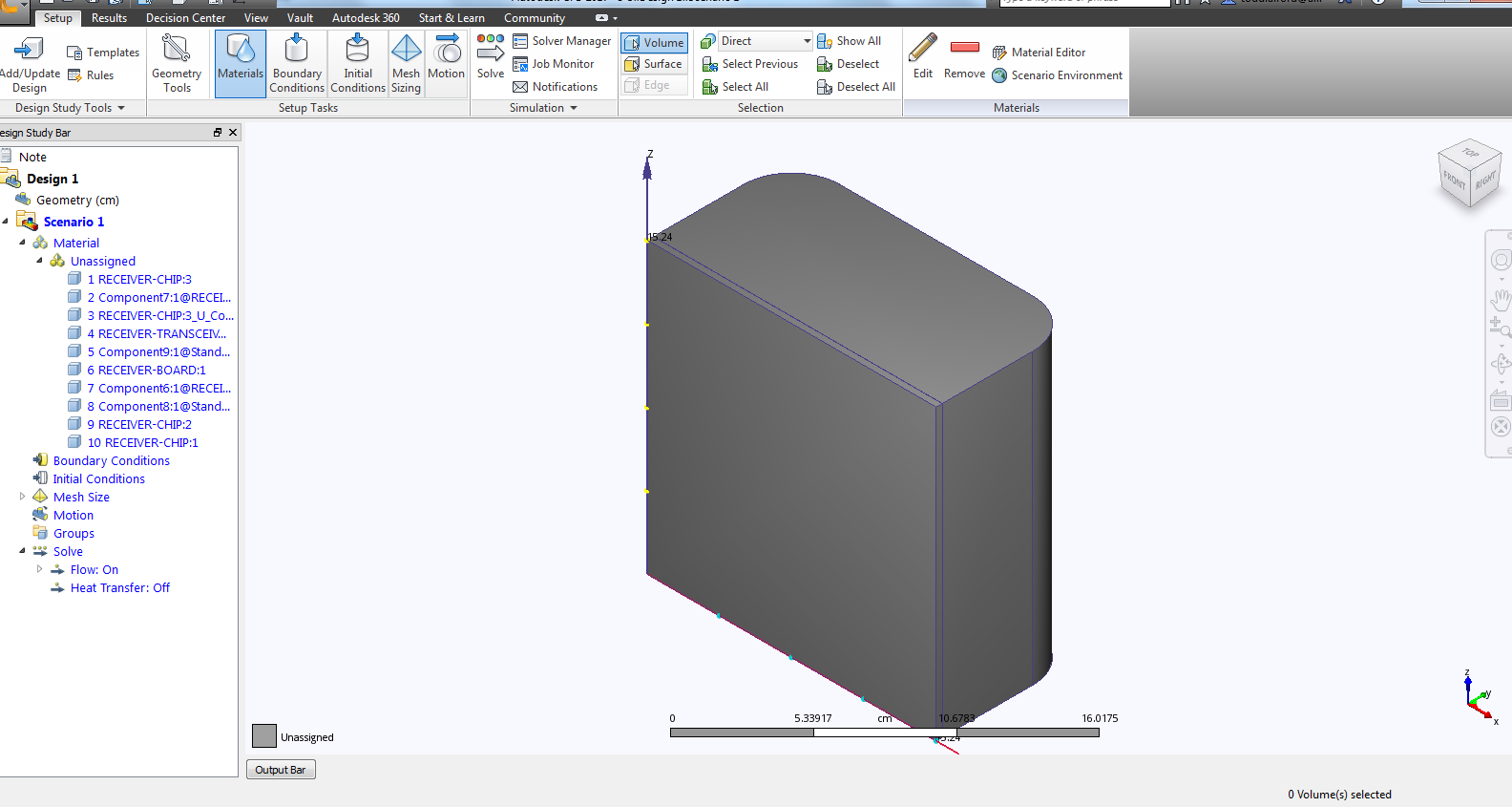
- Hide the bottom plate of the housing using your preferred method (right-click or Ctrl+MMB).
- Select the fluid volume that was created.
Note: 10 Volume is highlighted in the design study bar, parts created to fill gaps within Autodesk® CFD will follow the same naming convention.
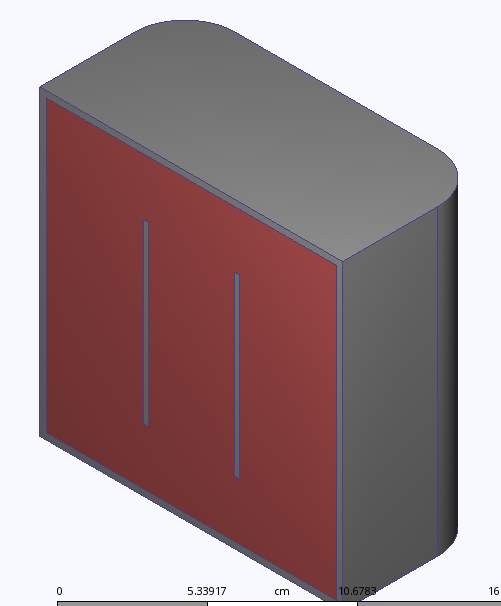 Note: In the Design Study bar the partname_U_partname is now missing because there are no interferences in the current model.
 - Rotate the model using the top right corner of the view cube
The model orientation should be as follows:
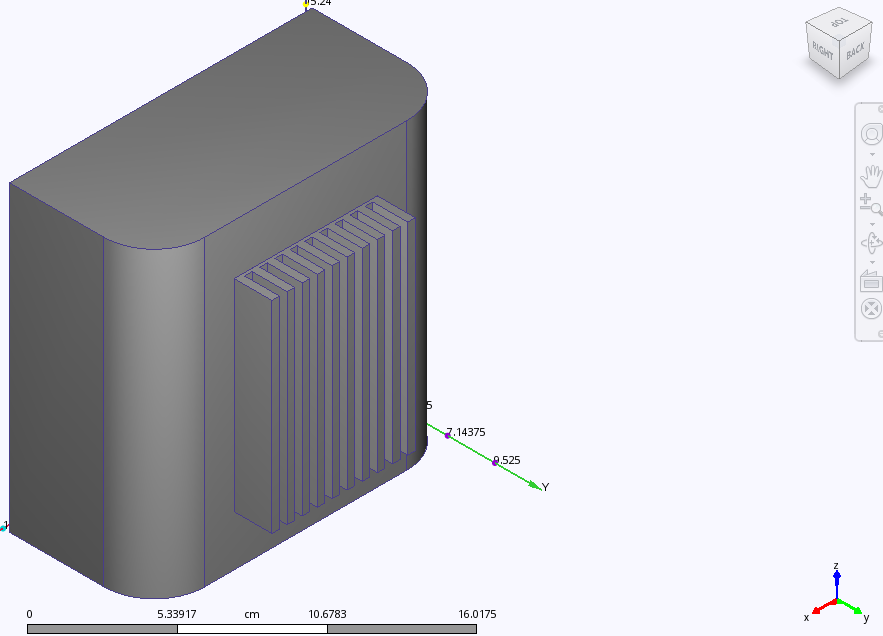
- Hide the top housing and fluid volume using your preferred method (right-click or Ctrl+MMB). The model should appear similar to:
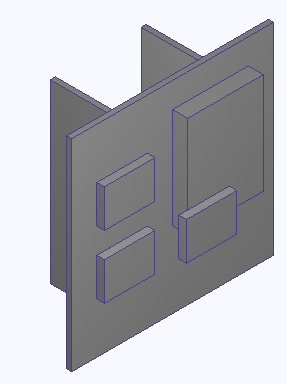 Note: The Chip has been moved from the edge of the board, and the chamfer has been removed. This model is simulation ready. To setup and run this model Close Autodesk® CFD and proceed to Tutorial: Internal Natural Convection in a Telecommunications Module.