Virtual Reality Preferences
Find out about the Virtual Reality preferences for customizing settings for general VR, teleport, and StarVR use.
Edit > Preferences > Virtual Reality
Use the Virtual Reality preferences to customize settings for general VR, teleport, and StarVR use. Once everything is set, click Apply.
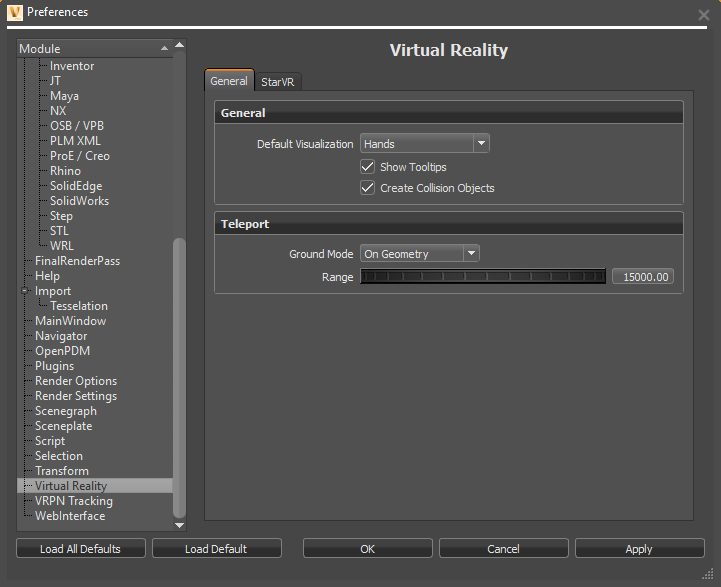
General (tab)
Use these parameters to customize any HMD.
General
Default Visualization - Sets whether the initial session starts with VR hands or controllers displayed.
Show Tooltips - Toggles the visibility of the controller tooltips on or off. By default, this option is toggled on.
Create Collision Objects - Toggles the creation of collision objects for all touch sensors and WebEngines in the scene on or off. Without them, you cannot interact with touch sensors and WebEngines when using VR Hands.
Teleport
Use these parameters to customize your teleporting mode and range.
Ground Mode - Sets the default mode when teleporting. Either teleport onto models or into and around them.
Important: To teleport into a vehicle or anywhere on the ground plane, select On Ground Plane. When On Geometry is selected, you can teleport onto geometry, but not into it.
Range - Sets the limit for how far you can teleport within the scene.
StarVR (tab)
Use these parameters to customize your StarVR settings.
Rendering
Foveated Rendering - Toggles Foveated Rendering on or off. When enabled, eye-tracked areas are rendering in high resolution and peripheral areas in low resolution.
Foveated FOV factor - Only available when Foveated Rendering is enabled. Defines the percentage of the whole field-of-view per eye used for the high-resolution area. For example, is the FOV factor is 0.35 = 35% of whole eye FOV used for eye tracked Render Window.
Foveated Resolution Scale - Only available when Foveated Rendering is enabled. Sets the resolution scale factor for high-resolution, foveated, areas.
Non-Foveated Resolution Scale - Only available when Foveated Rendering is enabled. Sets the resolution scale for low-resolution, full FOV, non-tracked, areas. Should be lower than 1.0.
Non-Foveated Rendering - Toggles Non-Foveated Rendering on or off. When enabled, eye-tracked and peripheral areas will be rendered at the same resolution.
Front View Resolution Scale - Only available when Non-Foveated Rendering is enabled. Sets the resolution scale for front Render Windows in non-foveated rendering mode.
Side View Resolution Scale - Only available when Non-Foveated Rendering is enabled. Sets the resolution scale for side Render Windows in non-foveated rendering mode.
Single Texture per Eye - Only available when Non-Foveated Rendering is enabled. Toggles the use of only one texture per eye in non-foveated rendering mode, instead of the two textures, front and side.