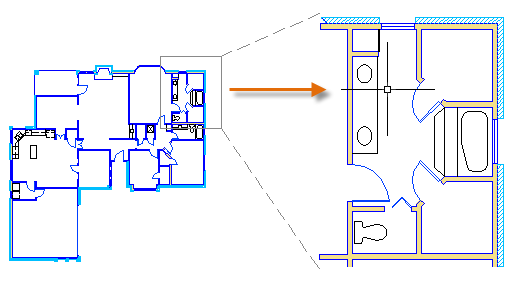
Control the location and magnification of your view in a drawing by panning and zooming.
The easiest way to change your view is by using the wheel on your mouse.
- Zoom in or out by rolling the wheel.
- Pan a view in any direction by holding the wheel down and then moving your mouse.
- Zoom to the extents of your model by clicking the wheel twice.
Return to a Previous View
A quick way to step back through a maximum of 10 previous views is to enter ZOOM in the Command window and then specify the Previous option. Other ZOOM options provide ways of specifying the diagonal corners of a rectangular window or zooming to the extents of the drawing.

View Drawings from Remote Locations
It can be helpful to be able to access your drawing files while on a job site, when travelling to or from a client meeting, or when you're using a different computer on location. For example, you can save certain drawings to your Autodesk Web & Mobile Account and then view them from your smartphone at a remote location.
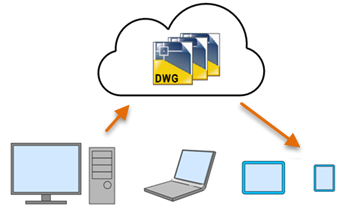
With your AutoCAD or AutoCAD LT subscription, you can view, create, and edit drawings on a variety of devices:
- Your primary desktop or laptop PC with AutoCAD or AutoCAD LT installed
- Your smartphone or tablet using the AutoCAD mobile app
Simply download the free mobile app to your device and sign in with the same Autodesk ID as your AutoCAD or AutoCAD LT subscription. You'll be automatically upgraded to the Premium version of the app.
- Another computer at a different site or at home using a browser with Autodesk web.
From a tablet or a different computer, use your web browser to log in to your Autodesk Web & Mobile Account or a cloud storage provider.
For convenient access to certain drawing files from remote locations, all you need to do is save the drawing files to your Autodesk Web & Mobile Account.

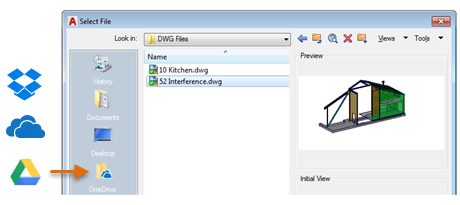
If you have an account with a cloud storage provider such as Dropbox, Microsoft OneDrive, and Google Drive, you can save your drawings directly to online folders in the cloud from AutoCAD.
In many situations, these online technologies can increase the power and convenience of AutoCAD.