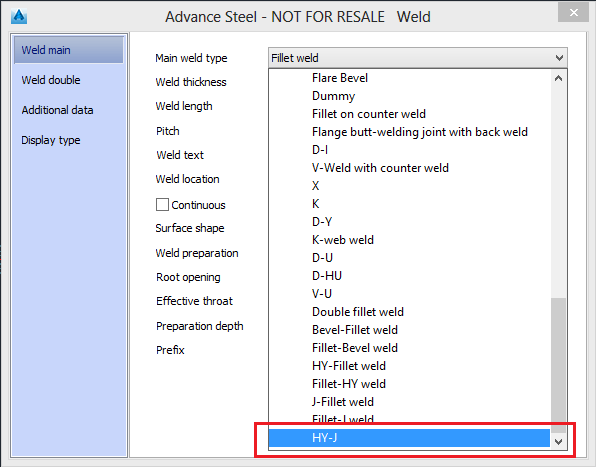
Learn how to create a combined weld symbol consisting of two existing weld symbols for automatic near side and far side welds.
For this example, an "HY-J" combined weld symbol is created.
To create a new combined weld symbol, follow these steps:
- Start the Advance Management Tools.
- Start the Table Editor application.
- Click the OPEN DATABASE ODBC icon and select AstorBase.
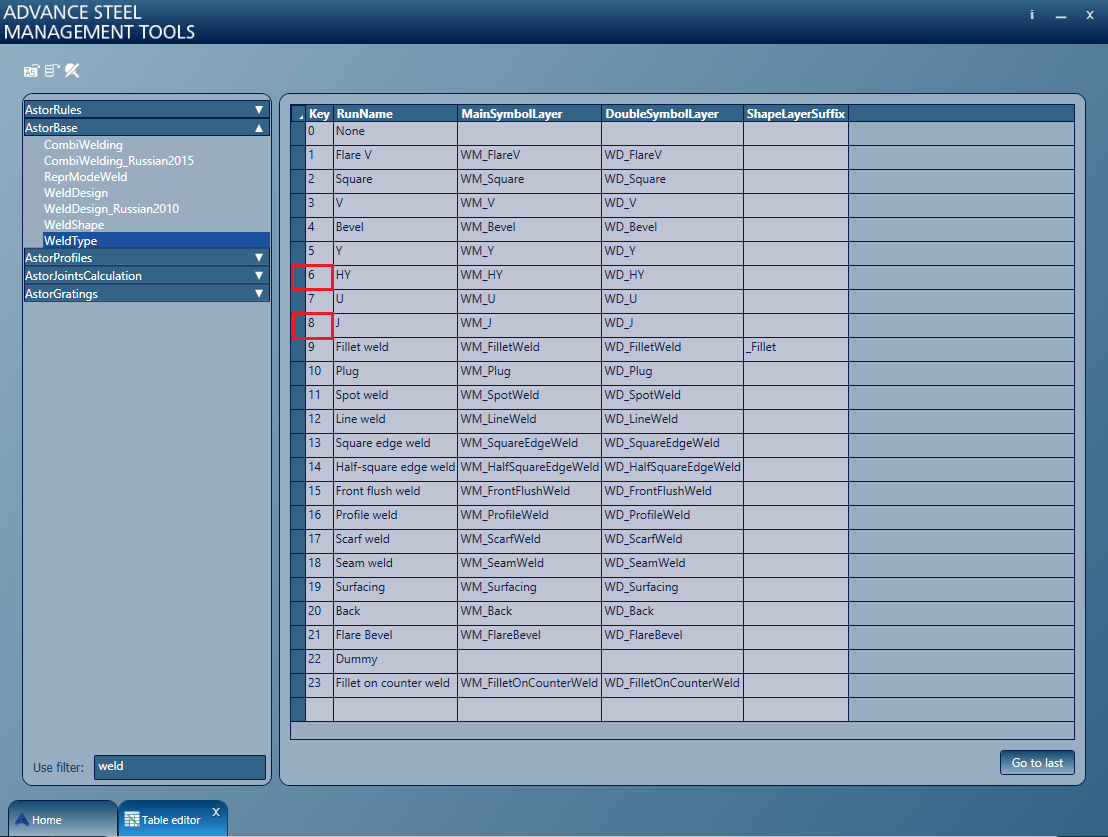
- Open the "WeldType: table and write down the key numbers associated with the desored weld symbols (6 for HY ans 8 for J).
- Open the "CombiWelding" table.
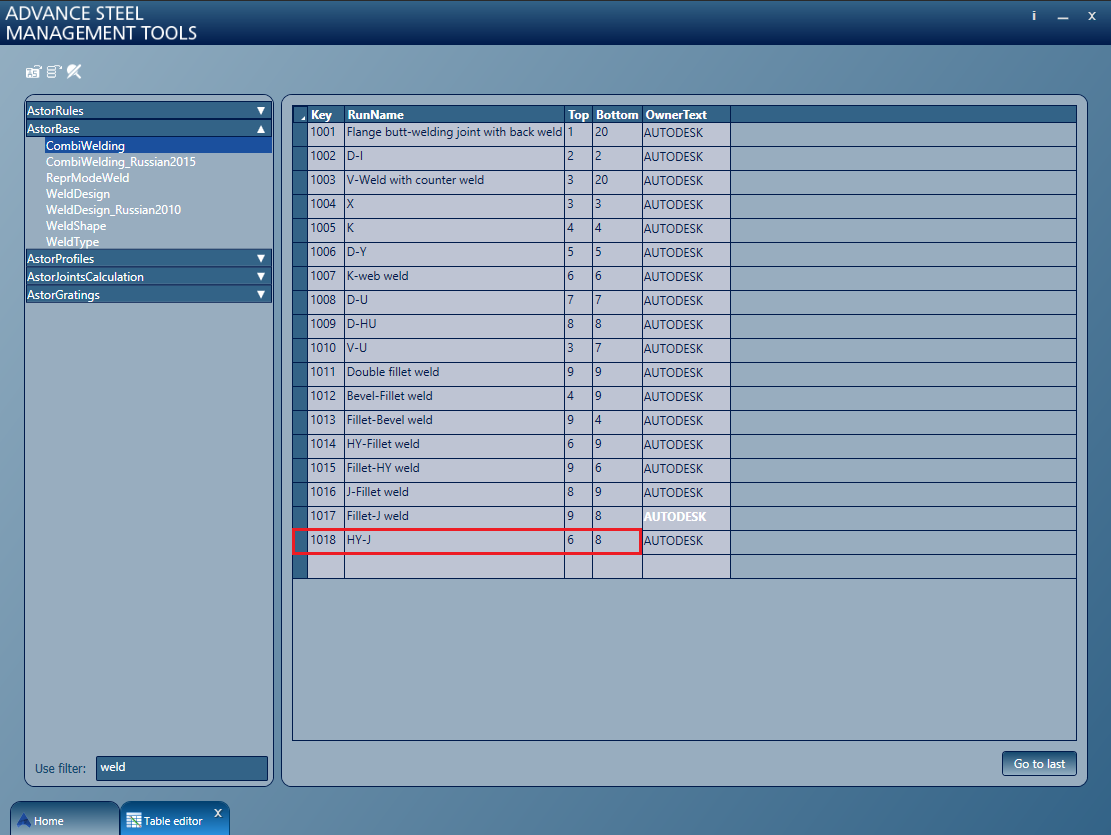
- Fill in the description for the new combined weld symbol on the last free line:
- Key: next available number.
- RunName: the desired name, for example "HY-J".
- Top: The key number associated with the near side weld, 6 for HY weld in this case.
- Bottom: The key number associated with the far side weld, 8 for J in this case.
- Close the Management Tools and use
 (Update defaults), located on the Home tab
  Settings panel.
- The new combined weld symbol is available in the Weld dialog: