In this exercise, you update a drawing and merge new vector data with existing raster data.
| To merge vectors into raster data | ||
|---|---|---|
| 1 |
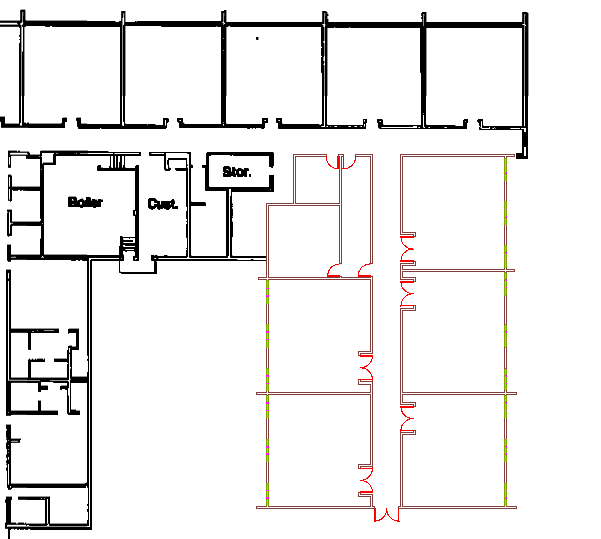
Open the file C:\Program Files\Autodesk\AutoCAD Raster Design 2020\Getting Started Guide\LiveView_Merge.dwg. You see a drawing of a school. The white raster data indicates the original building, and the colored vector data indicates the additional classrooms. |
 |
| 2 | Click
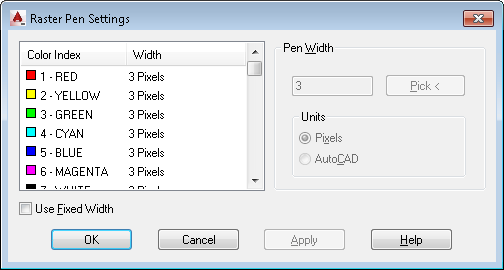
Raster menu MergeConfigure Raster Pens to open the
Raster Pen Settings dialog box. MergeConfigure Raster Pens to open the
Raster Pen Settings dialog box.
|
 |
| 3 |
Select the Red pen color, set its pen width to 1 pixel, then click OK. With this setting, the doors will be drawn in thinner raster lines than the walls. |
 |
| 4 |
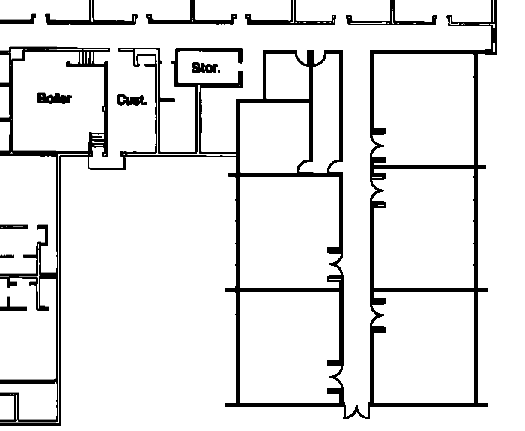
Click
Raster menu The vector data is merged with the raster data. |
 |