
Scaling clips lets you alter the length and speed of animation, character, camera animation, and video clips.
To scale a clip:
- Select a clip in the Story window.
- Select Scale in the Story Controls.
- Drag the start or end of the clip left or right until it is resized.
Scale more than one clip at a time by selecting multiple clips and dragging the start or end of one of them. You can also double-click the frame number at the start or end of a selected clip and enter a new frame number.
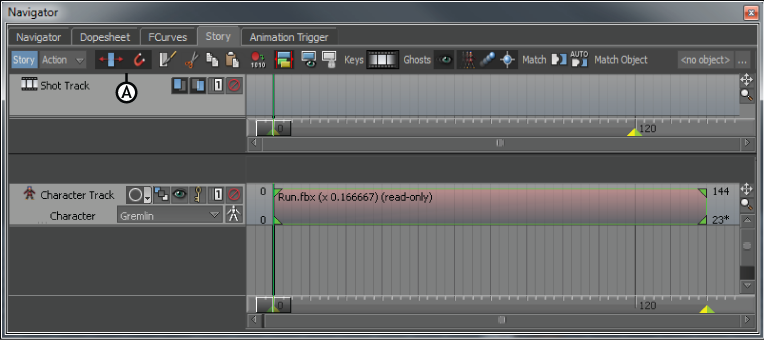
Story options A. Scaling is active
When you double-click a clip in the Story window, the clip’s settings display in the Asset Settings window. Some of these settings also let you scale a selected clip.
Changing the values in the In and Out fields (A and B) lets you scale a clip when Scaling is active. Changing the value in the Clip Speed field (C) lets you scale a clip with a precise value.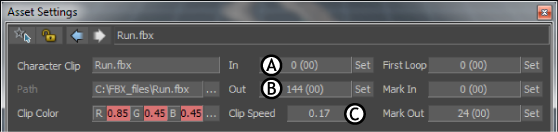
Asset Settings window A. In field B. Out field C. Clip Speed field
Note: If you can not change the values in the
In and
Out fields, make sure the
In/Out Locked property is turned off. See
Locking story clips.
If you can not change the values in the
In and
Out fields, make sure the
In/Out Locked property is turned off. See
Locking story clips.
To scale a clip with the ripple manipulator
- Select a clip in the Story window.
- In the Story Controls, click
 to turn on scaling.
The scaling icon
 appears.
- Drag the ripple manipulator at the bottom right end of the clip until it is resized.
Tip: To see the manipulator, extend the clip length and track height. The manipulator does not appear if the track is squashed.
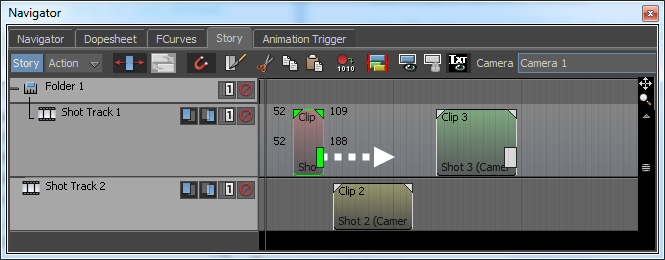
All of the subsequent clips move later on the timeline.
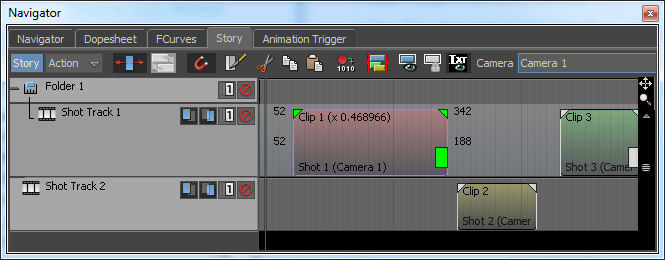 Note:If dragging the ripple manipulator does not resize the clip, make sure the
In/Out Locked property is turned off. See
Locking story clips.
Note:If dragging the ripple manipulator does not resize the clip, make sure the
In/Out Locked property is turned off. See
Locking story clips.