View issues identified in a Autodesk Docs model.
- In
Revit, click the Issues tab
 Issues to open the Issues panel. Issues are displayed on 3D models as push pins, and all issues, created on 2D or 3D models, are listed in the panel.
Tip: Click Refresh in the Issues panel to load any changes to issue data, and sync between Autodesk Docs and Revit.
Tip: Click Reload to reload the entire Issues panel.
- To apply a filter to display a subset of issues, use the Filter drop-down list in the panel to select one or more filter criteria. You can filter issues by type, status, category, assignee, due date, root cause, issue creator, publish status, or creation date.
Note: If the project is an Autodesk Construction Cloud file, filter settings will be remembered the next time Revit is launched.
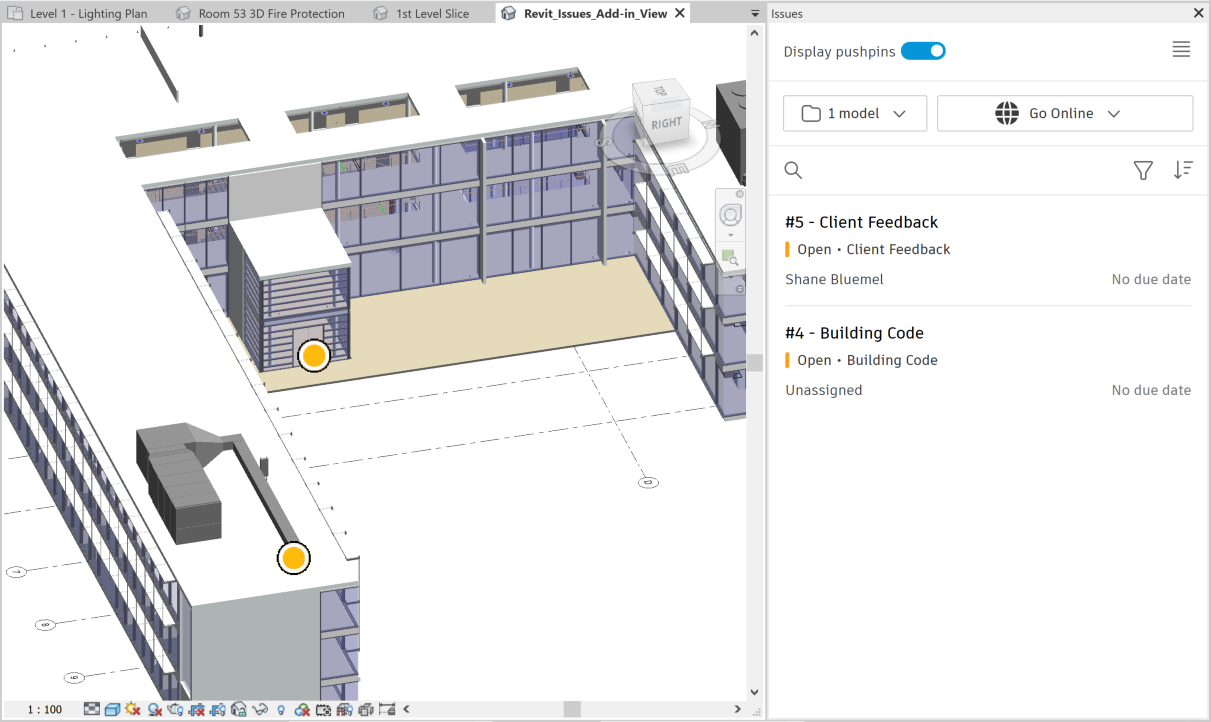
- To sort how the list of issues is ordered, use the Sort drop-down list. You can sort issues by status (Open to Closed, or Closed to Open), ID (Ascending or Descending), or due date (Old to New or New to Old).
-
To view the details of an issue, select the issue in the issue list, or, for 3D models, click on a push pin. The view of the model changes to replicate the view when the issue was created, and the affected geometry is selected.
Tip: Pushpins can be turned on and off by clicking the toggle on the Issues panel. These settings will be remembered the next time Revit is launched.
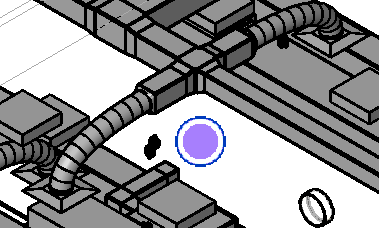
Note: If the current geometry or views are different to those at issue creation, it may not be possible to replicate the visualization experience entirely.
Associated Models
When working with a large number of files and models in a project, issues that a user is interested in may be created on a different model than that which is currently open in Revit. By selecting the cloud models that they consider associated with the current open file, users can view and work with issues reported on those models. This functionality replaces the previous Load issues functionality available in RIA 4.0 and earlier.
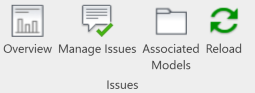
The Associated Models window can be opened from the Issues ribbon bar. Note that Desktop Connector must be installed and active in order to load associated models.
The Associated Models window shows the current project structure on the left side of the window. Expand the folder structure to find the Revit (.rvt) files that you want to associate with the currently open file. Selecting a file will add it to the list of selected models on the right of the window and show the number of issues on that model.
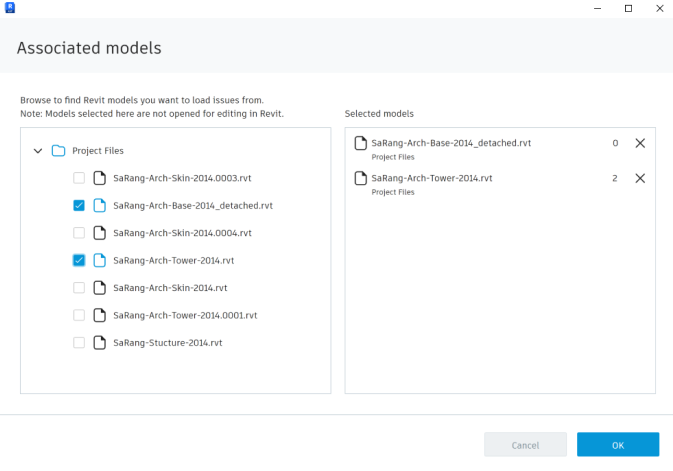
Models can be removed from the list by either clicking on the X for the selected model or unchecking it in the list.
Pressing OK will confirm the selected models and update the list of issues shown.
The issues list will display all of the issues available from the associated models previously selected. This list can be temporarily filtered using the drop down menu to allow the user to quickly focus on a particular model or set of models.
In the issues pane, click on the model list and unselect the models that are not required:
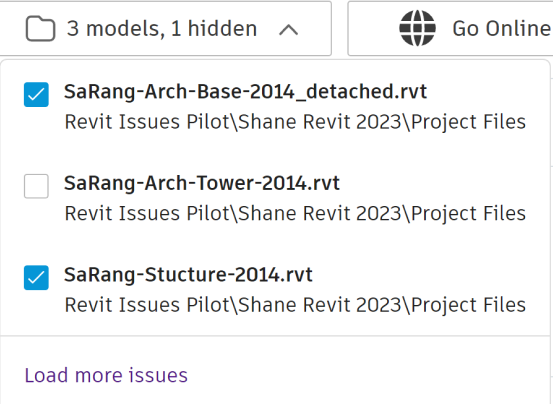
The issue list will be reloaded and issues will not be shown for hidden models.
The "Load more issues" button at the bottom of the list provides another way to access the Associated Models window.