Working with Materials
Use the Material Editor to create materials and convert them from one file type to another.
How to Create Materials
If you need a material for OpenGL, see the section to follow.
- In the Menu Bar, click Scene > Material Editor.
Click Create/Convert > Create Material.
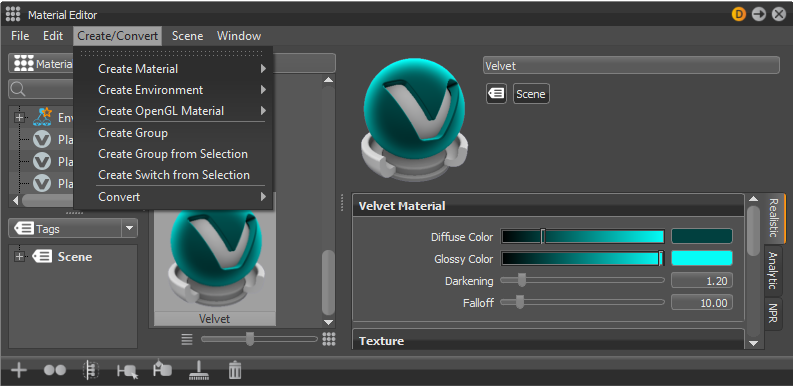
Select the material type you want. This create that material.
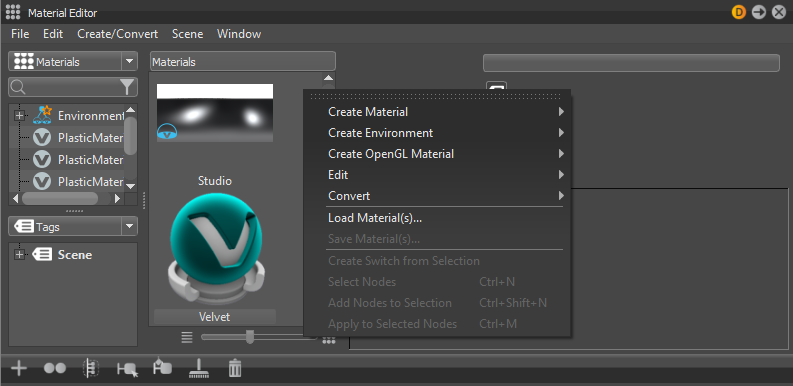
Note:Another way to create a material is to right-click in the Material Tree View, click Create Material, and select a material from the list.
How to Create OpenGL Materials
Create a material that will work in OpenGL.
- In the Menu Bar, click Scene > Material Editor.
- Click Create/Convert > Create OpenGL Material.
- Select the type you want. This creates an OpenGL material.
How to Make Material Selections Available for Python
Interact with the Material Editor to select one or more materials from the Material Editor list, then make that selection available for other operations in Python.
Use getSelectedMaterials() to return a list of vrMaterialPtr (material pointers).
How to Convert Materials
Convert one kind of material to another.
- In the Menu Bar, click Scene > Material Editor.
- Select a material in the Materials Preview Pane.
- Click Create/Convert > Convert.
- Select the type of material to convert to. This converts the material.
How to Toggle an Interactive Material Preview
In the Menu Bar, select Visualization > Interactive Material Preview. When enabled, dragging a material (without dropping it) over an object provides a preview of how the object would look with the material applied.
How to Preview and Apply a Material
Ensure Interactive Material Preview is enabled.
- In the Menu Bar, click Scene > Material Editor.
- Drag (without dropping) a material from the Material Editor over any object in the scene. This provides a preview of what the object will look like with the chosen material.
Do one of the following:
- If you decide you do not like the material choice, without releasing the mouse, drag it back to the Material Editor and no change is made.
- If you decide you like the material choice, release the mouse.
How to Edit a Material
Use the material parameters to make changes to a material.
- In the Menu Bar, click Scene > Material Editor.
Select a material from the Material Preview Pane.
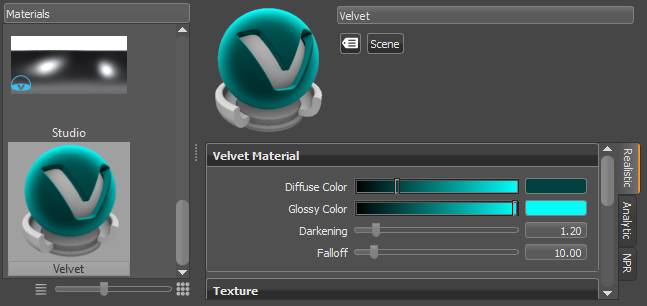
In the pane to the right, use the parameters to make changes to the material color, texture, incandescence, transparency, displacement, raytracing, and more.