VR Menu
Use the VRED VR Menu to access tools when wearing an HMD.
About the VR Menu
For participants in VR, click the VR Menu controller button to display the VR Menu. It houses an assortment of desktop tools, making them accessible while in VR.

Along the top of the Home Panel are icons and names of all collaboration session participants. To disable this feature, use the Python command, vrImmersiveUiService.setHideParticipantsVRPanel(true).
The current file name and time are found along the bottom.
For collaboration session participants not wearing an HMD, all tools accessed through the VR Menu are accessible in the VRED desktop UI.
The panel contains the following options:
Variant Sets
Opens the Variant Sets (VSets) panel to access all variant sets created for the scene. Any variant sets set in a scene are automatically loaded into the Variant Sets panel of the VR Menu.
Viewpoints
Opens the Viewpoints panel to access all viewpoints created for the scene. Any viewpoints set in a scene are automatically loaded into the Viewpoints panel of the VR Menu.
Controller/Hand
Switches between displaying the controllers or hands. To do this another way, see How to Switch Between Hands and Controllers
To set the displayed default, see Default Visualization*.
Hand Poses Only
Toggles between using the pointer or hand gestures for communication. When enabled, you can point, give a thumbs up or down, make a fist, punch, or open your hand. It also disables all tools mapped to these button, with the exception of the VR Menu button. Use hand poses to interact with touch sensors and communicate with others, while in a session.
Teleport Ground
Sets the teleporting ground mode to either On Geometry or On Ground Plane. When Teleport Ground is enabled, teleport around the scene or into spaces, such as inside a car. When disabled, teleport onto geometry in the scene. To set a teleporting Ground Mode preference, see Virtual Reality Preferences.
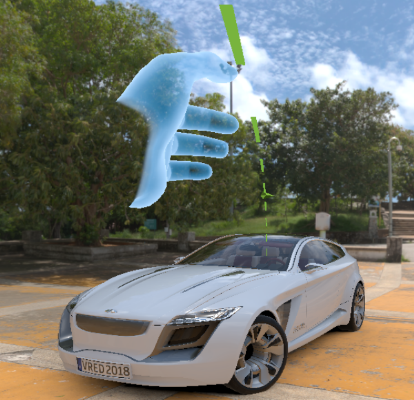
Calibrate Ground
Provides a way to set where the ground plane is. When working with a model not created at the origin, participants will need to calibrate the ground to match that of the model.
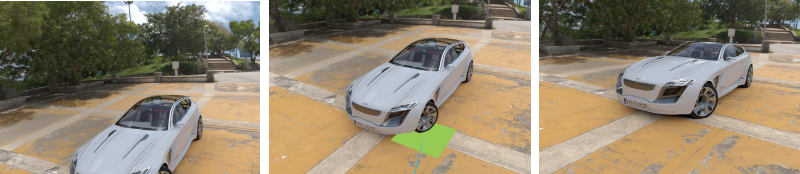
Share Pointer
(Only available for VR Room participants) Changes whether other participants see or do not see your pointer. The default state is for it to be seen by others, enabled. For you, your pointer will be visible, whether this option is activated or not.
Since the pointer is meant to draw participants' attention to things during a collaboration session, when activating touch sensors or WebEngines, disable Share Pointer. Enable Share Pointer again when you need to get the others' attention.
Python-created tools can also be added to the VR Menu. These tools display this icon  in the upper right corner.

How to Access Tools
To access any of these tools, either tap with your virtual hand or use the pointer. For how to use these tools, see the following:
- How to Switch Between Hands and Controllers
- For Left-handed Users
- Using Hand Poses
- How to Use the Pointer
- How to Calibrate the Ground Level
To exit a panel and return to the previous one, press the X in the top right.
How to Scroll Through Lists
There are two ways to scroll through lists in the VR Menu.
Click and drag a scroll bar up or down.
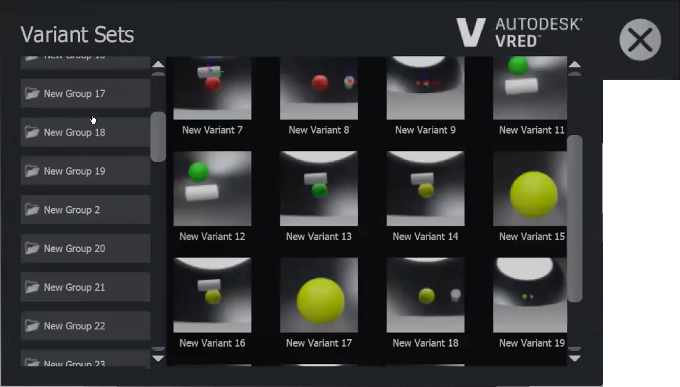
Press the trigger and move the controller up or down to scroll through lists of options.
Pressing and releasing the trigger will select the highlighted option.
How to Add Functionality to the VR Menu
Use Python add functionality to the VR Menu, such as web content and access to VRED modules.
- To see sample Python functions for adding functionality, select File > Open Example > vr > customMenuButton.py and click Open.
Select Edit > Script Editor to open the editor and take a look at the code.

Select Help > Python Documentation to refer to the Python documentation for details on these functions.
For more information on how to create VR menu entries with Python, see Creating VR Menu Entries.
How to Hide Options in the VR Menu
If there are options you do or don't want displayed in the VR Menu, use Scripts > VR Menu to toggle them on or off.
In the menu bar, select Scripts > VR Menu, then either check an option to display it or uncheck it to hide it.

How to Remove Variant Sets from the VR Menu
There are two ways to do this:
To turn off the display of Variant Sets in the VR Menu from the desktop, select Scripts > VR Menu > Variant Sets, then remove the check next to it.
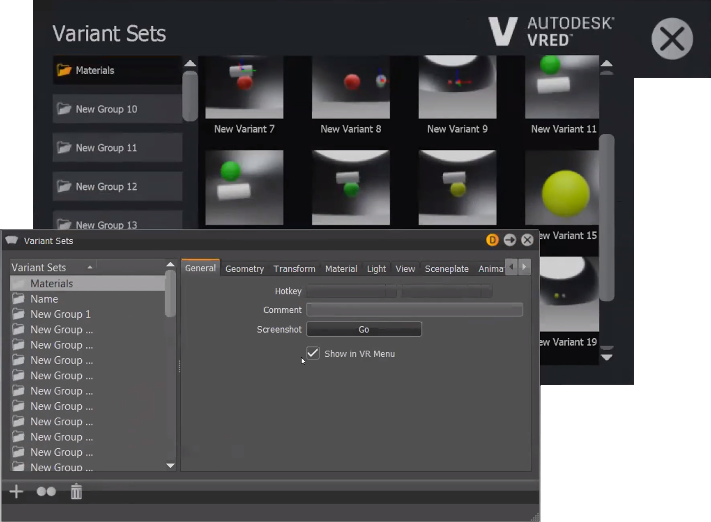
To remove Variant Sets from the VR Menu while in VR, so they cannot be seen in VR, use the Variant Sets module.
- In the Variant Sets module, select the Variant Set groups to be removed from the left side.
In the General tab, uncheck Show in VR Menu. This removes all the selected Variant Sets from the VR Menu.

How to Display Hidden Variant Sets
To display hidden variant sets groups in the VR Menu, select the variant sets group along the left of the VR Menu, then in the Variant Sets module General tab, check Show in VR Menu.
How to Remove and Display Single Variant Sets
To remove single variant sets from a group, in the Variant Sets module, select the individual variant set, then uncheck Show in VR Menu.

To display a hidden variant set, select it, then in the General tab, check Show in VR Menu.
How to Start the VR Experience at a Certain Position in a Scene
VRED starts in a VR mode that uses the current camera position. The camera height is set to the ground.
Setting a Floor Detection Mode
VRED supports these two floor detection modes for teleporting:
On Ground Plane - VRED uses a ground level and always positions the user at this height. The level can be set with Calibrate Ground in the VR Menu tool.
On Geometry - VRED looks for geometry at the target of a teleport action. If geometry is found, the user is places on top of this geometry.
Click Teleport Ground to toggle between these modes.
Setting Viewpoint Position
Viewpoint adjustment modes are used to set viewpoint positions in relation to the position of the current HMD. For example, if you look directly at a viewport, independent from the current HMD position, orientation, and height, all modes should be set to True.
| Mode | True | False |
|---|---|---|
| Adjust Height | Height will be Viewpoint Height - HMD height | Height will be floor height |
| Adjust Orientation | Orientation will be Viewpoint Orientation - HMD orientaiton | Orientation will be viewpoint orientation |
| Adjust Position | Position will be Viewpoint Position - HMD position | Position will be viewpoint position |