In this exercise, you will assign levels to the feature lines you created from AutoCAD lines in the previous exercise.
This exercise continues from Exercise 1: Creating Feature Lines.
Edit feature line levels
- Click tab
 panel Find.
- Click the feature line that stretches from circles C, D, E, to F.
In the Grading Level Editor, you see the length of each segment and levels at each vertex. Notice that as you specified in Exercise 1: Creating Feature Lines, the level of the first point is 688.000 and the level of the last point matches the level of the surface. The level values of the two intermediate points are automatically interpolated based on the beginning and end-point values. You can use this table to edit the level and gradient values. Now you will assign level values to line AB.
- Click
 , and then click the feature line between circles A and B. The Grading Level Editor now displays the levels along the feature line between circles A and B.
- Double-click the level value for the starting chainage (0+00.00), and change it to 630.00’. This value puts it a few feet below the surface. Change the level of the end point to 690.00’.
In the next few steps, you will insert an level point on the feature line.
This exercise uses Grading-2.dwg with the modifications you made in the previous exercise.
Insert an level point on a feature line
- In the Grading Level Editor, click
 (Insert Level Point).
On feature line AB, you see a small circle and a tooltip that shows the chainage value and level of the point. You can use the cursor to move this point to a new location.
- Move the point to a location near the middle of the feature line, then click.
- In the Insert VIP dialog box, optionally move the level point to a specific chainage. Click OK.
The point is added to the table in the Grading Level Editor, where you can edit the chainage, level, gradient, and length (distance between points).
- Click feature line AB.
Editing grips are displayed for the endpoints and level point. You can click the level point and slide it along the feature line. You can also click one of the endpoints and move it to a new location. When you do any grip editing, values in the Grading Level Editor update.
- Move the cursor over the surface near the level point to see the surface level displayed.
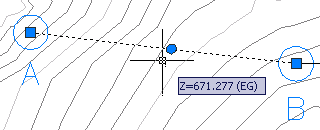
- In the Grading Level Editor, set the level point to an level that is at or below the surrounding surface.
In the next few steps, you will drape feature line BC across the existing ground surface. This command assigns an level to each vertex of the feature line.
Drape a feature line on a surface
- If necessary, press Esc once or twice to deselect feature line AB.
- Click tab panel Find.
- In the Set Levels From Surface dialog box,
ensure that Insert Intermediate Gradient Break Points is selected and that Relative Level To Surface is cleared. click OK.
Note: For more information about using the Relative Level To Surface option to make a feature line relative to and dynamic to a surface, see About Feature Lines That Are Relative to Surfaces.
- Click feature line BC, then right-click and click Enter to end the command.
- Click feature line BC again. An level point has been added wherever the line crosses the edge of a triangle in the TIN surface.
- Right click and click .
The Level Editor displays data for each level point along feature line BC, including its level, and the distance and gradient to the next point. A feature line on the surface like this can be a useful starting point for a grading. You can use controls along the top of the Grading Level Editor to add and delete level points, and to adjust their levels. You can select multiple points within the table for group operations, such as raising or lowering them the same amount, or “flattening” their levels to the same value.
- Click
 to close the Grading Level Editor.
To continue this tutorial, go to Exercise 3: Creating a Grading.