 On the General panel of the Preference Settings dialog, you set options for the user interface and for interactivity.
Procedures
To set and toggle spinner snap:
- Do one of the following:
- Choose Customize menu
 Customization Preferences Preference Settings dialog General tab.
- On the main toolbar, right-click Spinner Snap Toggle.
Either method open the Preferences dialog to the General panel. The two controls for spinner snap are in the Spinners group on this panel.
- Choose Customize menu
- Enter a value in the Snap field.
- Turn on Use Snap and click OK.
When you exit the dialog, spinner snap is on.
- As you work, use the Spinner Snap Toggle button to toggle the use of this setting.
To set the Undo level:
- Choose Customize menu Customization Preferences Preference Settings dialog General panel.
- In the Scene Undo group, change the value of Levels.
The higher the value of Undo Levels, the more system resources are required. The default value is 20.
Interface
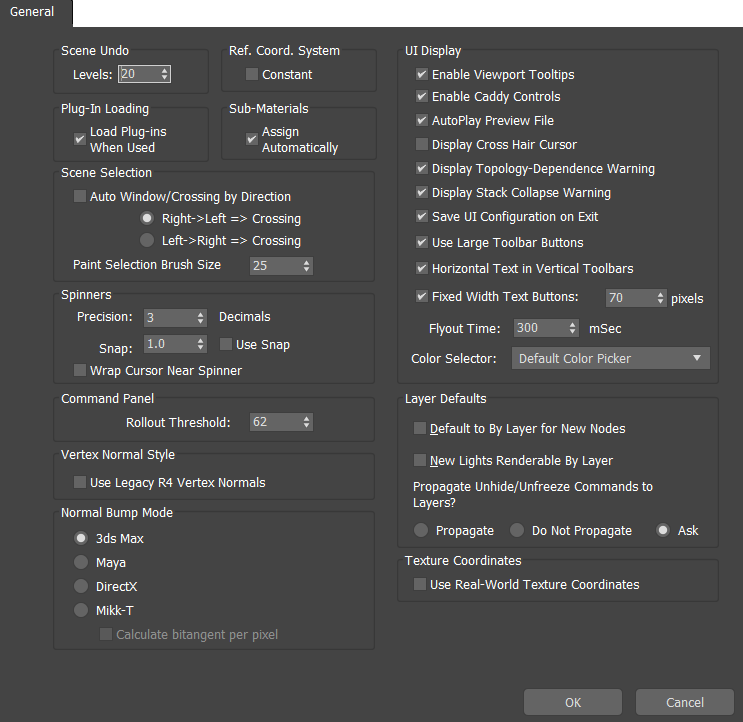
Scene Undo group
- Levels
- Sets the number of operations you can undo.
Ref[erence] Coord[inate] System group
- Constant
- Sets one coordinate system and transform center for Move, Rotate, and Scale on the Main toolbar. The coordinate system displayed in the
coordinate dropdown list, and the transform center selected from the
Use Center flyout, are used for all transforms.
Normally, each transform switches to the coordinate system and transform center used the last time the transform was active.
Plug-In Loading group
- Load Plug-Ins When Used
- When on, loads plug-ins on demand, as they are needed.
Sub-Materials group
- Assign Automatically
- Enables the automatic creation of a Multi/Sub-Object material when you assign a material to a selection of face sub-objects in an editable object. Default=on.
When on, the assigned material becomes part of the new Multi/Sub-Object material, and is assigned to the face selection. When off, the assigned material is assigned to the entire object.
Note: If the face selection comprises faces with different material IDs, assigning a material to the selection with Assign Automatically enabled results in 3ds Max assigning the first unused material ID to all selected faces, thus changing their IDs.
Scene Selection group
- Auto Window/Crossing by Direction
- When on, the direction that you drag a selection area determines whether it is a
window or crossing selection. This works for any selection area (rectangle, circle, fence, or lasso).
You can select which direction causes a window selection and which causes a crossing selection in the Scene Selection group. When you drag a window selection, the selection region is displayed with a solid line; when you drag a crossing selection, the selection region is displayed with dashed lines.
- Right-> Left => Crossing When you drag a selection region from right to left, it is a crossing selection. Conversely, when you drag left to right, it is a window selection.
- Left-> Right => Crossing When you drag a selection region from left to right, it is a crossing selection. Conversely, when you drag right to left, it is a window selection.
- Paint Selection Brush Size
-
Sets the size of the brush used by Paint Selection Region.
Spinners group
- Precision
- Sets the number of decimal places displayed in a spinner edit field. Range= 0–10 (where 0 is no decimal places).
- Snap
- Sets the click increment and decrement values for all of the spinners in 3ds Max.
- Use Snap
- Toggles spinner snap on and off.
- Wrap Cursor Near Spinner
- Limits cursor wrapping to an area close to the spinner when you drag to adjust spinner value.
Command Panel group
- Rollout Threshold
- The number of pixels in a rollout that should be scrollable in the command panel before the rollout is shifted into a separate command panel column.
This option is applicable only when the command panel displays multiple columns.
Vertex Normal Style group
- Use Legacy R4 Vertex Normals
- Earlier versions of 3ds Max used a less accurate method of computing vertex normals. To use the method from versions R1 to R4 of 3ds Max, for compatible display of early scene files, turn on this checkbox.
Normal Bump Mode group
These options choose how to display and render Normal Bump maps in Nitrous viewports and Quicksilver renderings.
The Normal Bump Mode choice does not affect how Render to Texture bakes normal maps.
- 3ds Max Mode (The default.) Choose this for compatibility with normal maps baked by the
Render to Texture tool.
In this mode, the vertex tangent and binormal (bitangent) are perpendicular to the face normal. The face normal is always perpendicular to the triangle face. During pixel shading, the tangent and binormal interpolated from triangle vertices are used in the normal bump calculation.
- Maya Mode Choose this for compatibility with normal maps baked by Autodesk Maya.
In this mode, the vertex tangent and binormal are perpendicular to the vertex normal. Vertex normals take their smoothing group into account. During pixel shading, the tangent and binormal interpolated from triangle vertices are orthogonalized against the normal before the normal bump calculation.
- DirectX Mode Choose this for compatibility with the DirectX SDK.
In this mode, the vertex tangent and binormal are perpendicular to the vertex normal. During pixel shading, the tangent and binormal interpolated from triangle vertices are used in the normal bump calculation.
For more information, see the 3ds Max SDK Programmer's Guide
3ds Max SDK Features Rendering Texture Maps Bump Mapping Tangents And Bitangents Generation section.
 Mikk-T Choose this this option if you want to render or bake normal maps to be compatible with Mikk-T in 3dsMax.
- Calculate bitangent per pixel Enable this option when rendering to sync with another application from which the normal map was baked, or when baking to sync with another application where the baked normal map will be used.
UI Display group
- Enable Viewport Tooltips
- When on, and not at a sub-object level, this function displays a tooltip when the cursor pauses over a non-selected object in the viewport.
- Enable Caddy Controls
- When on, certain Editable Poly settings use the caddy interface, as described in Editable Poly Settings. When off, the settings use a standard dialog interface.
- AutoPlay Preview File
- Starts the Media Player automatically at the end of a Make Preview.
- Display Cross Hair Cursor
- Displays the mouse cursor as full-viewport cross hairs, vertical and horizontal lines extending the full extent of the active viewport.
Each movement of the mouse is redrawn, so the cross hairs are relatively slow. If you want to create a keyboard shortcut, find Cross Hair Cursor toggle in Customize menu
Customize User Interface Keyboard panel and specify the keys to use for the shortcut. To change the color of the cross-hairs cursor, go to Customize menu Customize User Interface Colors panel Viewports Cross Hair Cursor and use the color selector to change the cursor color.
- Display Topology Dependence Warning
- Toggles the topology dependence warning. This warning appears when you choose to edit a modifier or the base object at the bottom of the modifier stack of an object with modifiers and sub-object selections. The warning occurs because this action can affect the object topology adversely. You can also turn off the warning on the warning dialog. Default=on.
- Display Stack Collapse Warning
- Toggles the stack collapse warning, which appears if you choose to collapse the modifier stack. You can also turn off the warning on the warning dialog. Default=on.
- Save UI Configuration on Exit
- Restores panels and toolbars to the positions they were in the last time you used 3ds Max. Turn off this switch to restore panels to the state they were in before turning on this option.
- Use Large Toolbar Buttons
- Toggles between large and small toolbar buttons.
- Horizontal Text in Vertical Toolbar
- Ensures that text buttons are displayed horizontally.
If you create a vertical custom toolbar that uses text rather than image buttons, you can use this option to display either horizontal or vertical text.
- Fixed Width Text Buttons
- Specifies the maximum width of text buttons.
To use this feature, turn on the Horizontal Text In Vertical Toolbar switch, turn on this option, and then set a maximum display size for the text button in pixels. For custom vertical toolbars with text buttons, this option limits the size of the text display.
- Flyout Time
- Sets the pause, in milliseconds, between the mouse click and the flyout popping up from the button. Increase this setting only if you need an extra-long delay. Don't decrease the setting much or you might not be able to execute button commands before the flyout takes over.
- Color Selector drop-down list
- Choose the default color selector, or a third-party plug-in color selector in the list. The color selector you choose here is used throughout 3ds Max whenever you specify a color.
Layer Defaults group
- Default to By Layer for New Nodes
- When on, 3ds Max sets rendering, motion blur, display, and advanced lighting properties for all new objects to By Layer.
- New Lights Renderable By Layer
- When on and you create a light,
3ds Max gets its
Object Properties Renderable setting from the properties of the active layer.
- Propagate Unhide/Unfreeze Commands to Layers?
- When you unhide or unfreeze an object on a hidden or frozen layer, this choice determines whether the command affects the object or its layer.
- Propagate Unhiding or unfreezing an object in a layer unhides or unfreezes the layer.
- Do Not Propagate Unhiding or unfreezing an object in a hidden or frozen layer affects only the object.
- Ask When this option is active and you unhide or unfreeze objects, a dialog appears asking if you want to apply the operation to the associated layers. If you do, the associated layers are unhidden or unfrozen. Otherwise the operation is applied only to the specified objects.
Texture Coordinates group
- Use Real-World Texture Coordinates
- Controls whether
real-world texture coordinates are active or if the legacy method of applying texture coordinates is in use. When off, texture-coordinate behavior reverts to the legacy method and texture tile values have a default value of 1, and Real-World Map Size for primitives is off. Default = off.
When Use Real-World Texture Coordinates is on, the Use Real-World Scale (for 2D maps) and Real-World Map Size options are also on. Real-World Map Size is available for objects such as primitives and modifiers such as UVW Map.