Transform > Transform

Displays a multi-transform manipulator for moving, scaling, and rotating selected objects or object components.
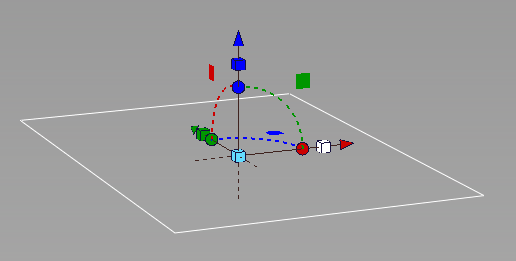
Universal Transform Options
Deselect Move, Scale, Rotate or Planar Move to remove them from the manipulator.
Move, Scale, Rotate, Planar Move
Deselect an option to remove it from the manipulator.
Mode
Pivot
Places the selected object or component pivot point. This is the default mode.
Global

Places the manipulator at the center point of the selected object or at a point that is the averaged distance between selected components.
In Global mode, the manipulator has two states: Adjustment Manipulator and Transform. The Adjustment Manipulator state lets you change the manipulator location and orientation. For example, if you click a subdivision face, the manipulator moves to the face and changes it orientation with respect to the face. In the Transform state, you can transform any selected components from the manipulators location and its orientation.
Use the Spacebar or click the Adjust Manipulator and Transform buttons in the viewport to toggle between the states.
| To... | Do this |
|---|---|
| Move the selection along an axis. | Drag an arrow. |
| Move the selection freely. | Click an arrow, then drag the star at the center of the manipulator. |
| Scale the object along an axis. | Drag a cube. |
| To scale the object uniformly. | Click a cube, then drag the cube. at the center of the manipulator. |
| To rotate the object around an axis. | Drag a sphere or arc. |
| To rotate the object freely. | Click a sphere, then drag the sphere at the center of the manipulator. |
Move a selection in the planar space of an axis. | Click a square and drag. |