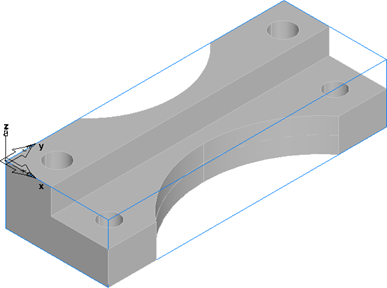
This step shows you how to import a solid model into FeatureCAM.
To import the solid model:
- Open a Milling document.
- If the Dimensions dialog is displayed, click Cancel to close it.
- Click File > Import to display the Import dialog.
- Navigate to the \FeatureCAM\Examples\FeatureRECOGNITION folder.
- Select the
Integrex.sat file and click
Open.
The Import Results dialog is displayed.
- Select Use the wizard to establish the initial setup location and stock size.
- Click
Next.
The Pick Initial Setup Z Direction page is displayed.
- Click
Next.
The Pick Initial Setup X Orientation page is displayed.
- Click
Next.
The Stock Type page is displayed.
- Select
Block and click
Next.
The Stock Dimensions page is displayed.
- Select
Compute stock size from the size of the part and click
Next.
The Pick Initial Setup XYZ Location page is displayed.
- Click
 LL.
LL.
This locates the Setup (the part's coordinate system origin on the machine) in the lower-left corner of the stock.
- Click
Finish to close the Import wizard.
The part is imported into the document.
- Click View tab > Views panel > Isometric Views menu > Isometric 2 to select an isometric view.