When you open the Text tool, the default font is loaded and ready to use. When you choose a different font, it becomes the current font and all text you type appears in the current font. If you edit text that has a different font, the current font is replaced by the font of the text at the cursor position. For example, if you are working with Carta font and you edit text that uses Helvetica, Helvetica becomes the current font and all subsequent text you type appears in Helvetica.
Specify the default font in the tab of the Preferences menu.
Additional fonts can be installed.
To change the current font:
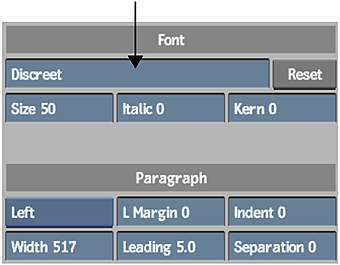
- In the Font section of the Text menu, click the Font field to open the font library.
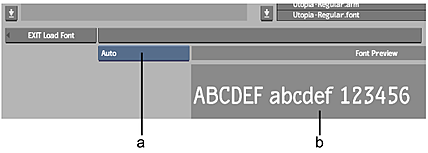
(a) Font Type box (b) Font Preview window
- In the Font Type box, select a font type.
Type Description Type 1 A single-byte font type designed for Roman language fonts. Soft-links to the Adobe® Postscript® Type 1 fonts installed with the system or supplied by Autodesk are contained in /opt/Autodesk/font directory. CID A multi-byte adaptation of Adobe Postscript Type 1 fonts, well-suited to representing the large character sets of Asian languages such as Japanese, Korean and Chinese. TrueType A widely used cross-platform font format. OpenType® A font developed by Adobe and Microsoft® that supports expanded character sets and layouts. Auto Displays all font types, detecting the type automatically. - In the file browser, navigate to the directory that contains the font to load.
- To preview a font, do one of the following:
- Select a font to see it with sample text in the Font Preview window. The sample text can be the text you selected in the text layer, or text that you enter by clicking the Font Preview window to display the on-screen keyboard.
- In the Proxies/Titles box, select Proxies to preview fonts. If no proxy appears, click Generate Proxies to generate a font proxy. This process may take a while, but once you create the proxies, the settings are retained. Each time you return to the font library, you can toggle between viewing font titles and font proxies by selecting Proxies or Titles.
- Select the font.
- Click Load. The Text menu reappears with the name of the new font in the Font field.
Accessing OTF Fonts
To access symbols of the OTF font type, access the on-screen keyboard, enable the Symbols button (in the lower right of the keyboard), then use the arrow keys to browse through the pages of symbols. When entering non-Latin text characters, consult your operating system documentation to install and access the required input method packages.
Pasting Text from an External Source
You can copy text from a terminal or another application and paste it directly in a text layer. To paste text to the Text tool:
- In the Text tool, create a layer for the text you want to paste.
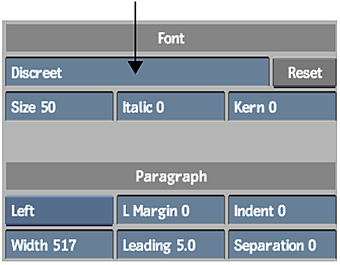
- Click the Font field and select a font.
- Stitch to the other application and copy the text.
- In the Text tool, paste the text in a text layer (using the default system shortcut for Paste).