Viewing Reference Images
While creating Log to Lin conversion LUTs, it is important to view reference images. For example, view other shots in the cut to ensure continuity.
You can also view a frame from the shot you are working on to see how it looked on film. To do so, save a reference image to a Grade bin in Log mode, and then load it to the frame buffer in Linear mode. For information on saving shots to a Grade bin, see Using Grade Bins.
When you view reference images, you can switch between the reference image and the current shot, or you can view them both simultaneously.
To switch between a reference image and the shot you are working on:
Load the reference image to the frame buffer by doing one of the following:
- Go to the frame you want to use in the Storyboard and then press K to load it to the frame buffer.
- Right-click a Grade bin thumbnail.
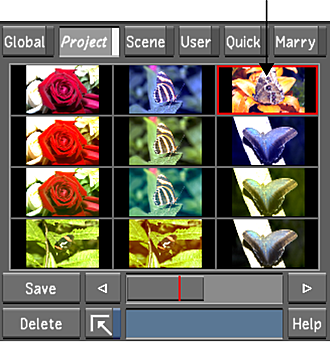
In the Storyboard, select the shot you are working on.
The shot appears in the Player.
To toggle between the reference image and the shot you are working on, press L.
To display the reference image and the current shot simultaneously:
Assign the shot you want to work on to Playhead A. Press F1 or select A from the Playhead button, and then select the shot in the Storyboard.
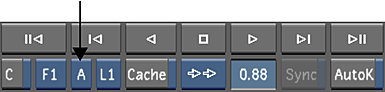
Press F2 or select B from the Playhead button.
The shot assigned to Playhead B appears.
Load the reference image to the frame buffer by doing one of the following:
- Press K to load the current frame in the Storyboard to the frame buffer.
- Right-click a Grade bin thumbnail.
Press L or click S to assign the reference image to Playhead B.
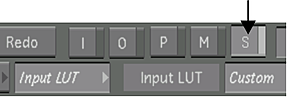
The reference image appears in the Player. At any time, press L to toggle between the original shot (O button) assigned to Playhead B and the reference image (S button).
Tip:If you want to use a shot from the Storyboard for reference, you can use the shot assigned to Playhead B. In this case, you do not need to load a reference image to the frame buffer.Press F4 to enable Dual View.
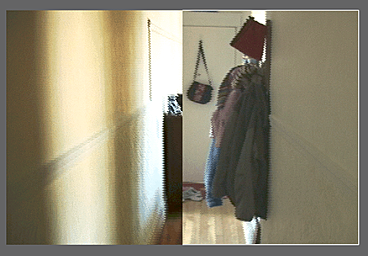
Press F4 until you display Horizontal Wipe or Vertical Wipe mode.
The images assigned to Playhead A and Playhead B are displayed. Playhead A is currently selected and displays the shot you are working on. Playhead B displays the reference image.
Tip:Press F4 until you are in 2-up node to view your reference image (Playhead B) and the shot you are working on (Playhead A) in separate viewers.To work on the shot you assigned to Playhead A, press F1 or select A from the Playhead button.
The shot you are working on is selected. You can move back and forth between the shots in Playhead A and Playhead B by pressing F1 and F2 respectively.