Display pushpins in your model to identify when issues are.
When working with Revit Issues add-in, select Display pishpins
 to highlight the area in your model related to the issue.
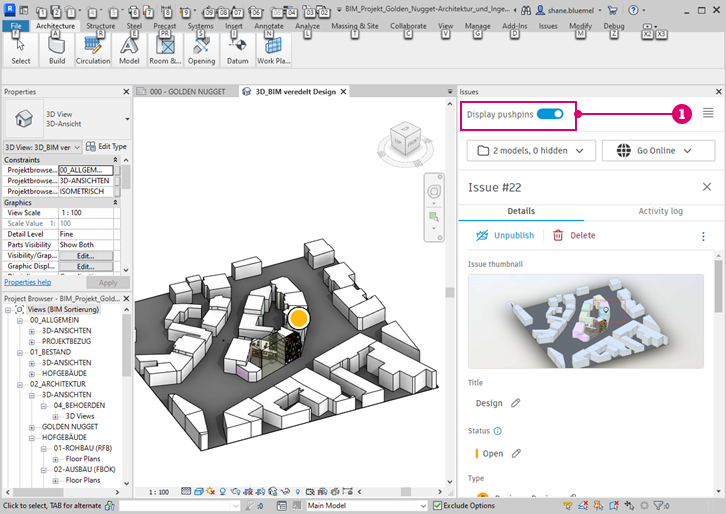
to highlight the area in your model related to the issue.
Pushpins are visible for 3D issues and drawing sheets. 2D issues are not visible.
Pushpins may not be visible for the following reasons:
- View has not been published or uploaded to Docs. - To display issues in Revit, views or files need to be uploaded to Docs. Ensure that the file opened in Revit has been accessed either from Autodesk Docs or from a Desktop Connector file path.
- View is a 2D view or sheet published to BIM 360. - Pushpin display is not supported for 2D views or sheets opened from BIM 360 projects.
- View is a 2D view or sheet published to ACC. - Pushpin display is supported for Revit drawing sheets from version 5.2 onwards for ACC projects. Other 2D views (column schedules, legends, reports, plans, sections, drafting views and table views) are not supported.
- The file or view does not belong to a Revit RVT file. - Pushpins are only be displayed for Revit files. Pushpina are not displayed on other file types.
- The issue was created on a copy of the view or file in Docs. - Use the Associated Models window to load the issues from the copy of the file or view. For additional information see Working with Associated Models.
- The issue was created on another view as part of a clash result. - Use the Associated Models window to load the issues from the copy of the file or view. For additional information see Working with Associated Models.