Introduction
The Layout Options window may be accessed in any one of four ways:
- From the Layout Options button in the lower left corner of the main Project Explorer window, in order control the layout of content within the Project Explorer window.
- From the Edit Layout Style in the Create Quick Report dialog box, in order to control the layout and formatting of content of outgoing reports or spreadsheets.
- From the Edit Layout Style in the Create AutoCAD Table dialog box, in order to control the layout and formatting of content in outgoing AutoCAD tables.
- From the Edit Layout Style in the Create/Edit Object Set dialog box, in order to control the layout and formatting of content in outgoing reports, tables, or spreadsheets created from the Run Action button for Object Sets.
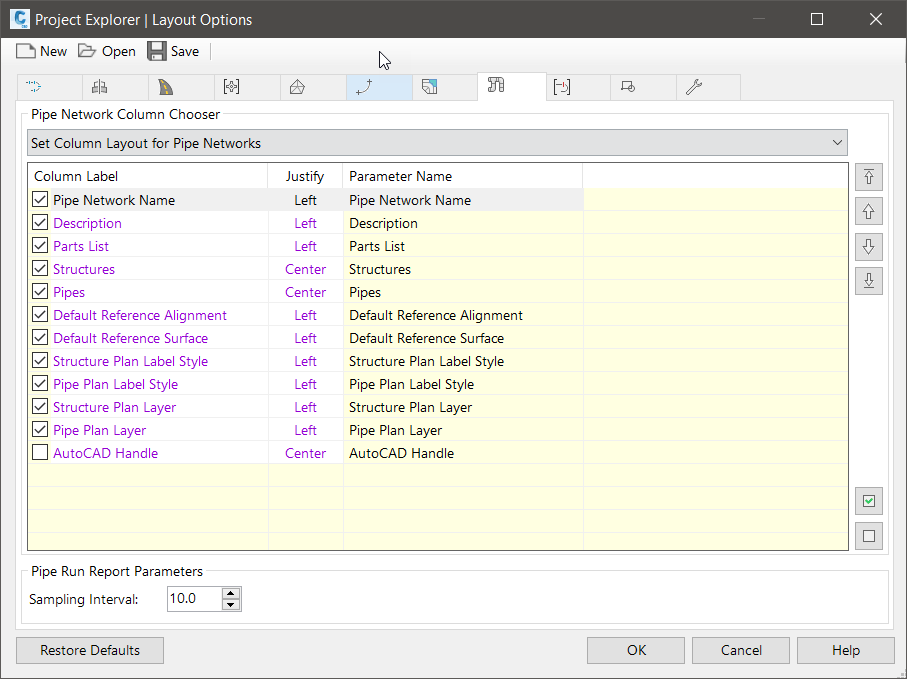
Layout Options determine the layout, format, heading name, and visibility of data columns and values in the Project Explorer user interface and in generated reports, spreadsheets, and AutoCAD tables.
Layout styles
Layout Options may be saved to Layout Styles (.xmpt), allowing custom layout settings to be easily saved and restored at any time or shared with colleagues.
Restore defaults
The Layout Options currently assigned to the main Project Explorer window can be reset to the default settings at any time by clicking the Restore Defaults button in the bottom left corner of the Layout Options window.