Work with reference images

In Create VR, you can add your design sketches to the environment to start your creative process. You can import PNG, JPG, and GIF image files into Create VR. Imported images get added to the active layer.
To use reference images in Create VR, you must first add them to the CreateVR\Assets directory.
For example:
C:\Users\Username\Documents\CreateVR\Assets
Adding reference images
When adding reference images, you can choose whether or not to anchor the image position in the environment. Unanchored images can be globally gripped, moved or scaled. This means they automatically scale and move with other objects in the scene, such as the model you are creating.
Anchored images can only be moved or scaled as a single object. They cannot be globally gripped, moved or scaled with other objects in the scene.
-
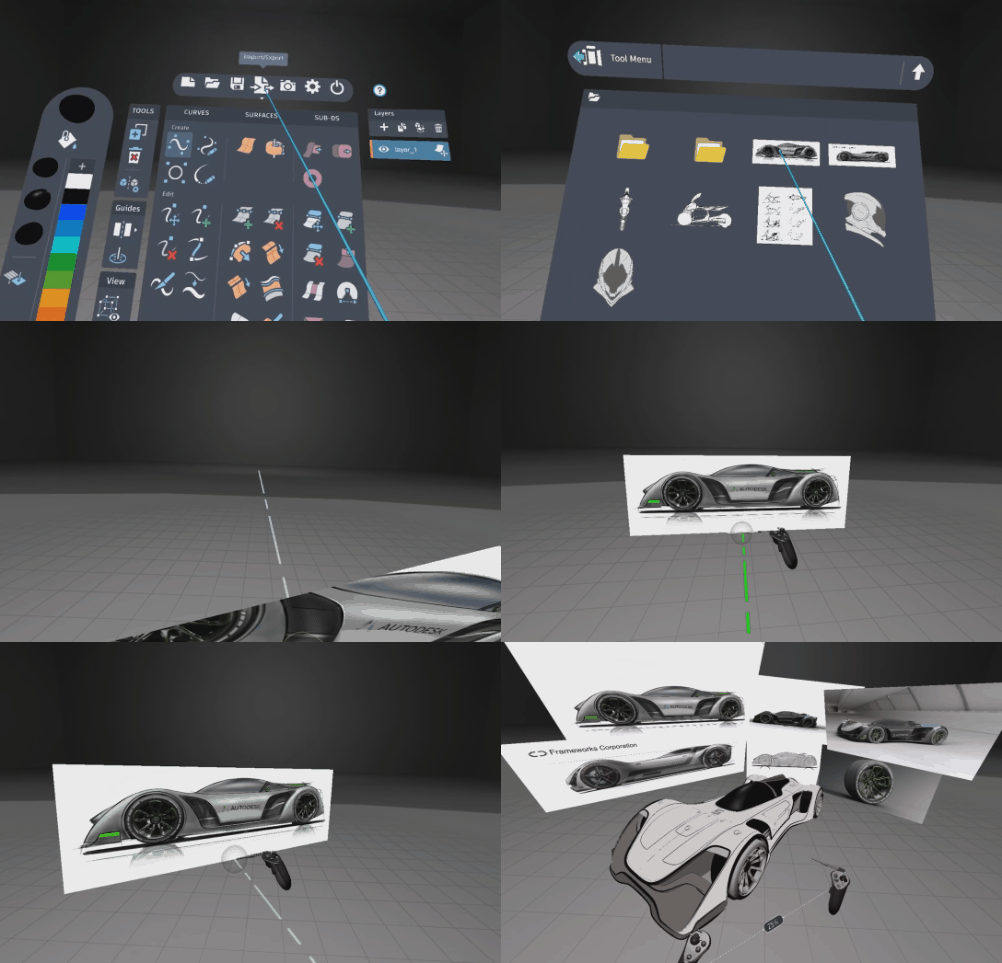
In the Tool Menu, pull the trigger on the Import Export icon
 , then select Import Image…
  .
. -
Browse to the CreateVR\Assets directory, and then pull the trigger on the image you want to import.
When you return to the scene, the selected image is attached to the Tool Hand stylus.
-
Place the image as an anchored image in the environment by doing one of the following:
-
Position the axis, and then pull the trigger.
-
To place it on a directional axis, position the image axis until it turns red (X axis) blue (Y axis), or green (Z axis), which indcates that axis is locked to a direction vector. Pull the trigger to complete.
Tip:When locking the axis to a direction vector, press left or right on the Tool Hand analog stick (Oculus) or D-pad (VIVE) to cycle through X, Y, or Z placement of the axis.
-
Snapping reference images to the symmetry plane

When you snap an image to the symmetry plane, it is not anchored to the world, and can be globally moved and scaled with other objects in the scene.
-
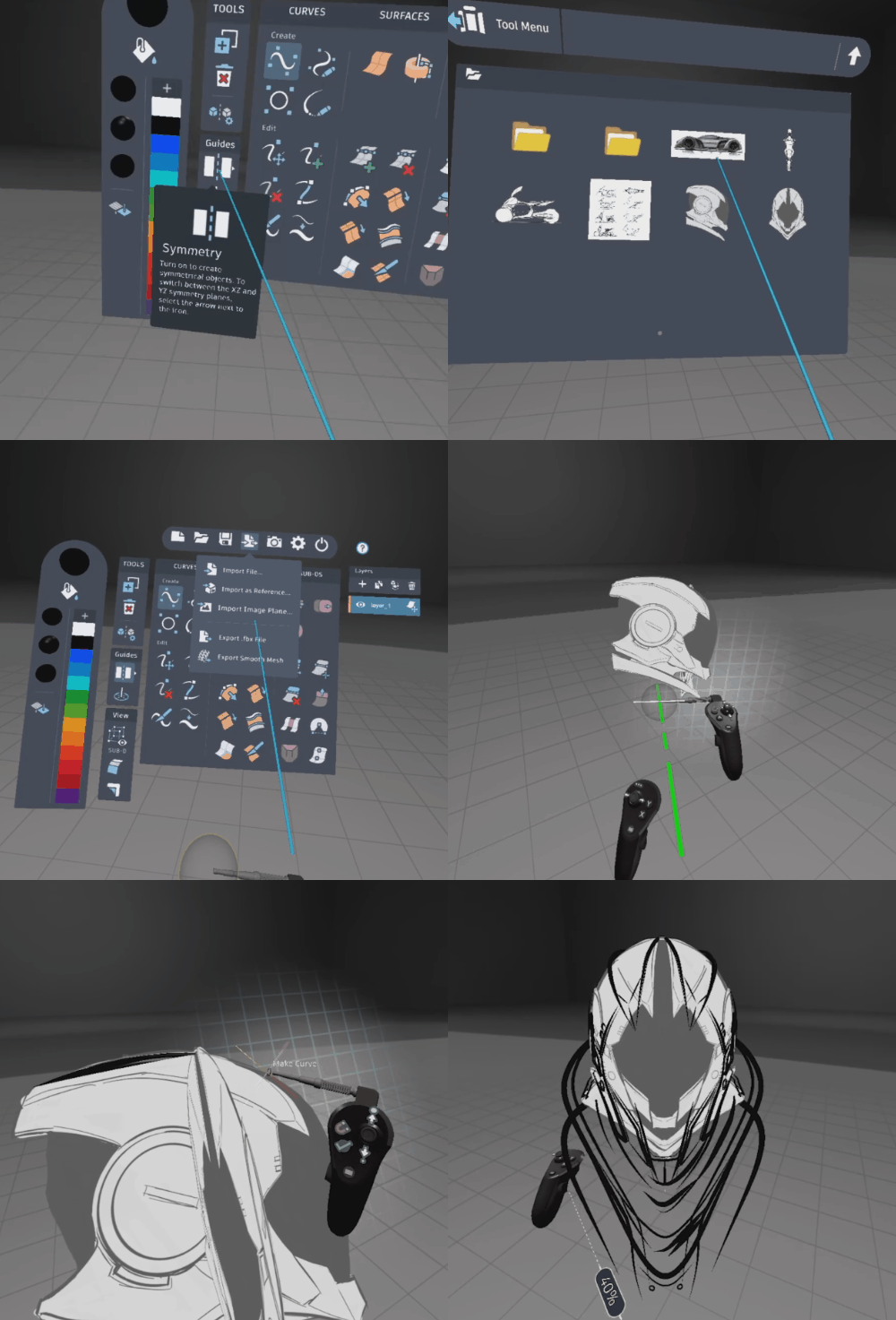
Open the menu and pull the trigger on the Symmetry Plane
 icon.
icon. -
In the Tool Menu, select the Import Export
icon, then select Import Image… . -
Browse to the CreateVR\Assets directory, and then pull the trigger on the image you want to import. When you return to the scene, the selected image is attached to the Tool Hand stylus.
You can also use the Tool Hand object grip to move an image that is already in the scene onto the Symmetry plane.
-
Bring the Tool Hand stylus close to the symmetry plane until the image snaps to the plane.
When snapped, a pink and orange cross-hair appears.
-
You can also snap the image to a direction vector. To do this position the axis until it turns red (X axis) blue (Y axis), or green (Z axis), which indicates that axis is locked to a direction vector.
-
Pull the trigger to place the image on the symmetry plane. It is now unanchored and can be globally moved and scaled with all objects in the scene.
Related Topics