Move the light around the shaded objects
The following diagnostic shaders let you unlink the light from the camera position: Multi-Color, Random Color, Horizontal/Vertical, and User Defined Texture.
When you choose one of these shading modes in the Diagnostic Shading window, and clear the Link Light to Camera option, a white sphere manipulator appears in the perspective window. Clicking and dragging this manipulator moves the light interactively around your model.
Azimuth and Elevation sliders also appear in the Diagnostic Shade control window, and update in synch with the manipulator. Use them to enter exact values, or for fine tuning.
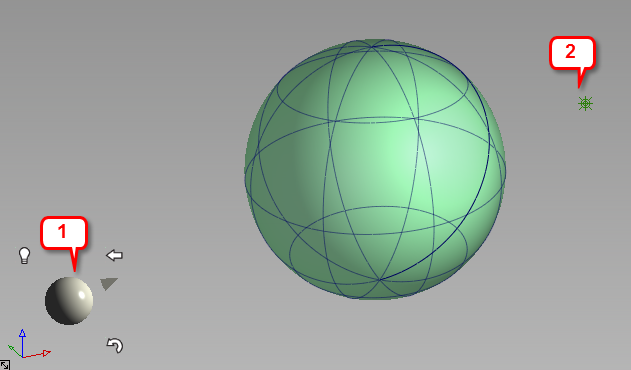
1: Light manipulator 2: Light icon
Use the light manipulator
Click and drag the manipulator.
- Dragging horizontally changes the azimuth of the light.
- Dragging vertically changes the elevation of the light.
A point light icon represents the light in your model. Depending on the position of the camera with respect to the light, the light icon is not always visible. The light icon is toggled off by default.
Click one of the three icons surrounding the manipulator to do the following:
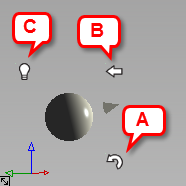
A. Curvy arrow: Reset the light to the camera position. Clicking this icon also sets the "home" view, as well as a new pivot location for the light to rotate around. The pivot location is the pivot point, if one exists, or tumble point otherwise.
B. Left pointing arrow: Reset the perspective view to the "home" orientation.
C. Light bulb: Toggle the light icon on and off. It is off by default.