This topic refers to the HTC VIVE controllers when describing how to use Alias VR tools. See Controller mapping for information about using these tool with HTC VIVE Cosmos, Oculus Rift and Windows Mixed Reality controllers.
Viewing a model in View in VR
To view a model in View in VR, follow these steps:
-
Connect your VR device to your computer and turn on your controllers.
-
Open your model in Alias.
-
Choose VR > View in Alias VR >
 .
. -
In the View in Alias VR window, configure your settings, and then click Go. Alias VR opens displaying your model.
-
Press the left and right touchpad buttons on the Navigation controller to rotate the view left or right. Each press rotates the view 15 degrees. Hold the button down for a slow rotation of the view.
For additional view and navigation options, press the Options button on either controller to access the VR environment menu.
Working with the VR environment menu
-
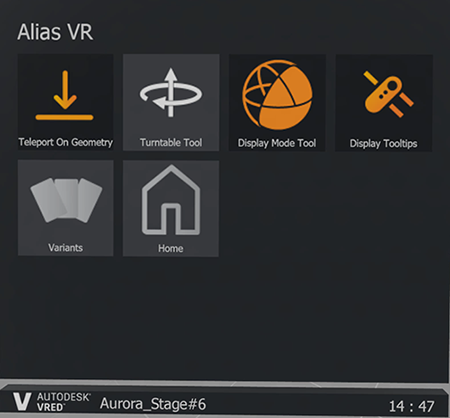
Toggle the display of the VR environment menu on and off by pressing the Options button on either controller. The menu displays attached to the controller you opened it with. Moving the controller moves the menu within the space.
-
To select a tool, aim a controller, then pull the trigger. The selected tool highlights in the menu indicating that it is selected.
VR environment menu options
-
Teleport On Geometry - Extends Teleport feature so that you can teleport on top of a model. For example, turn this on if you want to teleport on to the roof of a car model. Keep it off to teleport to the interior of a car model.
-
Turntable Tool - Enables the use of the secondary controller for the tool. Use the left and right touchpad buttons to start the turntable animation in the clockwise and counter clockwise direction respectively. To increase the turntable speed, press either button repeatedly or hold the it down. Pressing the middle touchpad button on the View Mode controller stops the turntable rotation and returns to its start position.
-
Display Mode - Enables the secondary controller's middle touchpad button to control switching of display modes.
-
Display Tooltips - Toggles the controller tooltips on and off.
Note:When using HTC VIVE Cosmos controllers, turning on the tooltips modifies the appearance of the controller so that the tooltips display correctly.
-
Variant - Opens the VR Variants lister.
-
Home - Returns the model view to the camera home position.
Navigate the environment using Teleport
You can use Teleport to navigate the space around your model. Use this to quickly view your model from different locations in the environment. If you want to teleport to a location that is on top of the model, enable Teleport On Geometry from the VR environment menu.
-
Press and hold the middle touchpad button on the Navigation control.
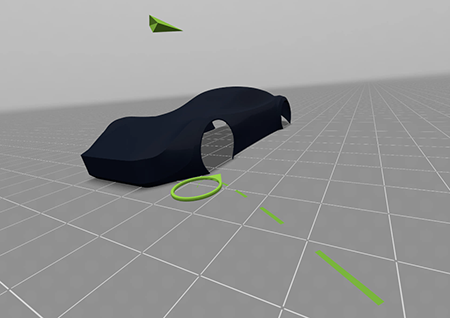
A green arc projects from the controller. The circle at the end of the arc indicates the location your view teleports to.
-
Move the Navigation controller to position the green circle to the desired location.
-
Release the button to complete the teleport. You now view the model from the new the location.
View variants of your model
In View in VR, you can view any variants of your model that you've created using the Variant Lister in Alias. The camera, shading, geometry, and layer visibility masks you applied to variants in Alias are respect when viewing the variants in View in VR.
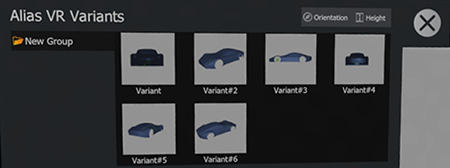
Camera Variants in VR automatically take the VR Device height for Z but will keep the X and Y values. This is to avoid uncomfortable VR experiences of flying high in the scene or appearing partly underground. You can force any Camera Variant's Z value inside VR by pressing Height in Alias VR Variants menu.
-
In the VR environment menu, select Variants. The Variant lister opens.
-
Click
 to apply the direction of the camera variant. This is on by default.
 -
To force the Z-axis height value, click
 .
For example, use this option if you configured a camera variant to view the interior of a car model. This is off by default.
.
For example, use this option if you configured a camera variant to view the interior of a car model. This is off by default. -
To view a variant, do one of the following:
- Aim the Navigation controller at a variant in the Variant menu, then pull and release the trigger.
- Use the View Mode controller to cycle through the variants in the selected variant group. Press the left touchpad button to view the previous variant and right touchpad button to view the next variant.
Switching model Display mode
You can view your models in these Display modes:
- Wireframe: Displays the wireframe model only.
- Shading: Displays the model with shading from the Multi-lister.
- Wireframe & Shading: Displays the wireframe model with shading from the Multi-lister.
- Zebra: Displays lines to indicate spots of the same brightness, similar to the Alias Isophote diagnostic shader. This is useful for checking continuity between surfaces.
- Multi Color: Assigns colors using the Alias Multi Color diagnostic shader. This is useful for detecting bumps, dents, or other surface irregularities. Note: The Multi Color display mode does not display edges in View in VR.
- Open the VR environment menu and select the Display Mode tool.
- Press the middle touchpad button on the View Mode controller to change the Display Mode.