Bifrost Graph Editor menu reference
The menu bar of the Bifrost Graph Editor contains various commands and options for editing and viewing graphs.
Create
New Graph
Creates a new graph on a separate tab.
Compound
Adds a compound to the graph. If nodes are selected, they are included in the compound and their connections to unselected nodes become ports on the compound. See Create and edit compounds.
Backdrop
Adds a backdrop to the graph. If nodes are selected, the backdrop surrounds them. Otherwise, the backdrop is created at the center of the graph. See Annotate and organize nodes with backdrops.
Input Node
Adds an input node to the graph or compound in the editor.
Output Node
Adds an output node to the graph or compound in the editor.
Publish "compound"
Publishes the selected compound. See Publish compounds.
Publish Graph
Publishes the entire graph so that it can appear in the Bifrost Browser. This command appears only when viewing the top level of the graph in the editor. See Publish effects as graphs.
Edit
Select Upstream
Selects all nodes that are connected directly or indirectly as inputs to the current selection.
Select Downstream
Selects all nodes whose inputs are connected directly or indirectly to the current selection.
Select Upstream and Downstream
Selects all nodes are connected directly or indirectly to the current selection in any way.
Connect Selected Nodes
Connects the first output of the first selected node to the first unconnected input of the second selected node. If more than two nodes are selected, the first output of the second selected node is connected to the first unconnected input of the third selected node, and so on. Existing connections are never replaced.
Make Compound Editable
Imports the definition of a referenced compound into the graph so that the compound can be modified internally.
Explode Compound
Unwraps the selected compound to expose its internal subgraph at the current level of the graph.
Parameter Editor
Toggles the display of the Parameter Editor.
Convert Graph
Converts between the two types of output from the graph: the default bifrostGraphShape and the older bifShape. See Convert between bifrostGraphShape and bifShape outputs.
Select Graph in Maya
Selects the current graph in the Maya scene.
Pause Graph Execution
Suspends the execution of the graph. This can be useful when editing large graphs that take a long time to compile and execute. See Pause graph compilation and execution.
Reset Feedback State
Clears the current state of feedback ports that have been cached to memory. This resets simulations that have been computed up to the current frame.
Resumable after Esc Termination
Allows playback of the current graph to be resumed after pressing the Esc key. To resume, step back one frame and then play the scene forward. You can turn this off to save memory with heavy simulations. See Terminate a simulation.
Display
Go Into Compound
Displays the internal subgraph of the selected compound in the editing pane.
Go Out Of Compound
Displays the graph at the next higher level.
Collapse Selected/Collapse All
Hides the individual input and output ports of the selected nodes. If no nodes are selected, this affects all nodes instead.
Partially Collapse Selected/Partially Collapse All
Hides the unconnected ports of the selected nodes. If no nodes are selected, this affects all nodes instead.
Expand Selected/Expand All
Shows all ports on the selected nodes. If no nodes are selected, this affects all nodes instead.
Show Names on Selected/Show Names on All
Displays the names above the selected nodes. If no nodes are selected, this affects all nodes instead.
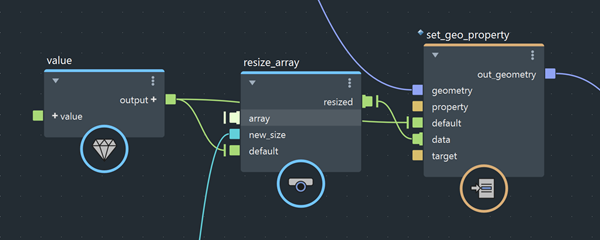
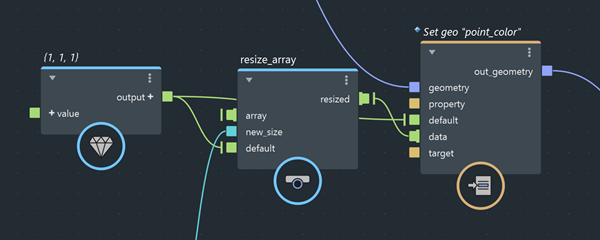
Show Values on Selected/Show Values on All
Displays the values above the selected nodes, if applicable. If no nodes are selected, this affects all nodes instead.
Values appear in italics to distinguish them from names.
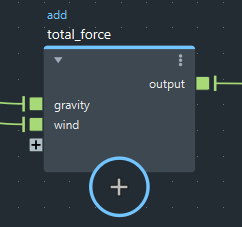
Show Node Types
Displays the types of nodes above the node names in the graph.
Auto-Layout Selected/Auto-Layout All
Rearranges the selected nodes based on their connections. If no nodes are selected, this affects all nodes instead.
Show Grid
Displays the grid in the editing pane.
Snap to Grid
Snaps nodes to the grid in the editing pane as you move them.
Options
Connection Style
Select a style for drawing connection lines.
Connect Nodes on Creation
If a node is selected when adding a new node, the output of the selected node gets connected to the input of the new node.
Copy Inputs on Paste
When pasting nodes, they are automatically connected to the same inputs as the originals.
Connect on Drop
When dragging a node onto a connection, it gets inserted between the connected nodes.
Highlight Connections on Selected
The connections on selected nodes are highlighted.
Help
Bifrost Help
Opens the Bifrost Help in your Web browser.
Bifrost Tutorials
Searches for Bifrost tutorials on the Area.
Bifrost Sample Graphs
Opens the Bifrost Browser.
Bifrost Community Hub
Opens the Bifrost Community Hub in your Web browser.
About Bifrost
Displays information about the running version of Bifrost.
Information Panel
Displays the Info panel that shows descriptions of nodes as you select them.